
Alt text is a short description of an image that screen readers read aloud, so people who can't see the image know what it shows. Available on Starter, Professional and Suite. Writing alt text with AI is available on Suite.
Add alt text to an image
- Open the social message or project that has the image attached.
- Click the image preview to expand it.
- Click Alt Text and type a short description.
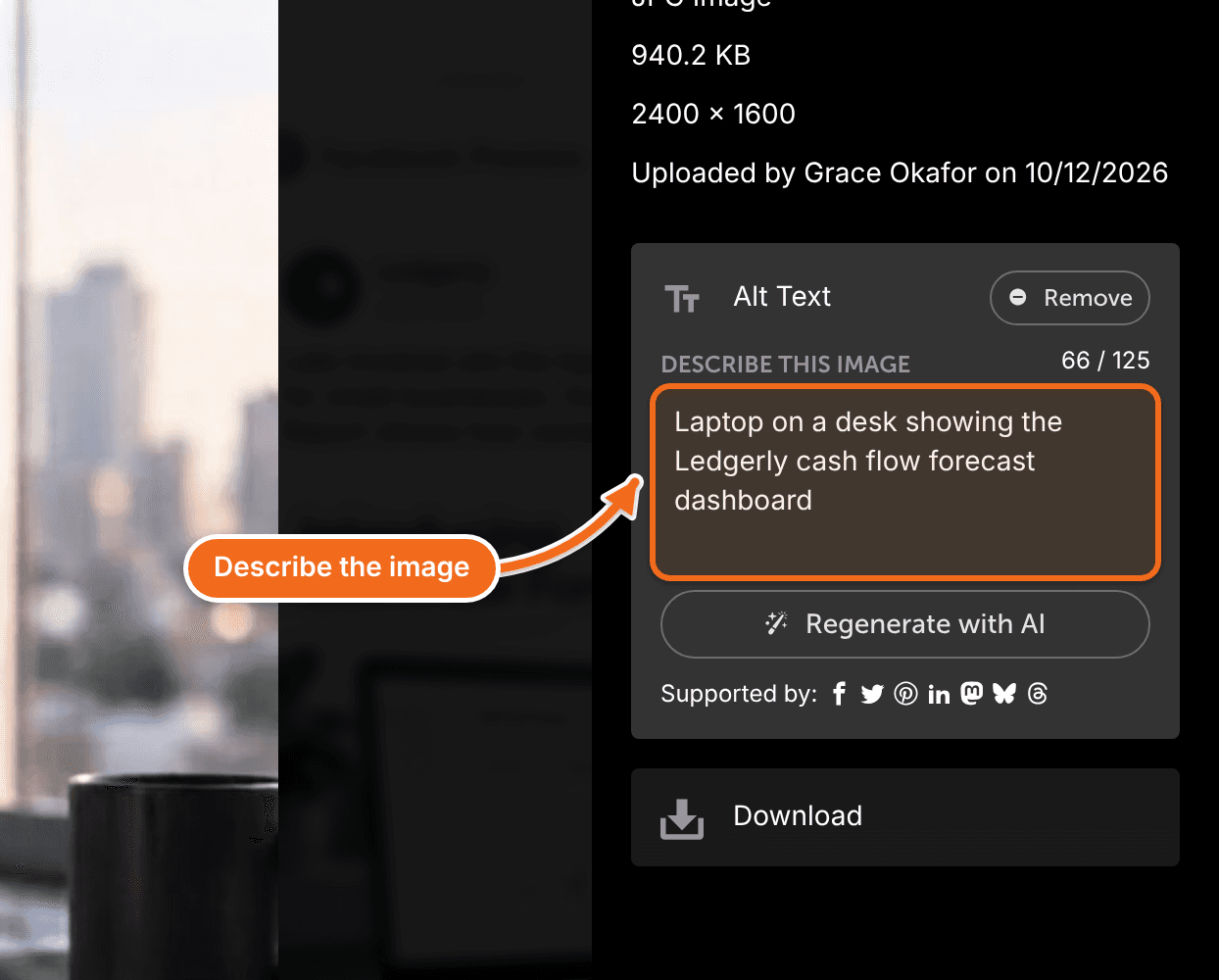
Alt text saves automatically. It's used everywhere that image file is used from now on.
Write alt text with AI
On Suite, the expanded image preview also gives you an option to generate the alt text with AI. Read the description it writes and edit it if you need to.

Remove alt text
- Click the image preview to expand it.
- Delete the text under Alt Text.
The change applies everywhere that image file is used from now on.
Networks that publish alt text
- Bluesky
- Instagram (not Stories)
- Mastodon
- Threads
- X
Frequently asked questions
How long can alt text be?
Up to 125 characters. CoSchedule sets this limit so the same description works on every network.
Can I change the alt text on an image that already published?
Changes apply to messages that publish from now on. Messages that already published keep the alt text they went out with.
If I upload the same image again, does the copy keep its alt text?
No. Each uploaded file has its own alt text, so add it to the new copy too.
Why don't I see alt text in a read-only view?
Read-only views don't show alt text.
What should I write?
Describe what the image shows in plain words. Keep it about the image itself, not about one particular post.