
A social message publishes at the date and time on it, as long as its status is Scheduled. You can set the time yourself, let CoSchedule pick it, schedule messages as part of a campaign, or let ReQueue fill the gaps. Available on Starter, Professional and Suite.
Set the date and time
- Open the message from the calendar, or create a new one.
- Set the day in Scheduled for.
- Set a time in at, or leave the default, Best time, to let CoSchedule choose a time on that day.
- Make sure the status is Scheduled.
- Click Save.
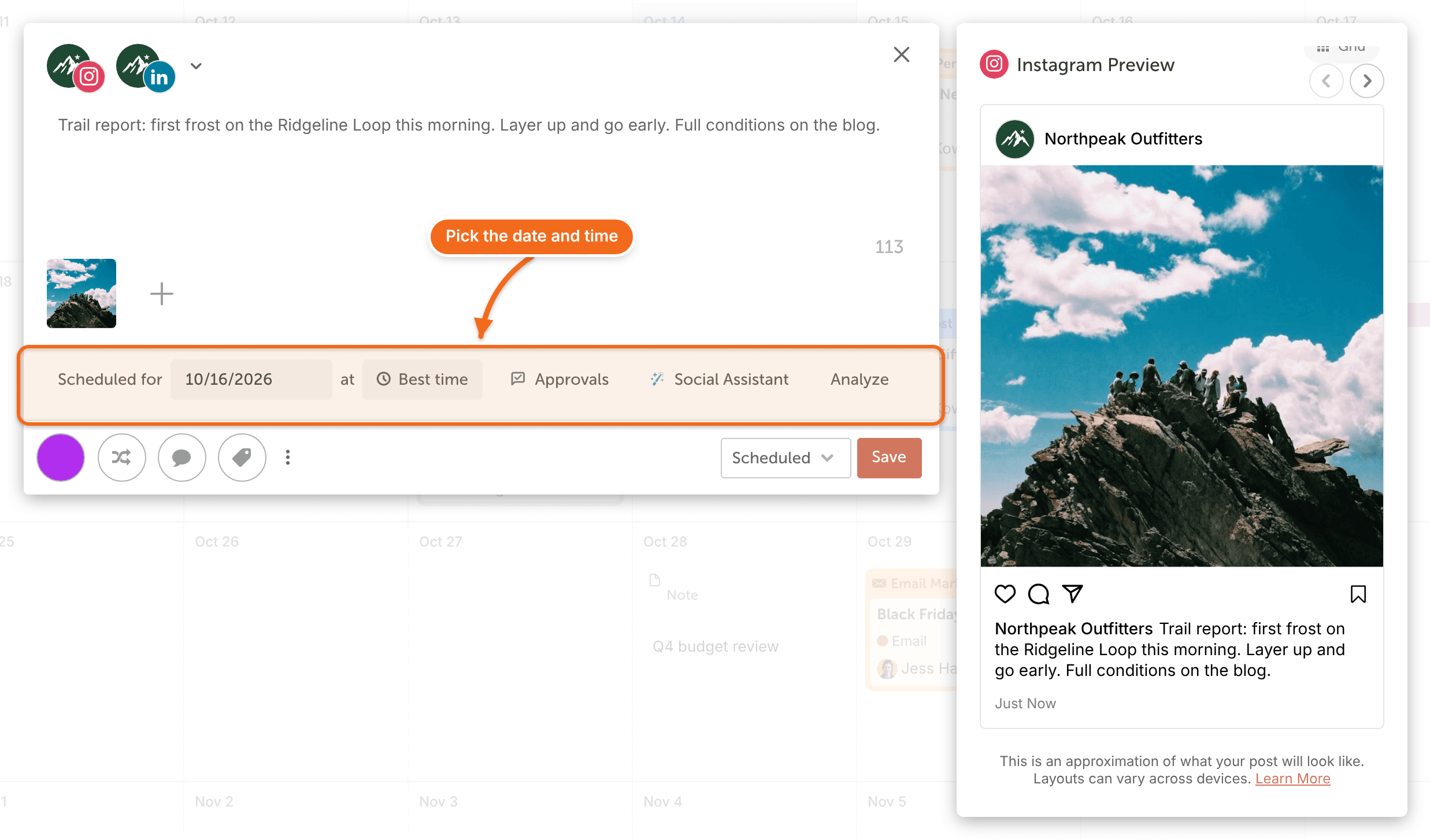
Messages publish in your calendar's timezone. To check it, see Change your calendar name, timezone and date format. For how CoSchedule picks a time, see Schedule social messages with Best Time Scheduling.
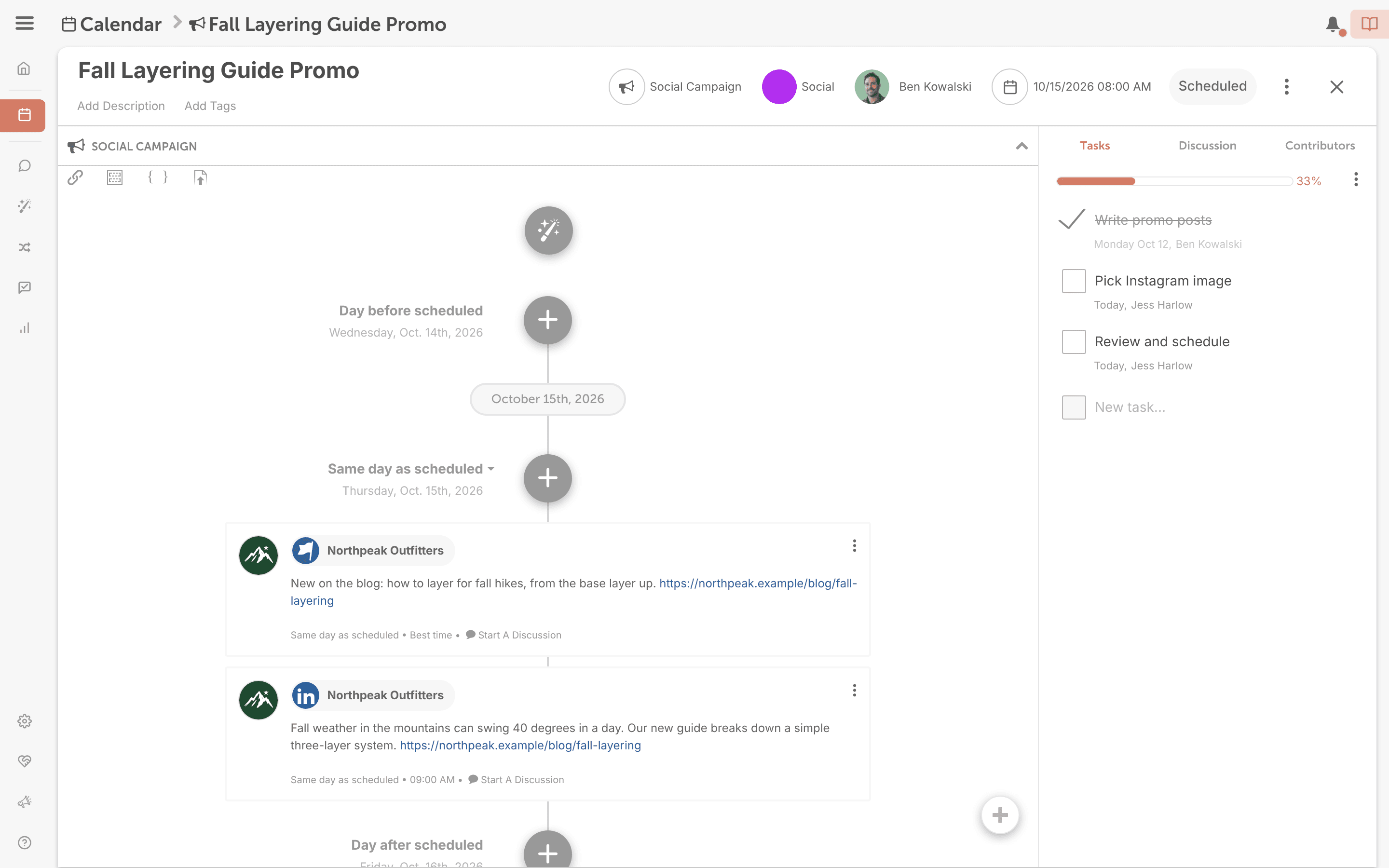
Schedule messages in a social campaign
Use a social campaign to promote one piece of content, like a blog post, with a set of related messages across your profiles. Messages scheduled relative to the campaign date move with it when you change that date. Messages set to a custom date stay where they are.
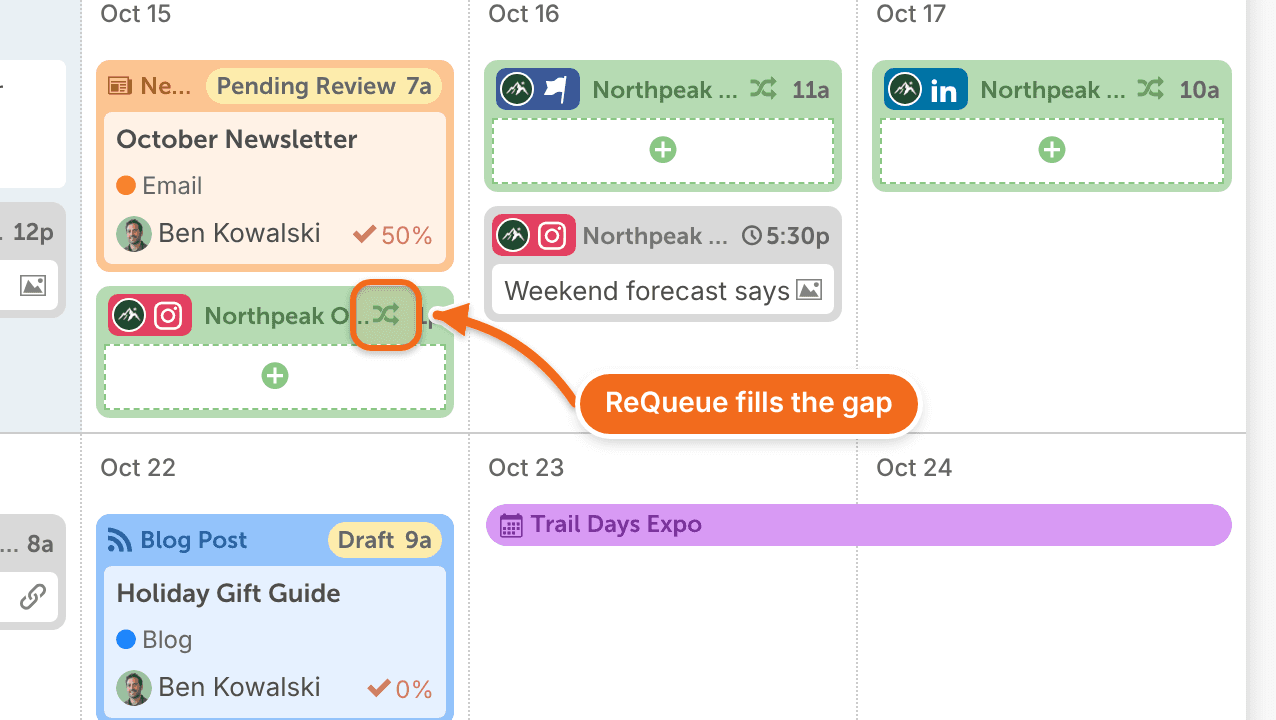
Let ReQueue fill the gaps
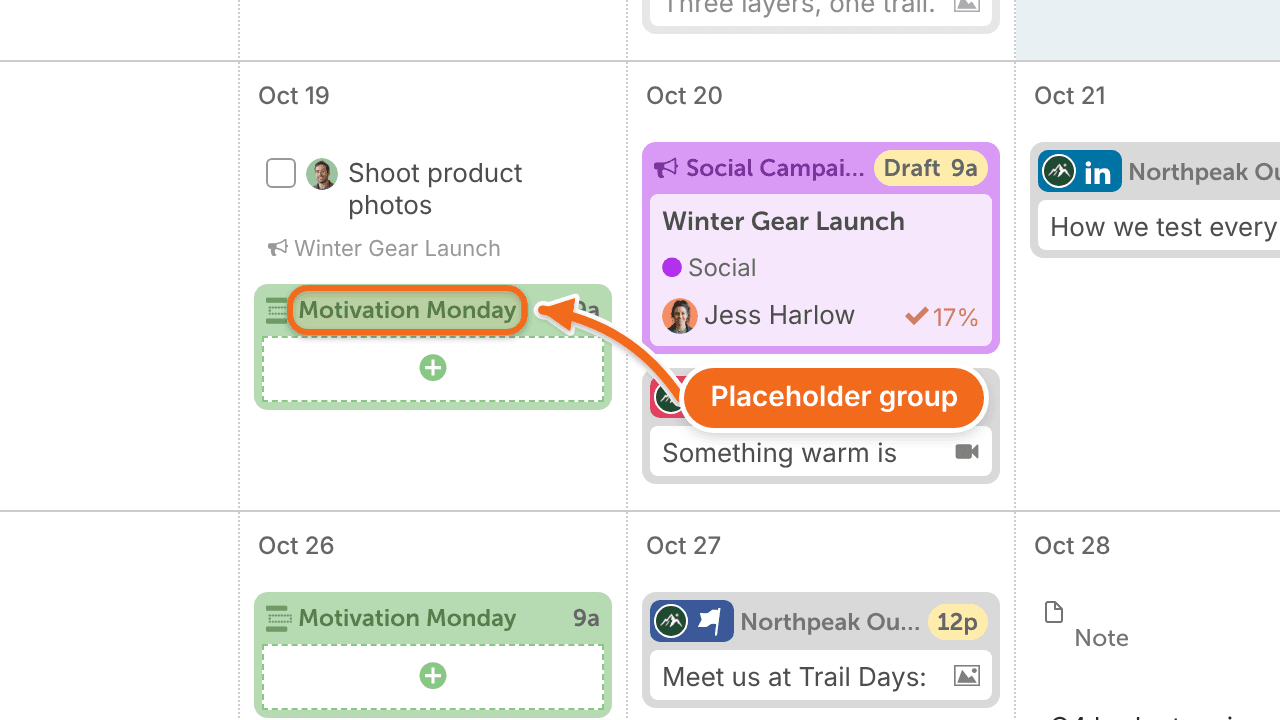
ReQueue reshares evergreen messages that you put in ReQueue groups. There are two kinds of group:
- Placeholder group: sends one of its messages at the same day and time each week. The order of the messages doesn't matter. Use it for a recurring reminder, like a weekly event.
- Intelligent group: fills open gaps in your schedule when you don't have other messages or campaigns scheduled. ReQueue picks from your groups based on your ReQueue settings and the rest of your calendar, favoring the messages that perform best within your groups.
To learn more, see What ReQueue is and how it works and Manage ReQueue group settings.
Hold a message without scheduling it
- Set the status to Draft or Pending Review. The message stays on the calendar but won't publish.
- Keep a message with no date in the Unscheduled Bin, then drag it onto the calendar when you're ready. See Hold ideas in the Unscheduled Bin.
Messages set to Draft or Pending Review don't publish, even when their date and time pass. Set the status to Scheduled when the message is ready.