
A social profile group lets you add several social profiles to a social message in one click, such as all the profiles for one brand, region or location. Social profile groups are available on every plan.
Create a social profile group
- From your calendar, open Settings.
- Click the Social Profiles tab.
- Click Add Group in the upper left corner.
- Enter a name in the Group Name field.
- Select the profiles you want in the group.
- Click Create.
Each social profile can be in only one group. Pinterest profiles can't be added to a group.
Schedule a message to a group
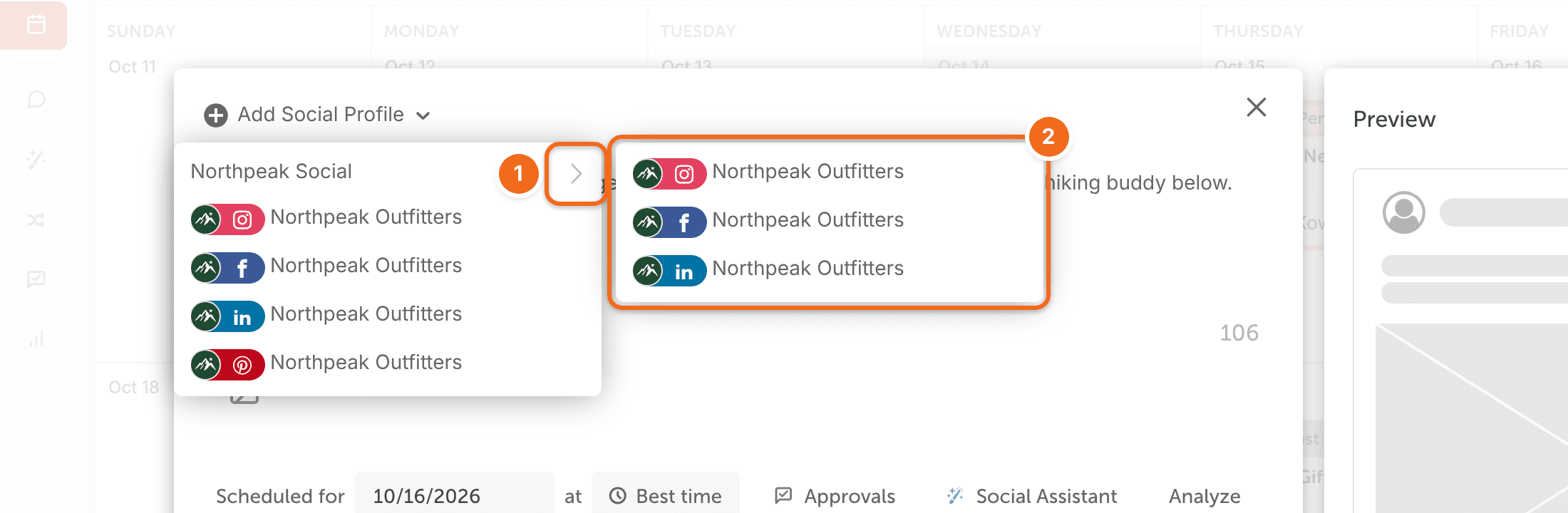
- Create a new social message and click Add Social Profile.
- Find your groups at the top of the list.
- Click the group name to add every profile in the group, or click the arrow icon next to the group to choose individual profiles from it.
A profile that's in a group is listed under its group, not on its own. To add just that profile, click the arrow icon next to its group and select it.
Edit or ungroup a social profile group
- From your calendar, open Settings.
- Click the Social Profiles tab.
- Next to the group, click the More Options menu.
- Select Edit to rename the group or add and remove profiles, or select Ungroup to delete the group.
Ungrouping removes only the group. It doesn't delete the social profiles in it or change any scheduled social messages.