
Only the Owner, Managers and Admins can reconnect social profiles. Reconnect a profile when CoSchedule can no longer publish to it, for example after the network's access expires or someone changes the account's password. This works on every plan.
If CoSchedule emails you that a connection expired, that email is genuine and links to Settings > Social Profiles.
Reconnect a social profile
- On a desktop computer, open a private or incognito browser window.
- In one tab, log in to the social account you're reconnecting. Make sure it's the only account you're logged in to on that network.
- In another tab, log in to CoSchedule.
- Open Settings.
- Click the Social Profiles tab.
- From the left-side menu, click the profile you want to reconnect.
- Click Reconnect Account.
- Follow the prompts to log in and give CoSchedule access again.
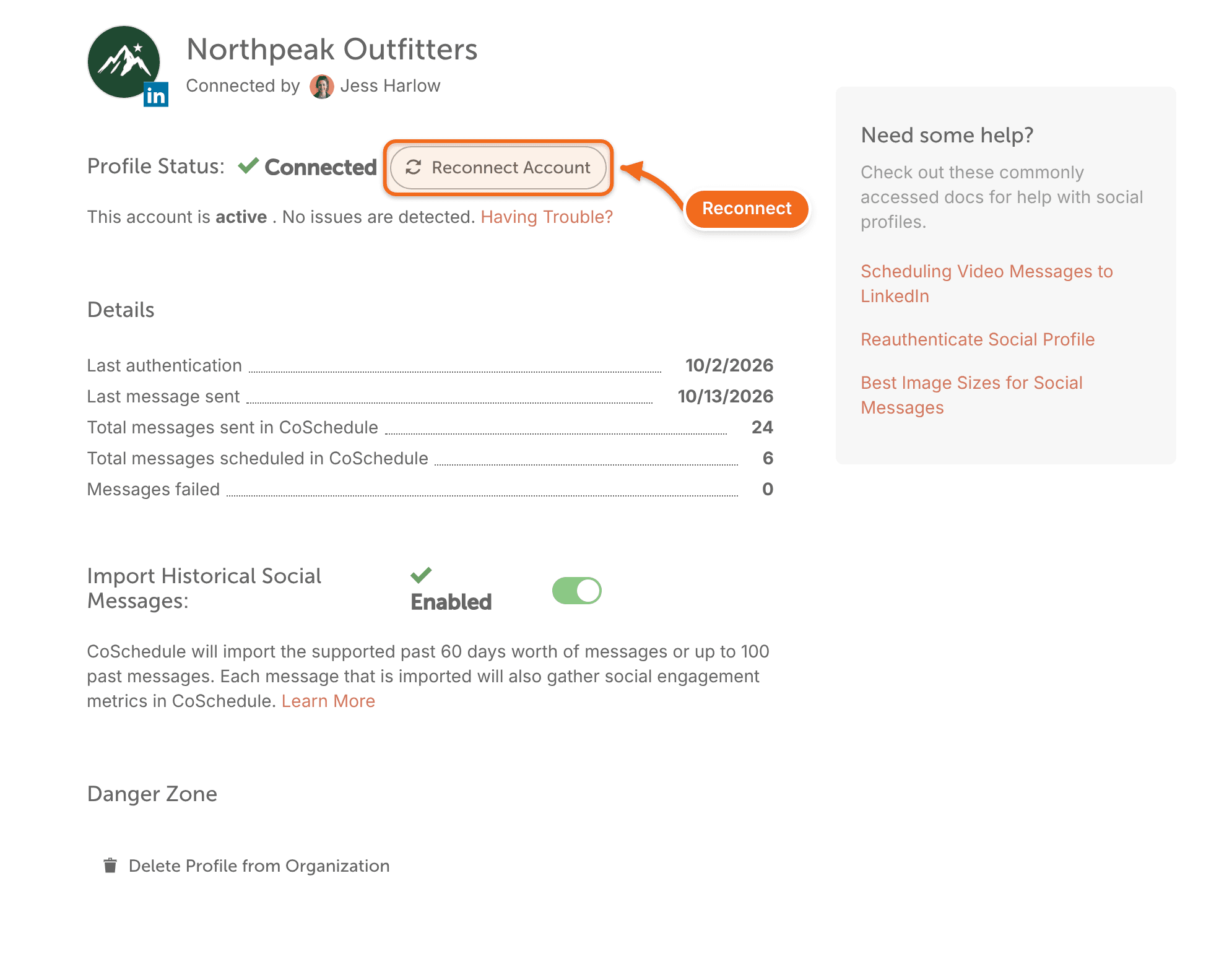
Messages that failed before you reconnected don't resend on their own. After you reconnect, reschedule each failed message.
See Reschedule a social message.
How often you need to reconnect
A connection ends when the network's access expires, or when someone changes the account's password or its admins. LinkedIn connections renew automatically, so you'll usually reconnect a LinkedIn profile only about once a year.
Reconnect a LinkedIn Page
To reconnect a LinkedIn Page, you must be a Super Admin of the Page on LinkedIn.
If someone who isn't a Super Admin reconnects the Page, the reconnect looks successful, but the Page still can't publish. Have a Super Admin of the Page reconnect it.
Fix a Facebook Page or Instagram account that keeps disconnecting
If a Facebook Page or Instagram account is flagged again soon after you reconnect, check these causes in order.
Your access to the Facebook Page
Your personal Facebook profile needs the admin role with full control of the Page. With partial access, the reconnect works but the Page is flagged again on its next message. To check your access, see Facebook's help on Page access and roles.
CoSchedule's permissions in Business Integrations
In your personal Facebook profile's Business Integrations settings (not the Page's), make sure CoSchedule has every permission turned on and every Page you use in CoSchedule selected. Facebook explains where to find these settings. Then reconnect the profile in CoSchedule.
Another Facebook profile is logged in
Reconnect from a private window that is logged in to only the Facebook profile that manages the Page.
The Instagram account's type and permissions
The Instagram account must be a Business or Creator account. Also check that every permission for the CoSchedule-IG app is turned on in the account's apps and websites settings on Instagram.
Select every account when you reconnect
When Facebook asks which Pages and Instagram accounts CoSchedule can use, select all the ones connected to your calendar. Leaving one out can break the connection for the others.
If it keeps asking you to reconnect
Remove CoSchedule from the network's connected apps settings, then reconnect the profile using the steps above.
If every profile fails at once
When all your profiles fail at the same time, the cause is usually a network outage, not your connections. Check status.coschedule.com before you reconnect anything.