
Request forms let people send your team requests, such as design work, blog posts or support materials, and turn each one into a CoSchedule project. Available on Suite.
Only the Owner, Managers and Admins can open Settings > Request Forms.
Create a request form
- From your calendar, open Settings.
- Select Request Forms.
- Click Create Request Form in the upper right corner.
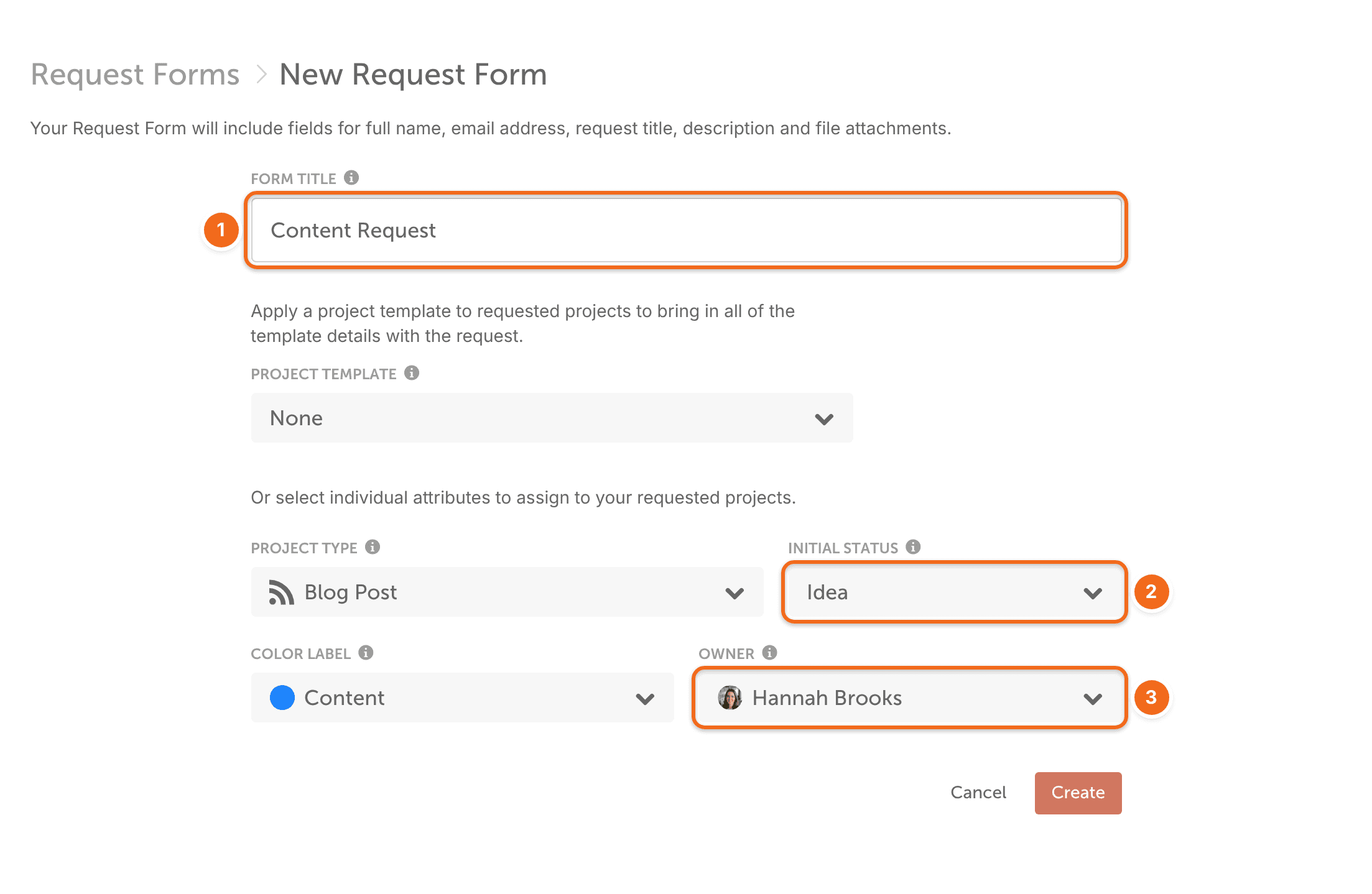
- Enter the form's details, such as the title, initial status and owner.
- Select Create.
To start from a form you already have, open its three-dot menu and select Duplicate.
Customize the form's fields
Set up the form's fields when you create it, or later by editing it.
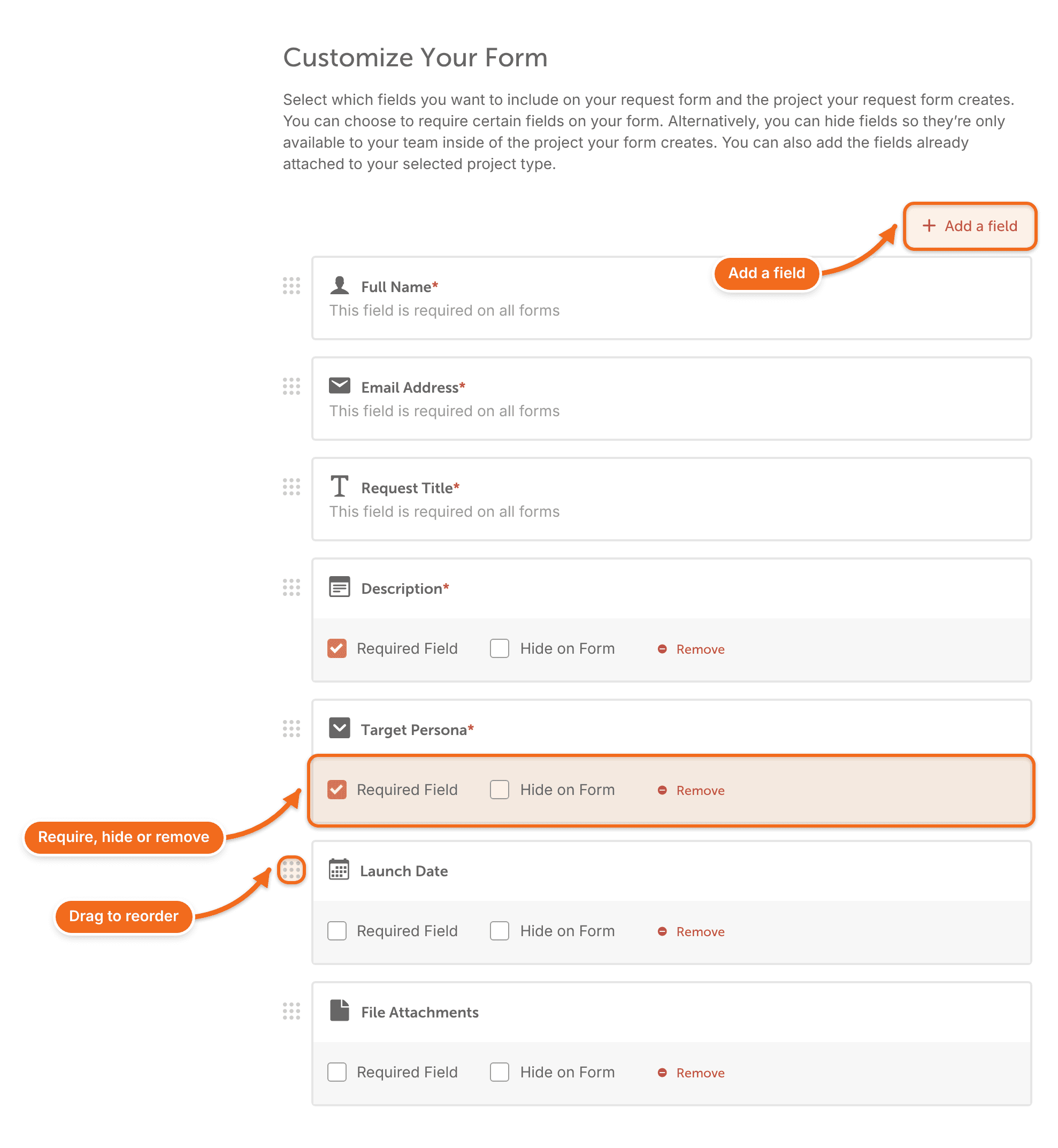
- To change the order of the fields, drag a field on the left side to a new spot.
- Select Remove Field to remove a field you don't want.
- Select Add a field to add a section header, text or instructions, or a custom field.
- To email a team member when a new request comes in, select Add a team member to notify.
- Select Done.
Team members you add get the email only if Request Form email notifications are turned on in their notification settings. See Manage notifications and unsubscribe from emails.
Edit a request form
- From your calendar, open Settings.
- Select Request Forms.
- Open the form's three-dot menu and select Edit.
- Make your changes.
- Select Done.
Share a request form
- From your calendar, open Settings.
- Select Request Forms.
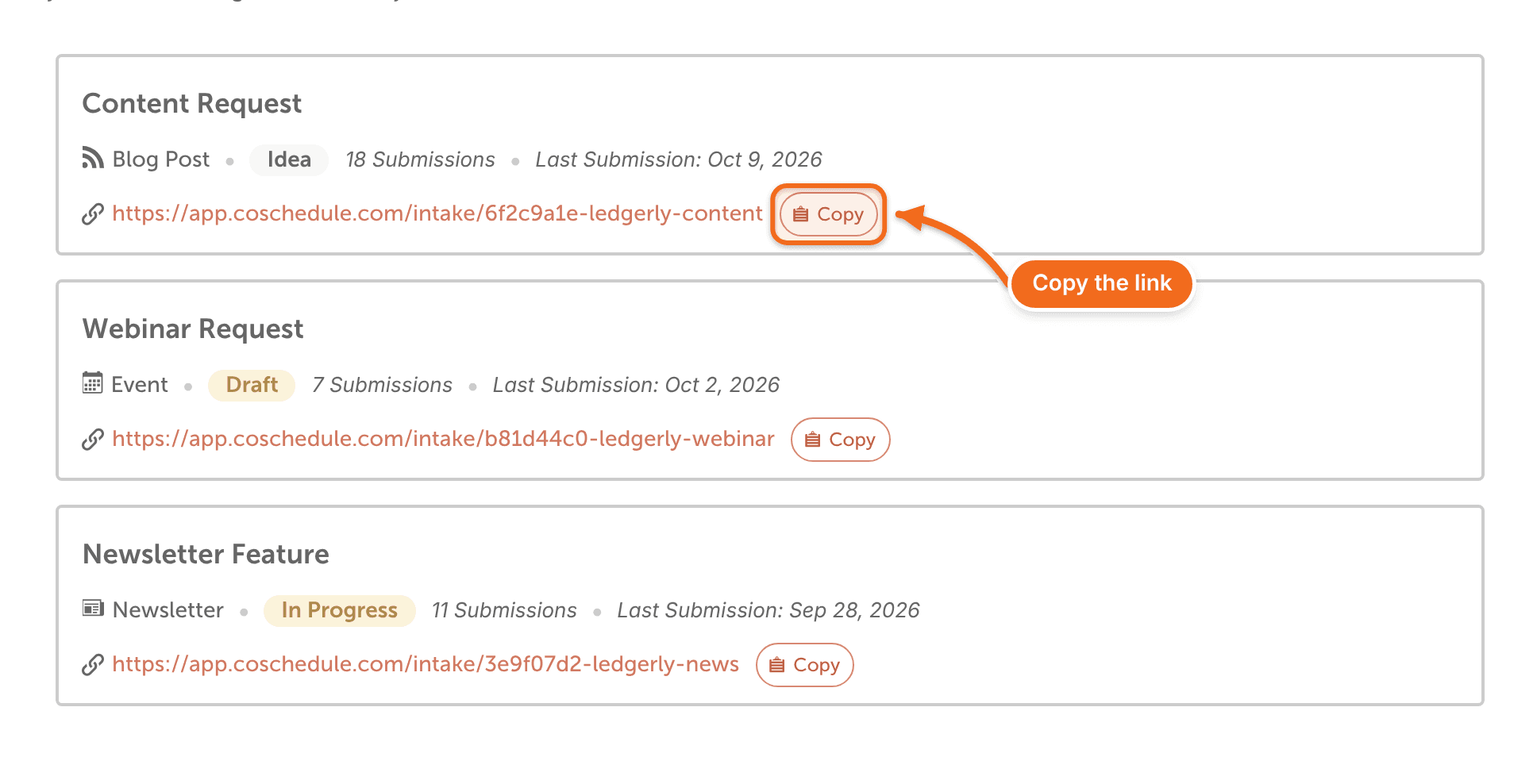
- Select Copy on the form you want to share.
- Share the link with the people who send you requests.
New requests appear on the Kanban Dashboard under the status you chose for the form.
Common questions
Can I embed a request form on my website?
Yes. In Settings > Request Forms, open the form's three-dot menu and select Embed. Copy the HTML code and paste it into your site's code.
How do I export submissions?
In Settings > Request Forms, open the form's three-dot menu and select Export. CoSchedule creates a CSV file with the data from every submission of that form.
How can I organize incoming requests?
New requests appear on the Kanban Dashboard under the form's status. Create a filtered Kanban view that shows only the requests you need. See Use the Kanban Dashboard.
Can I search requests by requester or by a free-text answer?
No. You can filter requests only by fixed-choice fields, such as dropdowns and checkboxes.
How do I change the options in a form's dropdown or checkboxes?
Those options belong to the custom field. Edit the field in Settings > Custom Fields. See Create custom fields.
Can requesters attach files?
Yes, if the form includes the File Attachments field. The files go into your calendar's Assets and appear as file attachments on the project the request creates.
Who gets an email when someone submits a form?
Team members you added to notify get an email, as long as Request Form email notifications are turned on in their notification settings. The requester gets a confirmation email that their form was submitted.