
Files you delete in Assets go to the Trash folder first, so you can restore them until you delete them for good. Available on Suite.
Move a file to the Trash
- Open the folder or project folder that holds the file.
- Select the file.
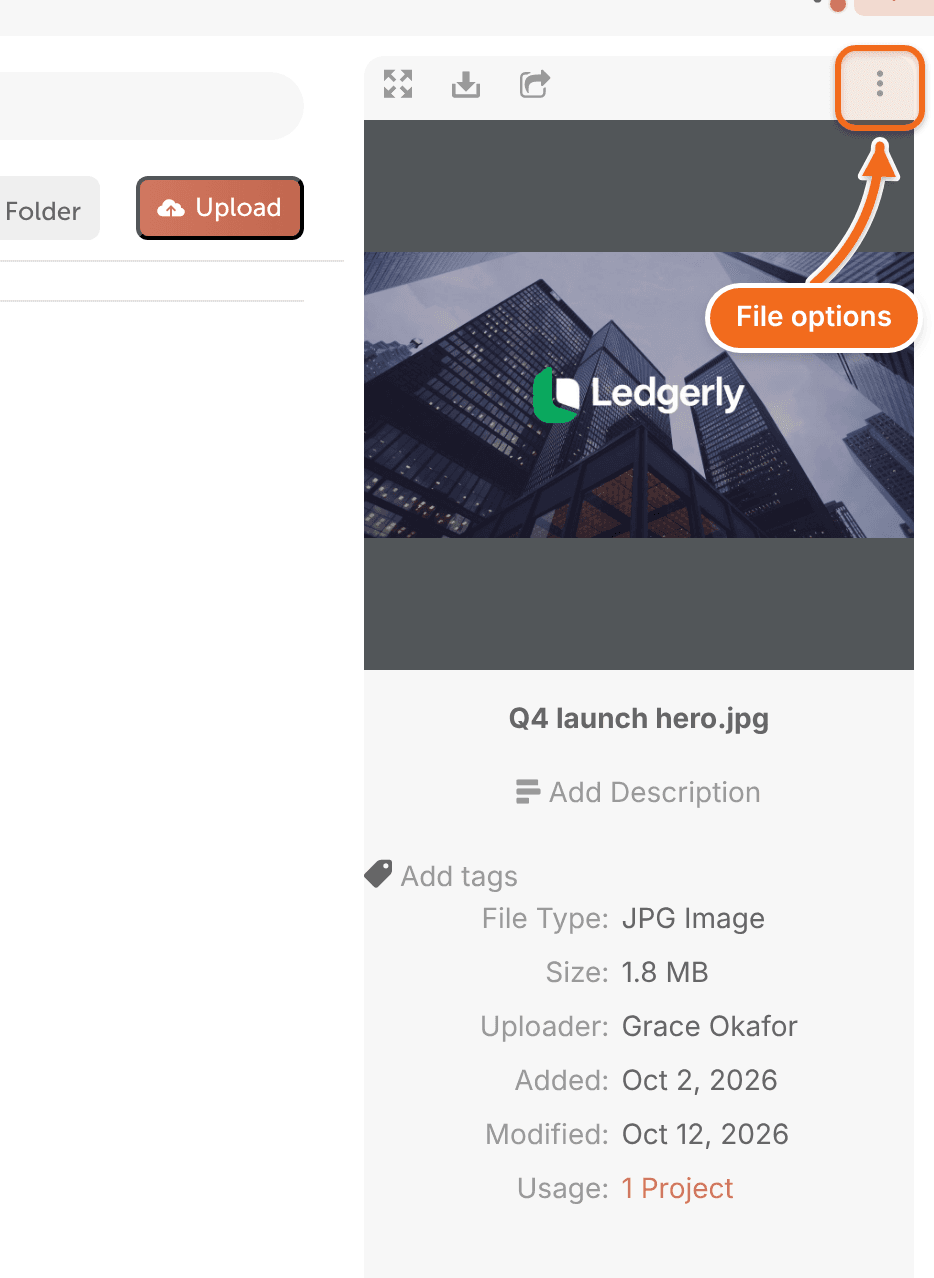
- Click the three dots to open the file options menu.
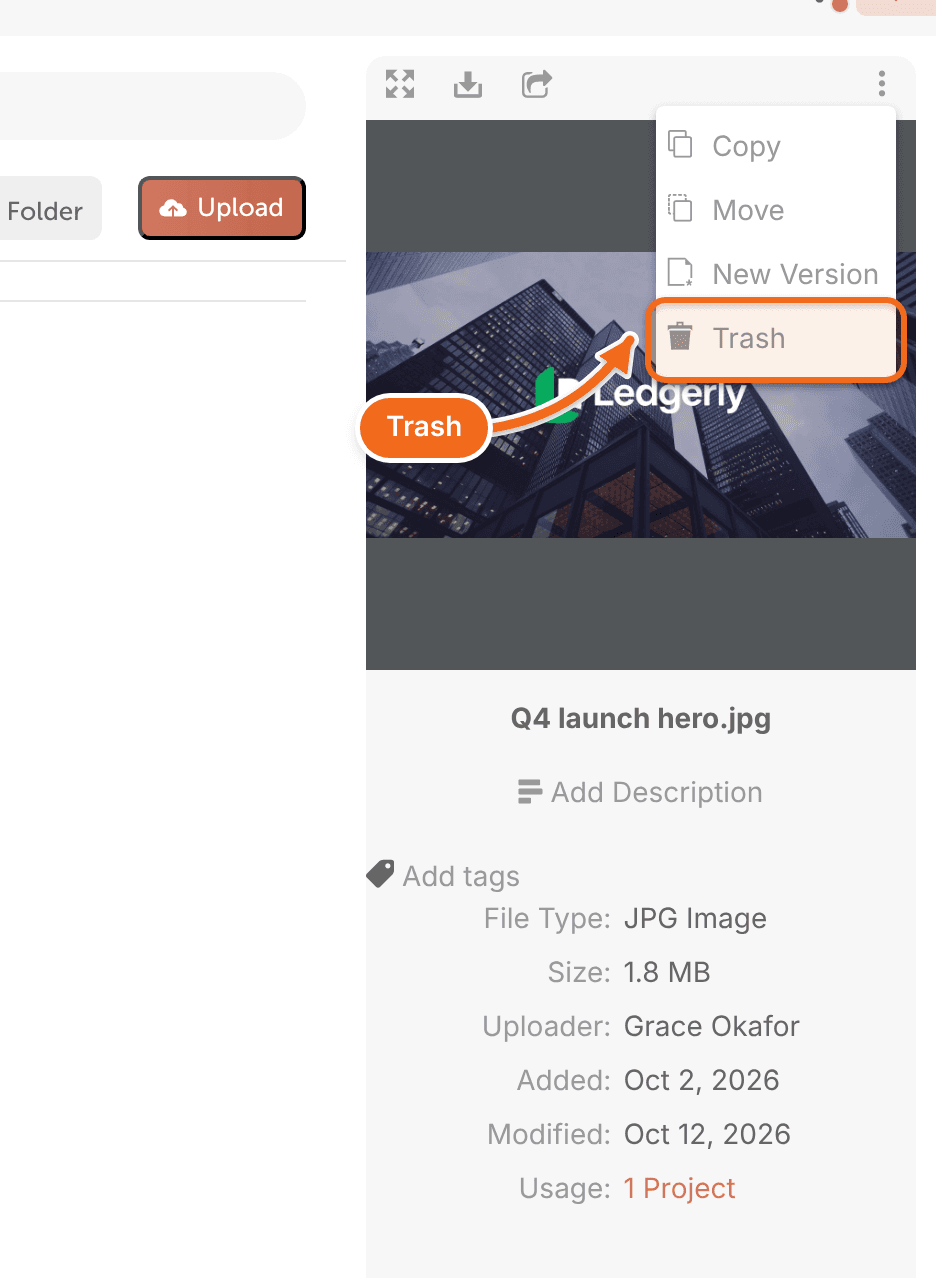
- Click Trash. The file moves to the Trash folder.
Restore a file from the Trash
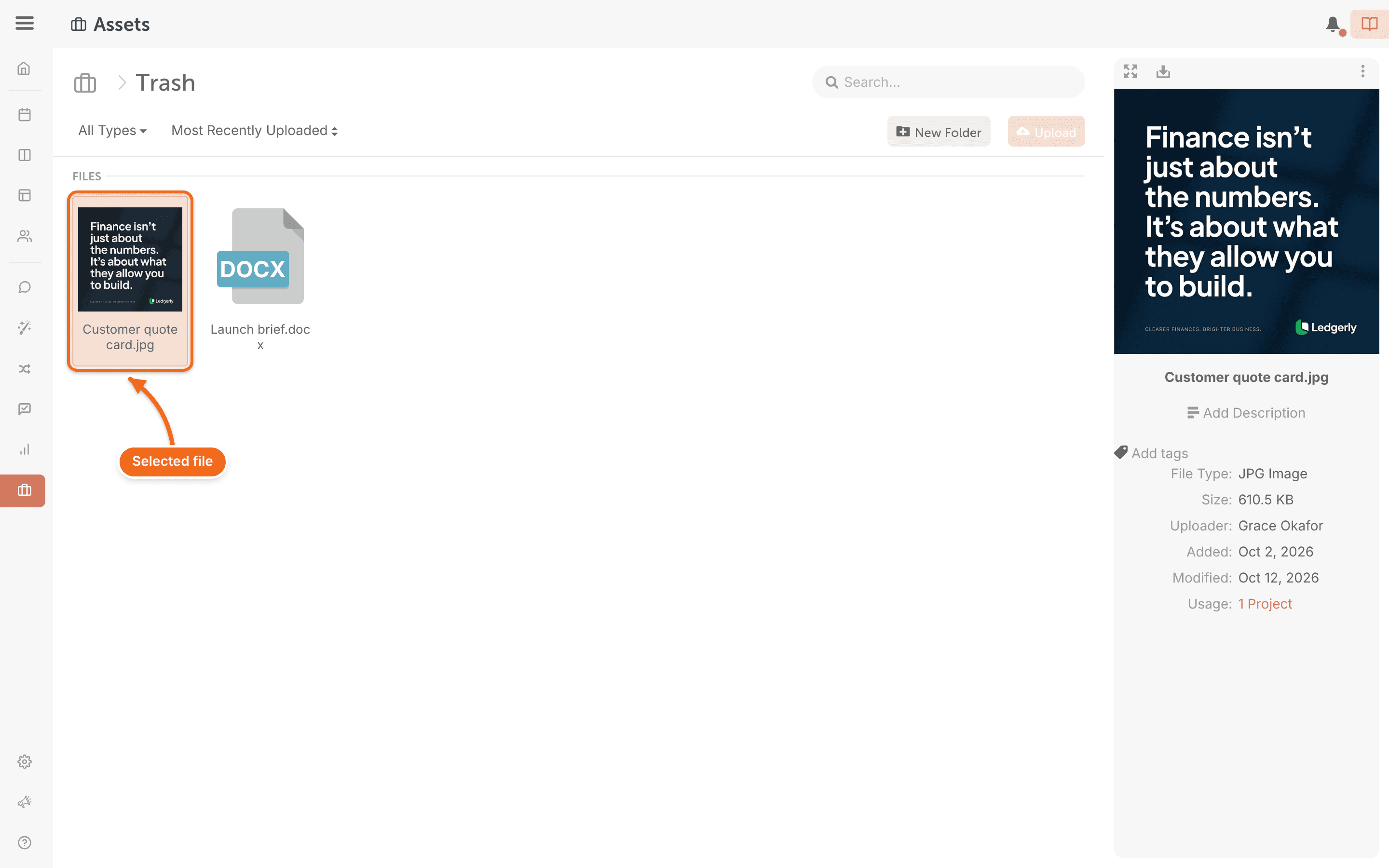
- On the main Assets page, open the Trash folder.
- Select the file.
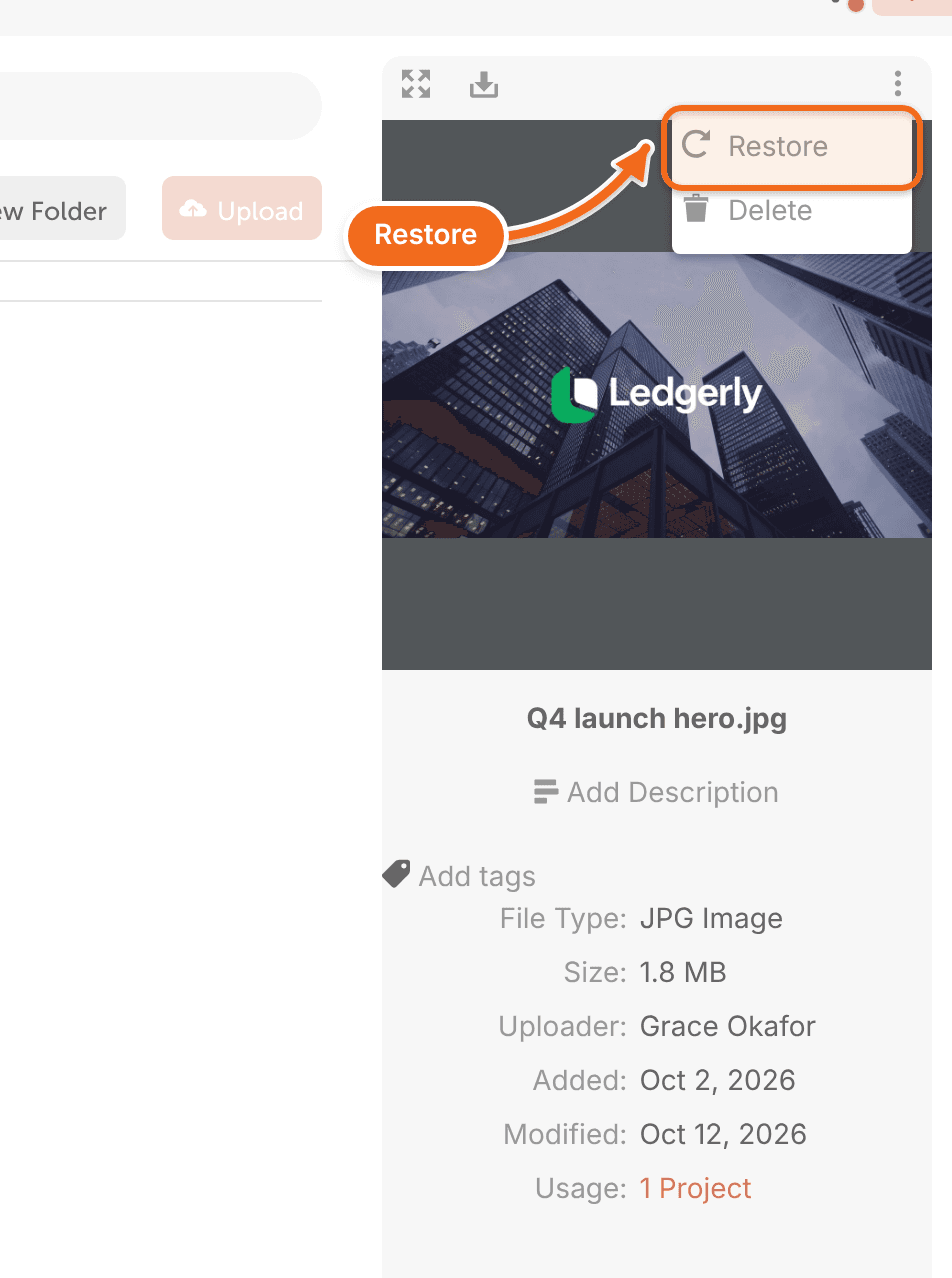
- Click the three dots in the top right corner to open the file options menu.
- Click Restore. The file moves back to its original folder.
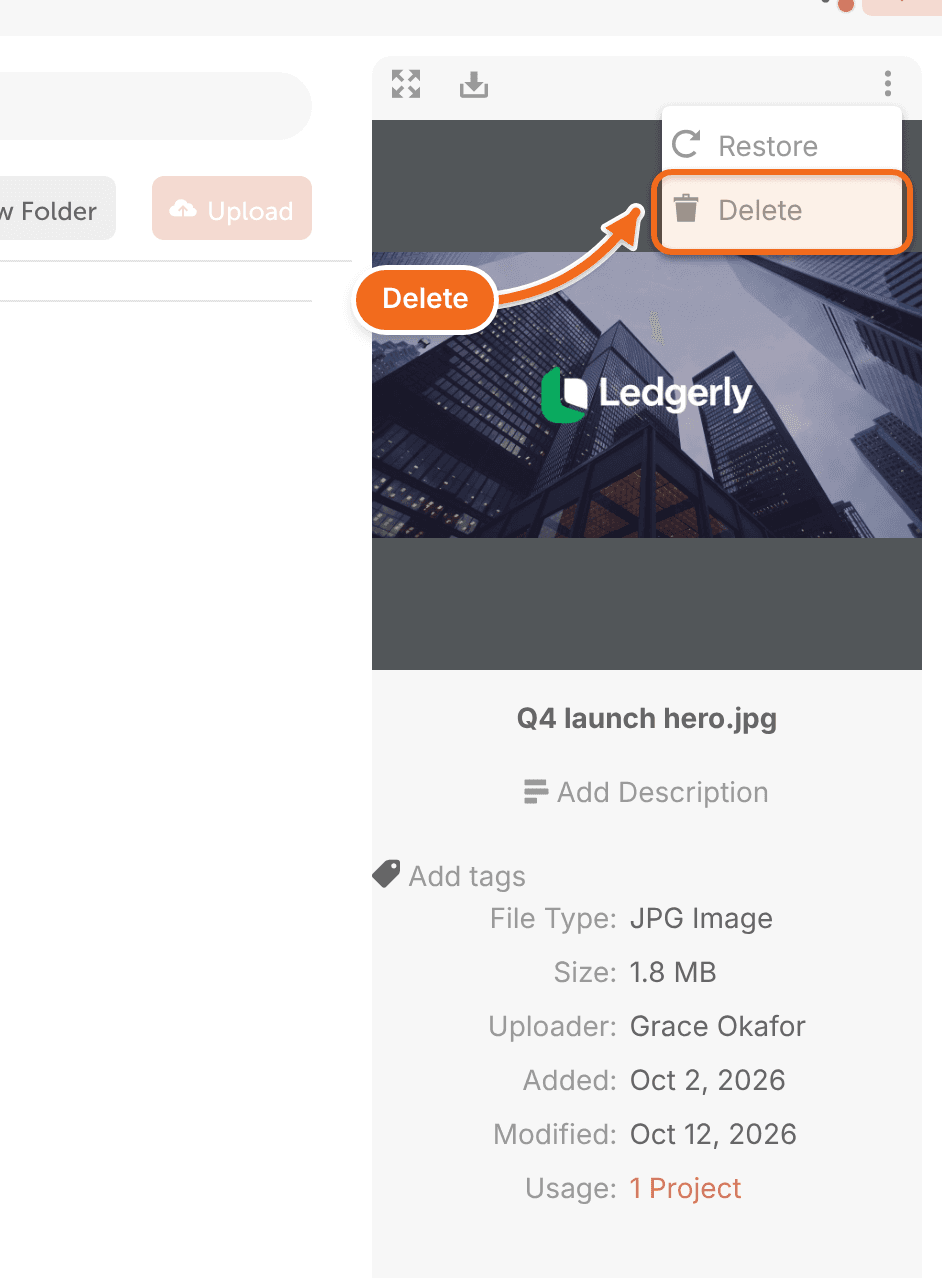
Delete a file permanently
Deleting a file from the Trash is permanent. You can't restore it afterward.
- On the main Assets page, open the Trash folder.
- Select the file.
- Click the three dots to open the file options menu.
- Click Delete.
Items deleted from the calendar
Only files in Assets go to a Trash folder. Deleting a project, marketing campaign or social message from the calendar is permanent, and it can't be restored.