
Add an approval step to a task when a manager or client needs to confirm the work before it counts as done. Available on Suite. Both project tasks and standalone tasks on your calendar can require approval.
Add an approval to a task
- Save the task first. Requires Approval By appears only on a saved task.
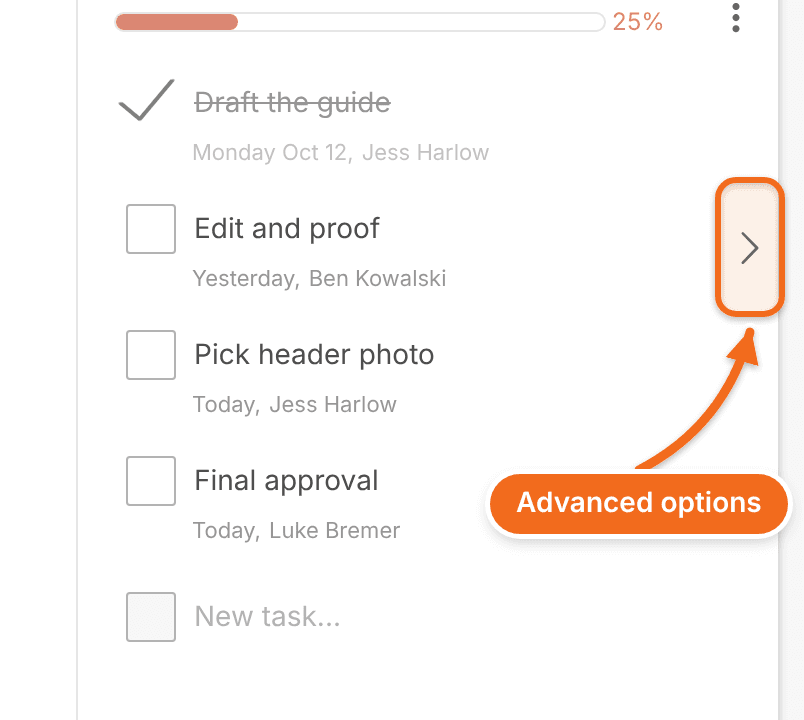
- Open the task's details. For a project task, hover over the task and click the arrow to open its Advanced Options.
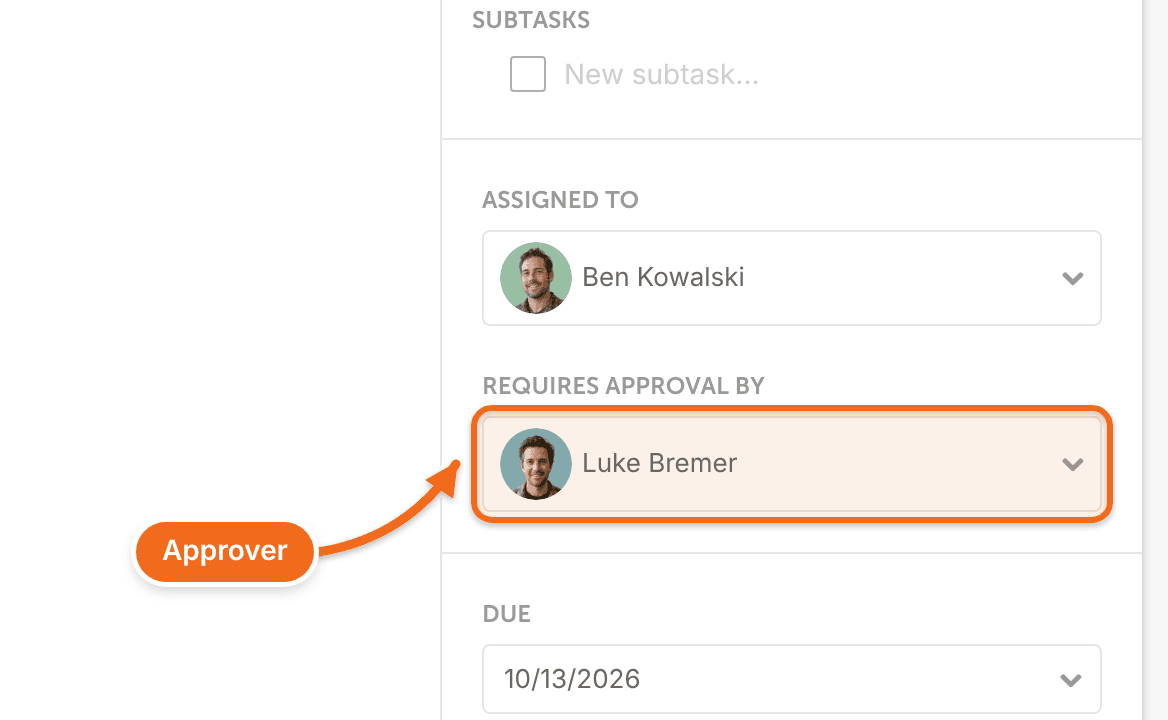
- Find Requires Approval By, under the assignee.
- Click Select Approver and choose who must approve the task.
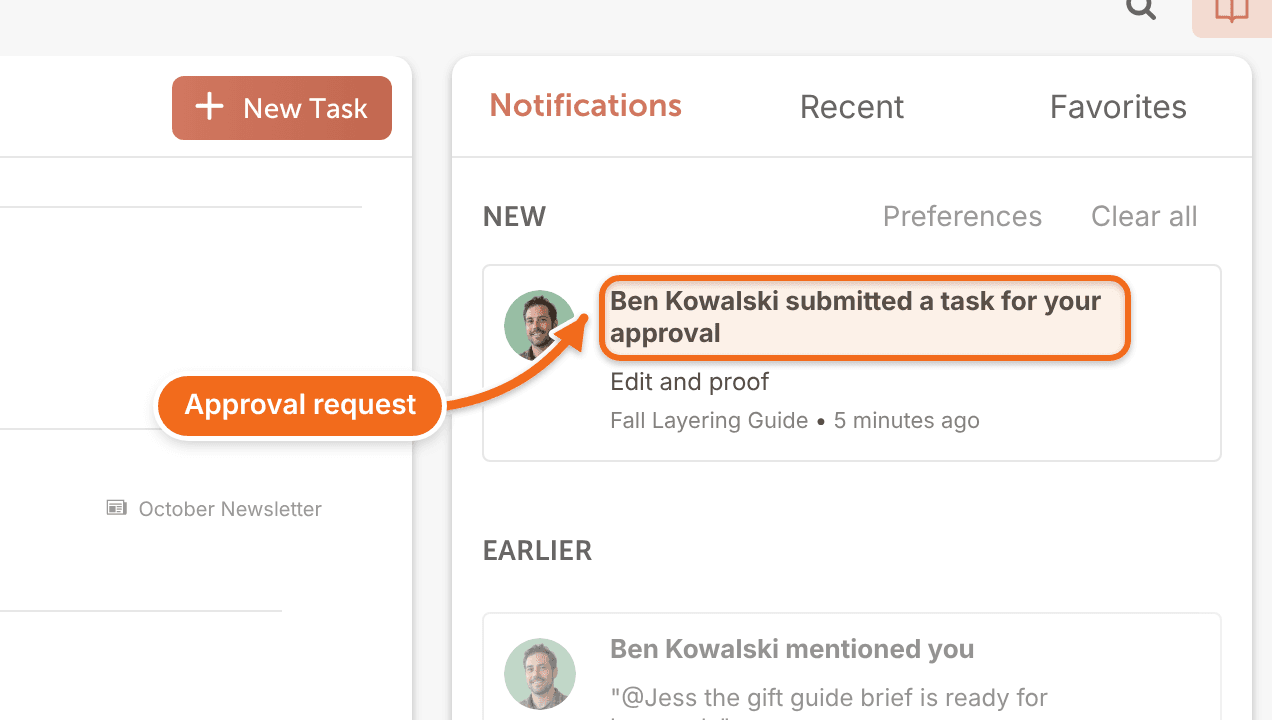
When the assignee finishes the task, the approver is notified that it's waiting for approval.
Approve or deny a task
Tasks waiting for your approval appear under Pending Approval on your Home page.
- Open your Home page and find the task under Pending Approval.
- To approve the task, click the approve icon.
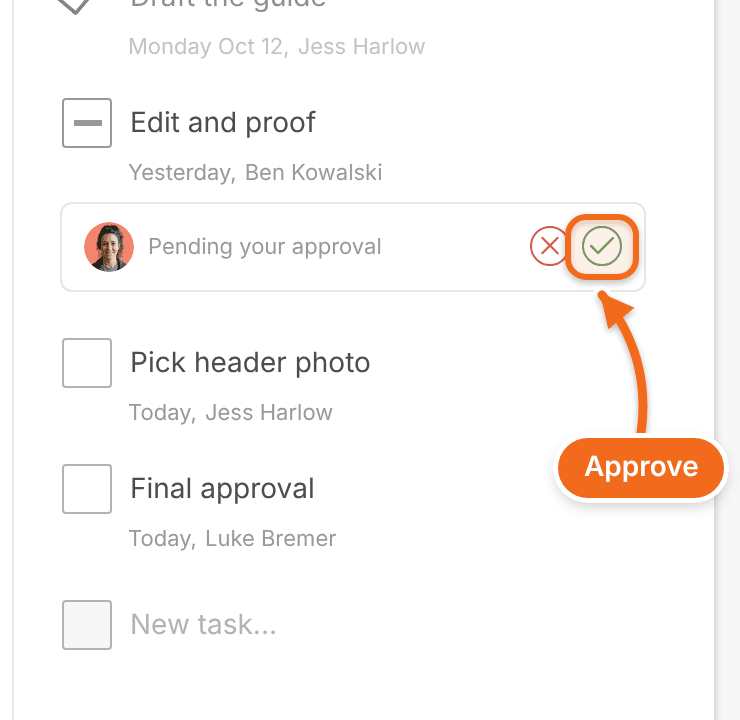
- To deny the task, click the deny icon.
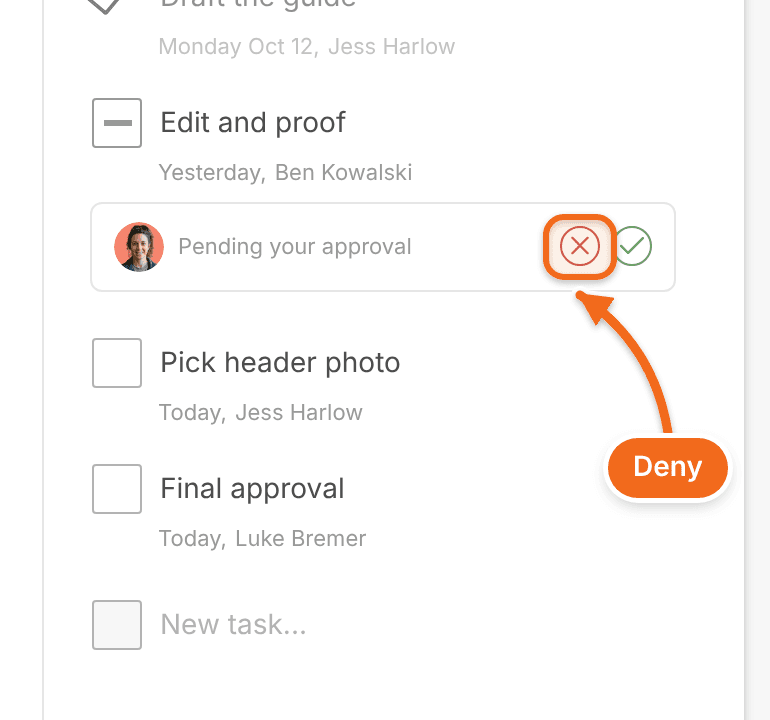
- Click the task to open its project.
- Leave a comment in the task or the project to explain why you approved or denied it.
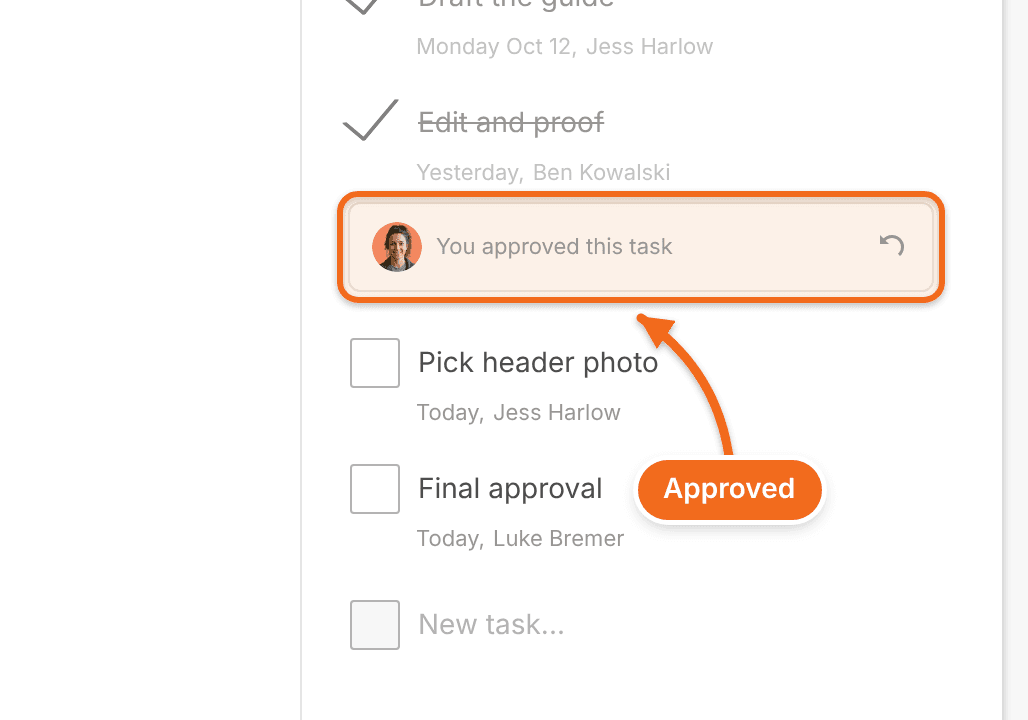
Task rules can act on approvals, for example assigning the next task once this one is approved. See Automate tasks with task rules.