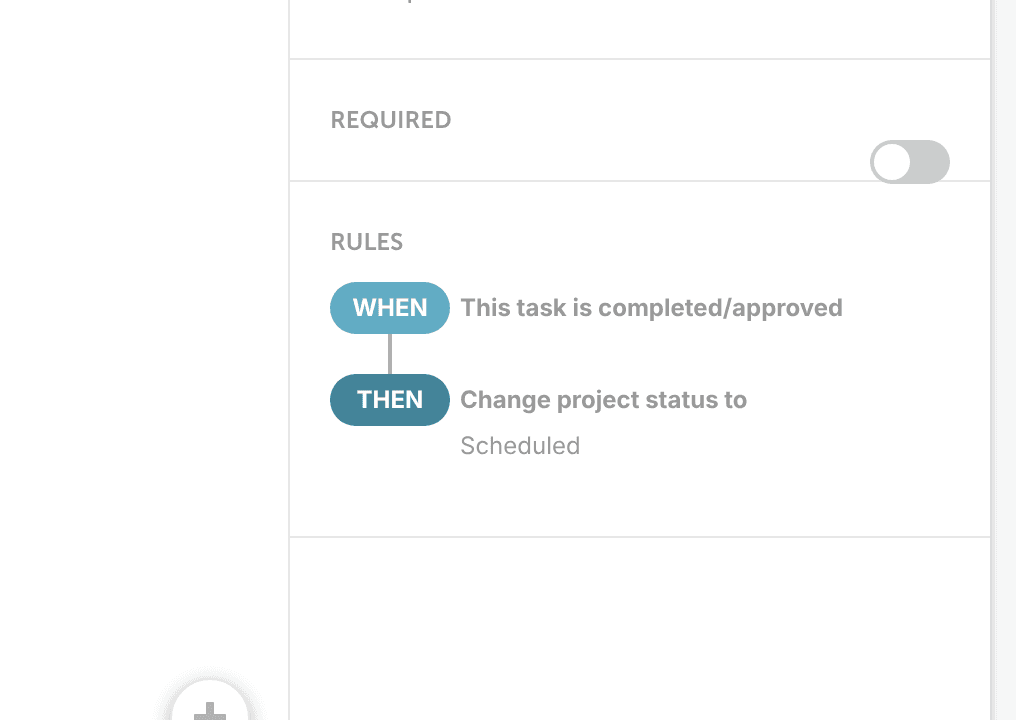
Task rules run an action when something happens to a task or its project, such as assigning the next task when one is finished. Available on Suite. Task rules work only on saved tasks inside a project or a task template.
Without task rules, a project's status changes only when someone changes it.
Add a task rule
- Hover over the task and click the arrow to open its advanced options.
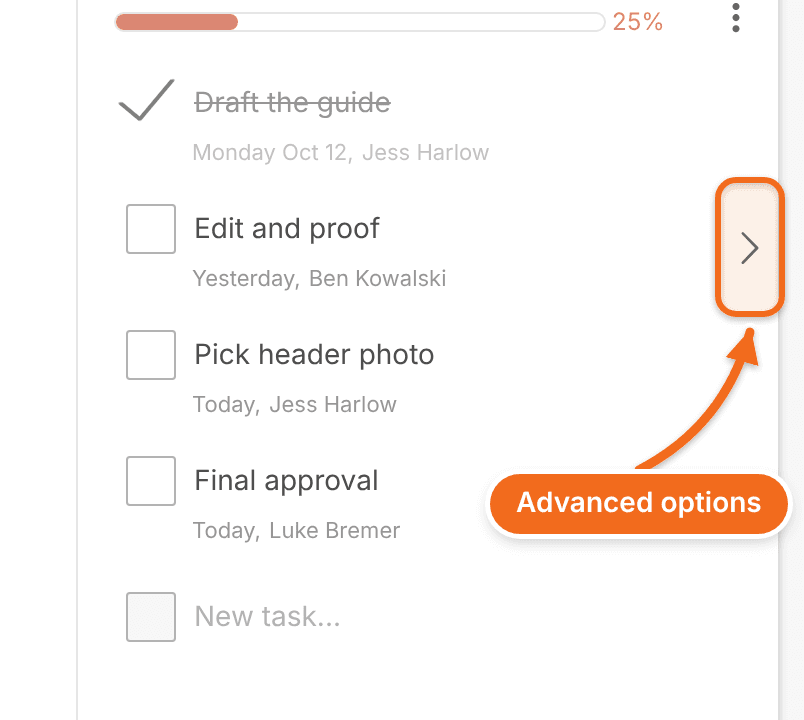
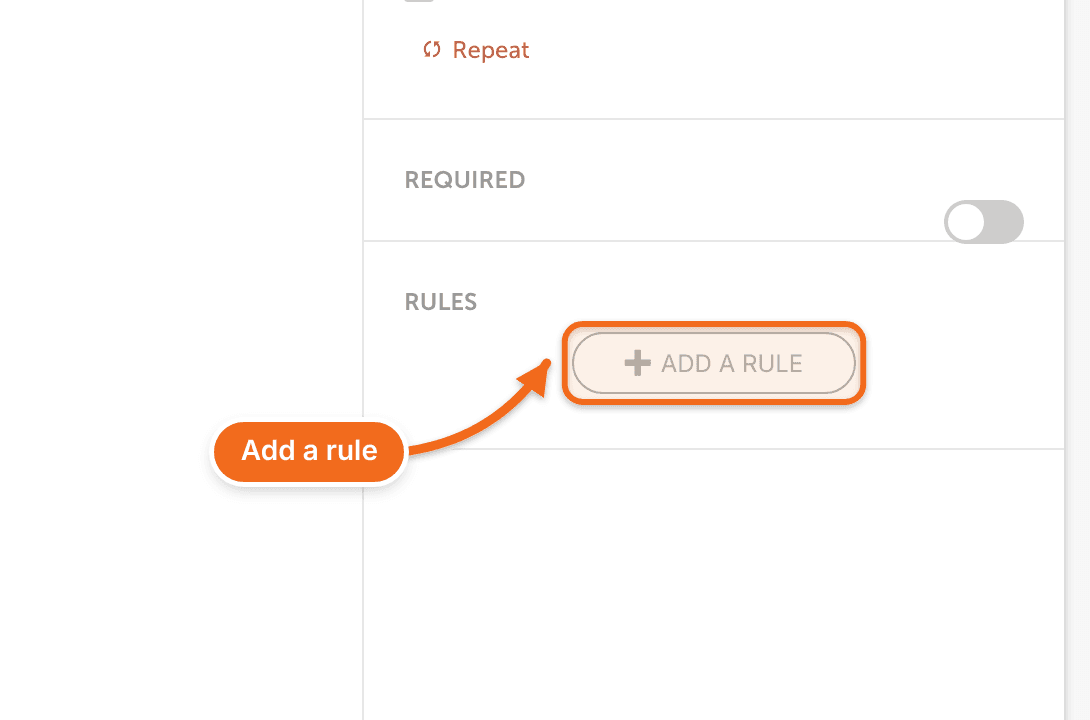
- Scroll down to the Rules section.
- Click ADD A RULE.
- After WHEN, choose a condition. After THEN, choose an action. If you add more than one condition, all of them must be met for the action to run.
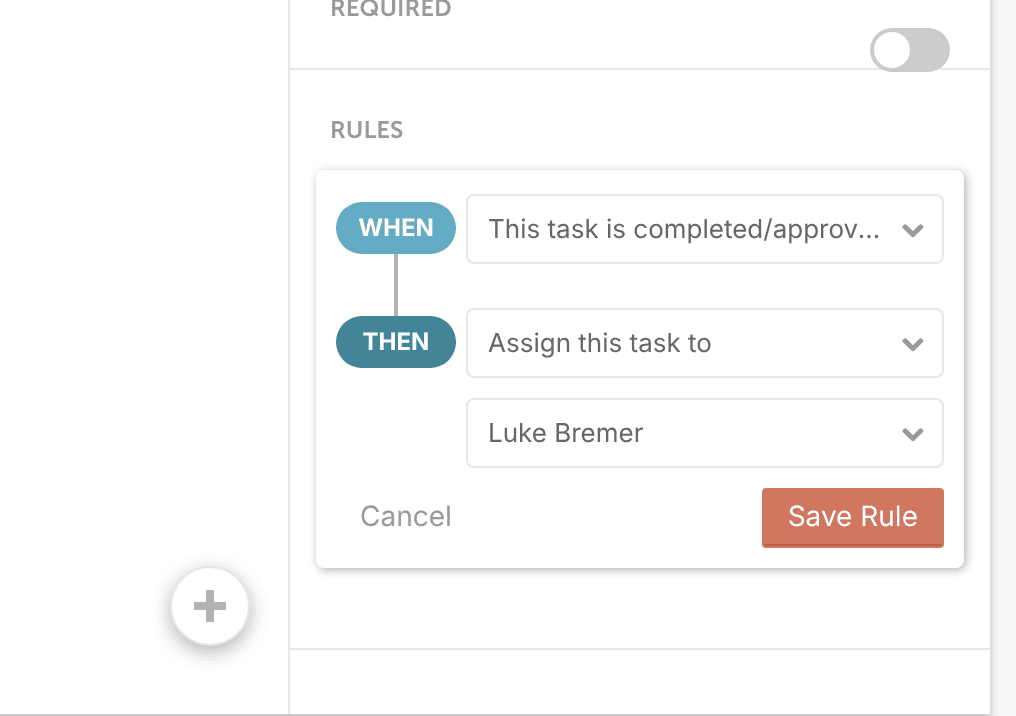
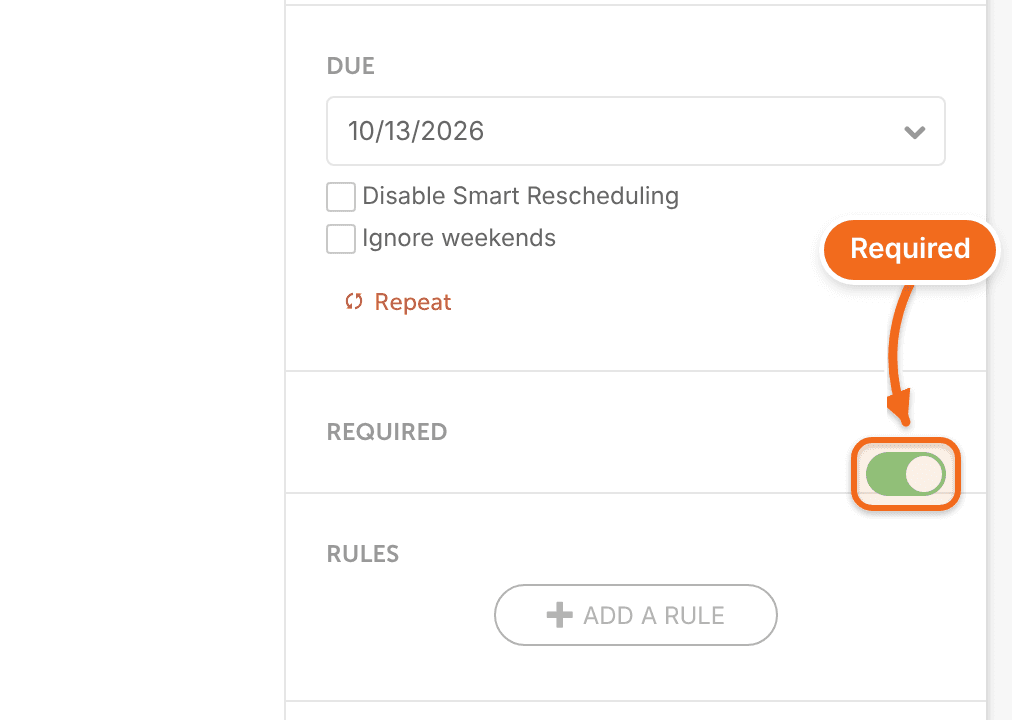
- To require this task to be completed before the project can be scheduled, turn on Required.
- Click Save.
Conditions and actions
The options read as below. After some of them, you choose a status, color label, date or team member.
Rules based on this task
Conditions:
- This task is completed/approved
- This task is pending approval
- This task becomes past due
Actions:
- Change project status to
- Change the owner of this project to
- Change the label of this project
- Reschedule this project
- Send a notification to...
Rules based on another task
Conditions:
- Another task is pending approval
- Another task is completed/approved
Actions:
- Assign this task to
- Complete this task
- Set this task due date to
Rules based on this project
Conditions:
- This project's status is changed to
- This project's label is changed to
- This project's owner is changed to
Actions:
- Assign this task to
- Complete this task
- Set this task due date to
Example rules
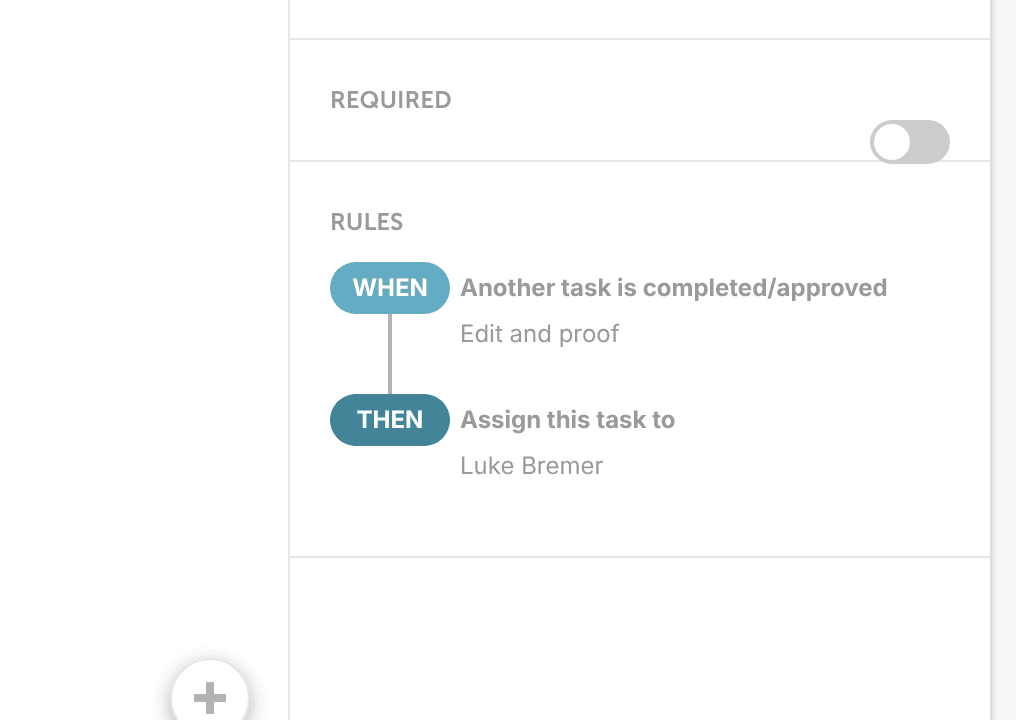
Assign the next task
Assign a task to a teammate when another task is finished. They're notified, so they know it's their turn.
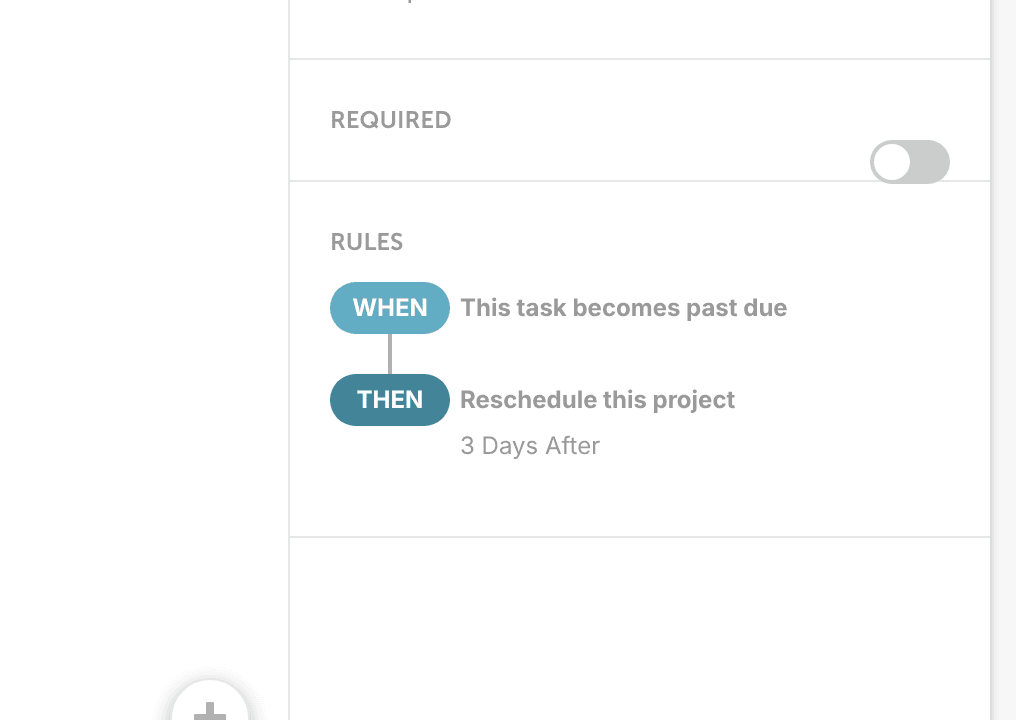
Keep project timelines realistic
Reschedule the project if a task isn't finished by its due date, so the project isn't scheduled before every step is done.
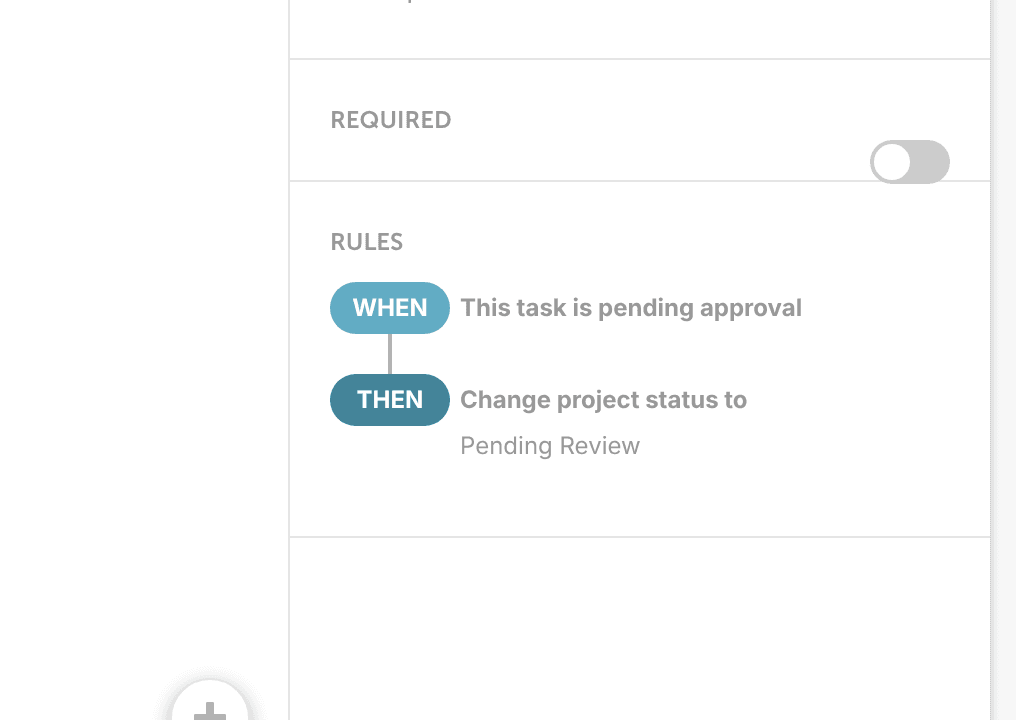
Update the project's status
Let a task's status change the status of the whole project, for example during review.
Change the project to a scheduled status when the final task is finished.