
Download files from Assets to your computer, or share a file or folder as a read-only link, so people outside CoSchedule can see it without changing anything on your calendar. Available on Suite.
Download a file
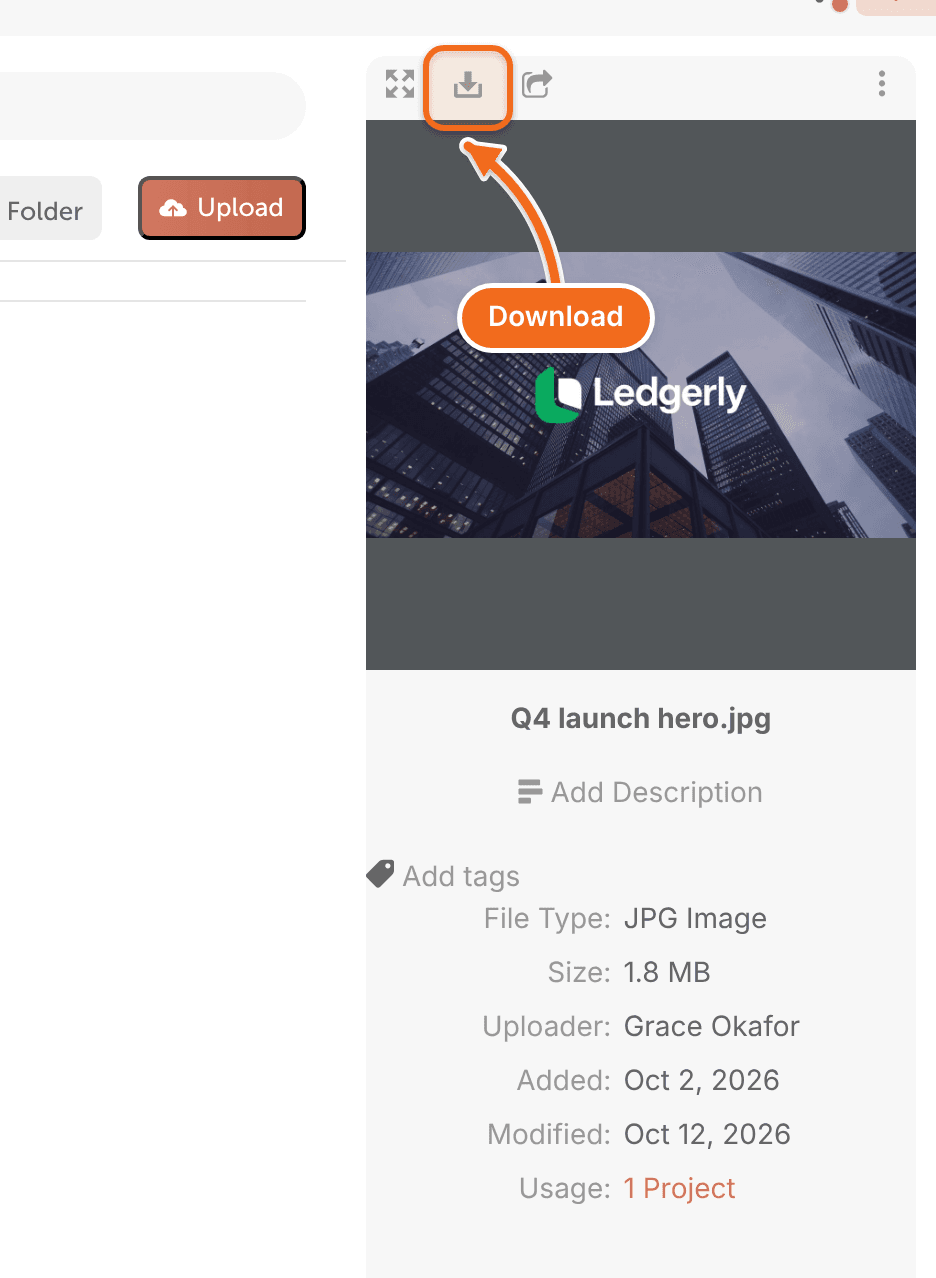
- Select the file.
- Click Download. Your browser saves the file to your computer.
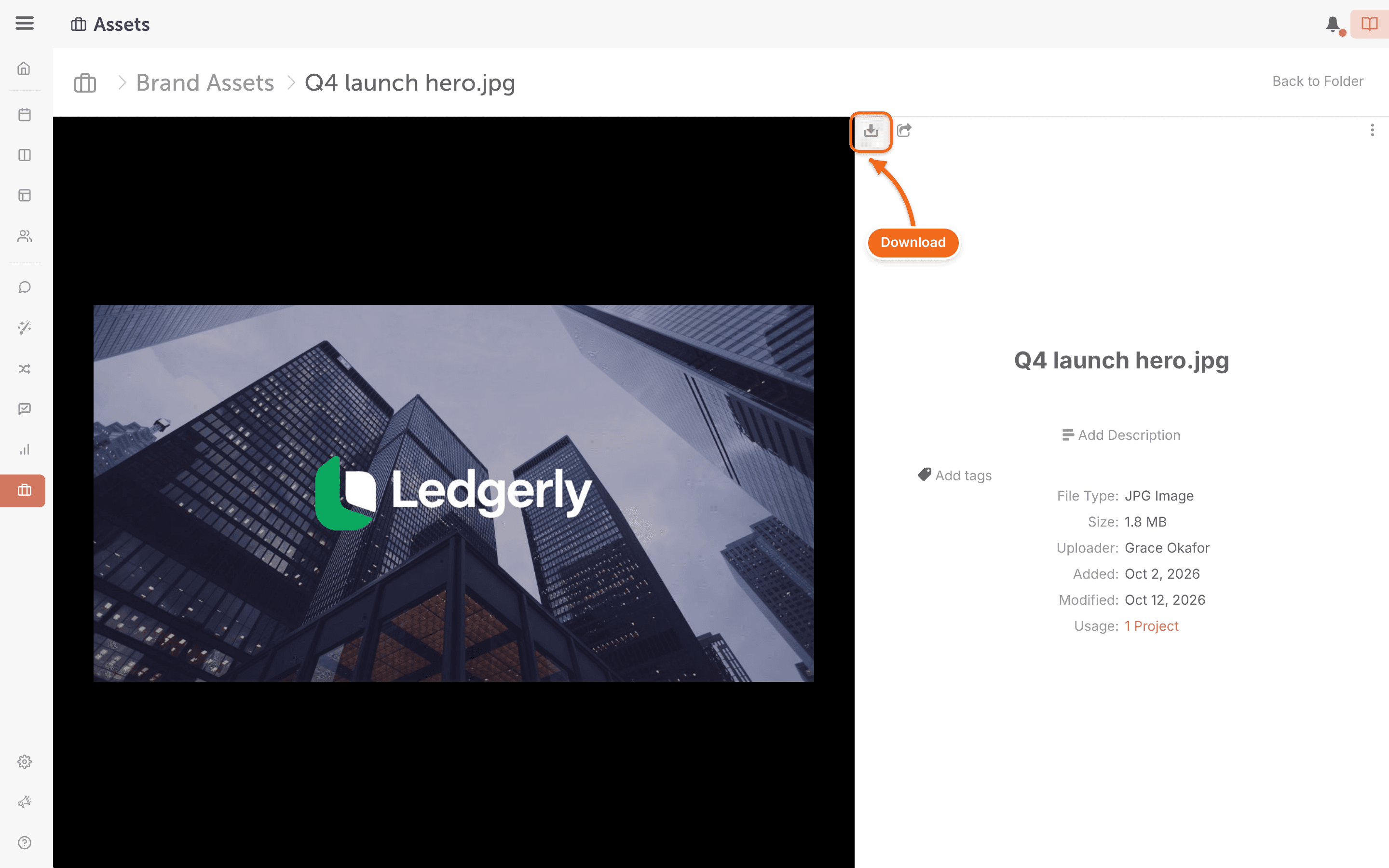
You can also download a file from preview mode.
Before you cancel or move to a plan without Assets, download the files you need. Files in Assets aren't guaranteed to stay available afterward.
Share a file or folder as a read-only link
- Select the file or folder.
- In its details panel, click the Share icon. The Share Read-Only Asset window opens, or Share Read-Only Folder for a folder.
- Click Enable Sharing. This creates the read-only link.
- Click the generated link.
- Send the link to the people you want to share with.
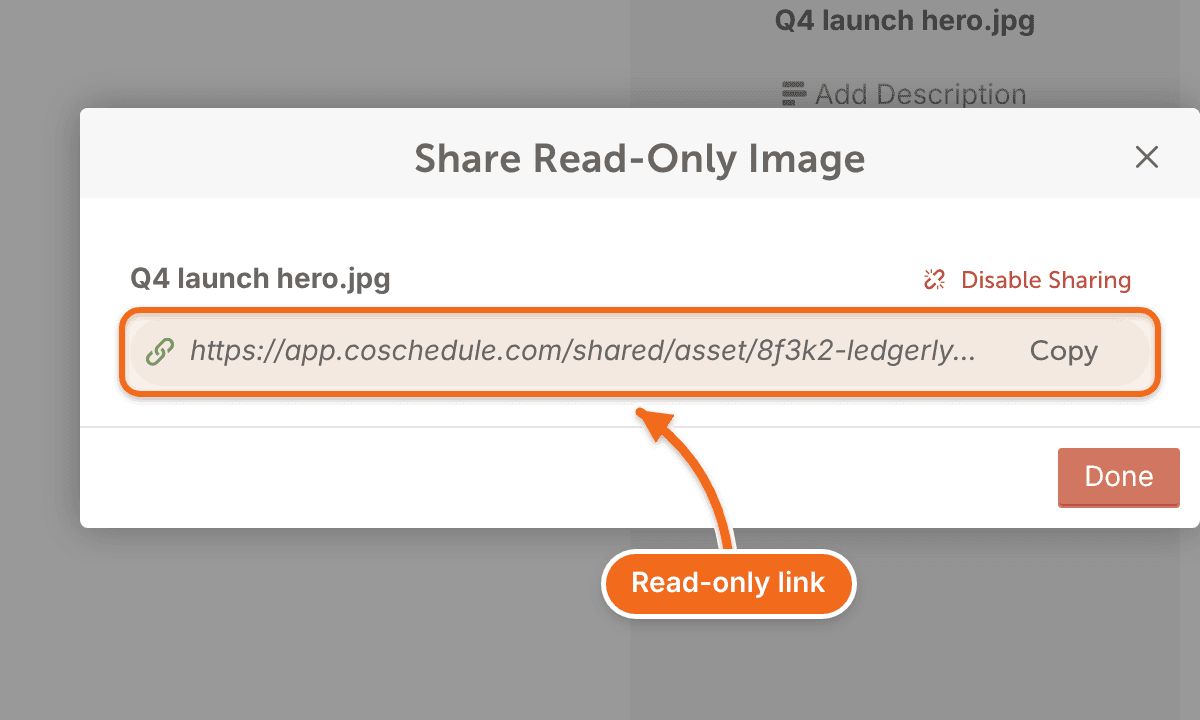
Anyone with the link can view and download what you share:
- A shared file opens in a preview, where it can be viewed or downloaded.
- A shared folder shows every file and folder inside it. Each file can be previewed or downloaded.
Project folders can't be shared from Assets. To share a project, share it as a read-only view. See Share a read-only view of your calendar.
Stop sharing a link
- Select the shared file or folder.
- In its details panel, click the Share icon.
- Click Disable Sharing. The link stops working. Disable Sharing shows only while a link exists.