
A marketing campaign template saves a campaign's content and settings so you can start new campaigns from it. Templates can also repeat on a schedule, so recurring campaigns appear on your calendar on their own. Available on Suite.
Editing a template changes only the campaigns you create from it afterward. Campaigns you've already created don't change.
Owners, Managers and Admins create and edit marketing campaign templates. Users can create campaigns from them.
Create a template from scratch
- From your calendar, open Settings.
- Select Templates.
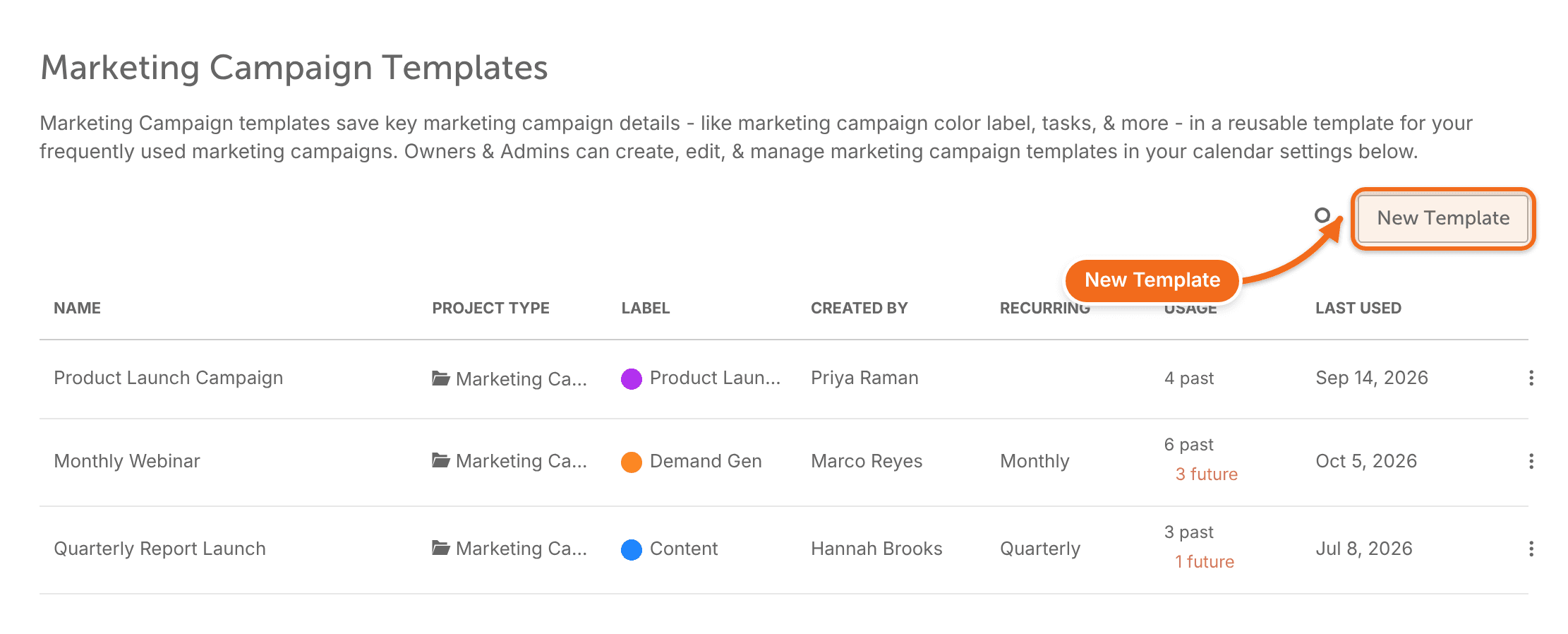
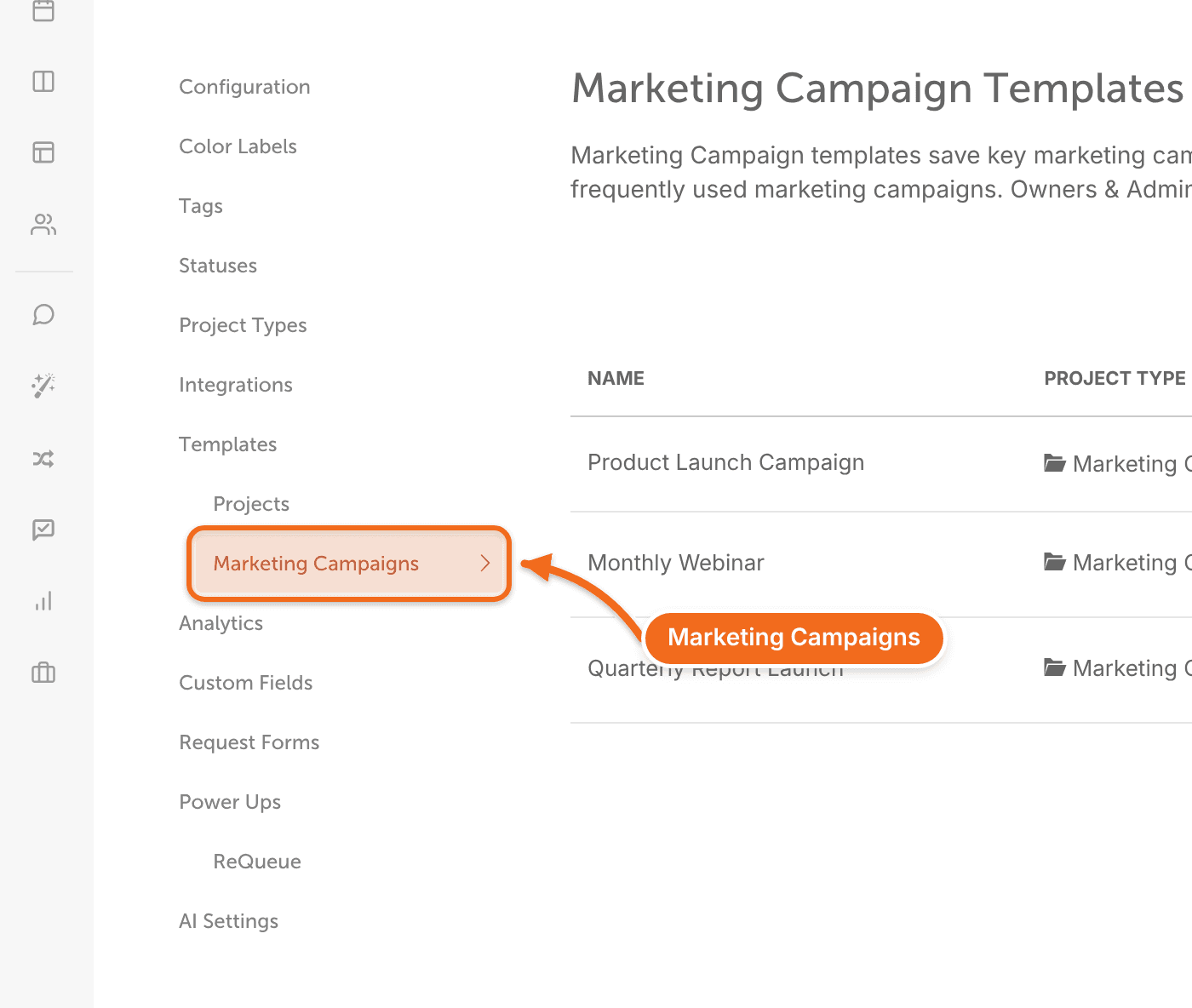
- Click Marketing Campaigns. The Marketing Campaign Templates page opens.
- Click New Template.
Save a campaign as a template
- On the calendar, click the marketing campaign you want to turn into a template.
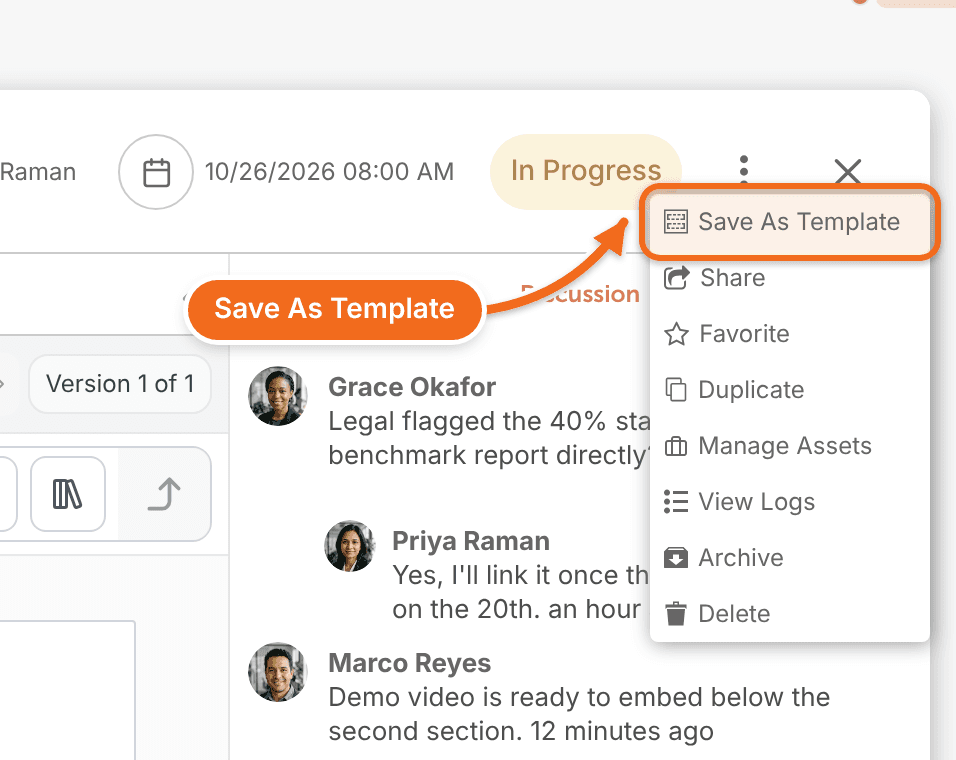
- Click the ellipsis icon.
- Select Save as Template.
A blue Marketing Campaign Template header shows you're working in a template. The template keeps everything from the campaign, except:
- Discussions aren't copied.
- Scheduled items keep their time, and their dates become relative to the campaign's date. For example, if the campaign is scheduled for September 5 and has a social message at 8:00 AM on September 7, a campaign made from the template has that message at 8:00 AM two days after its own date. Tasks work the same way.
Create a campaign from a template
- From the calendar, click +Create, or click the day you want to schedule the campaign.
- Click From Template...
- In the Choose A Template panel, select the template.
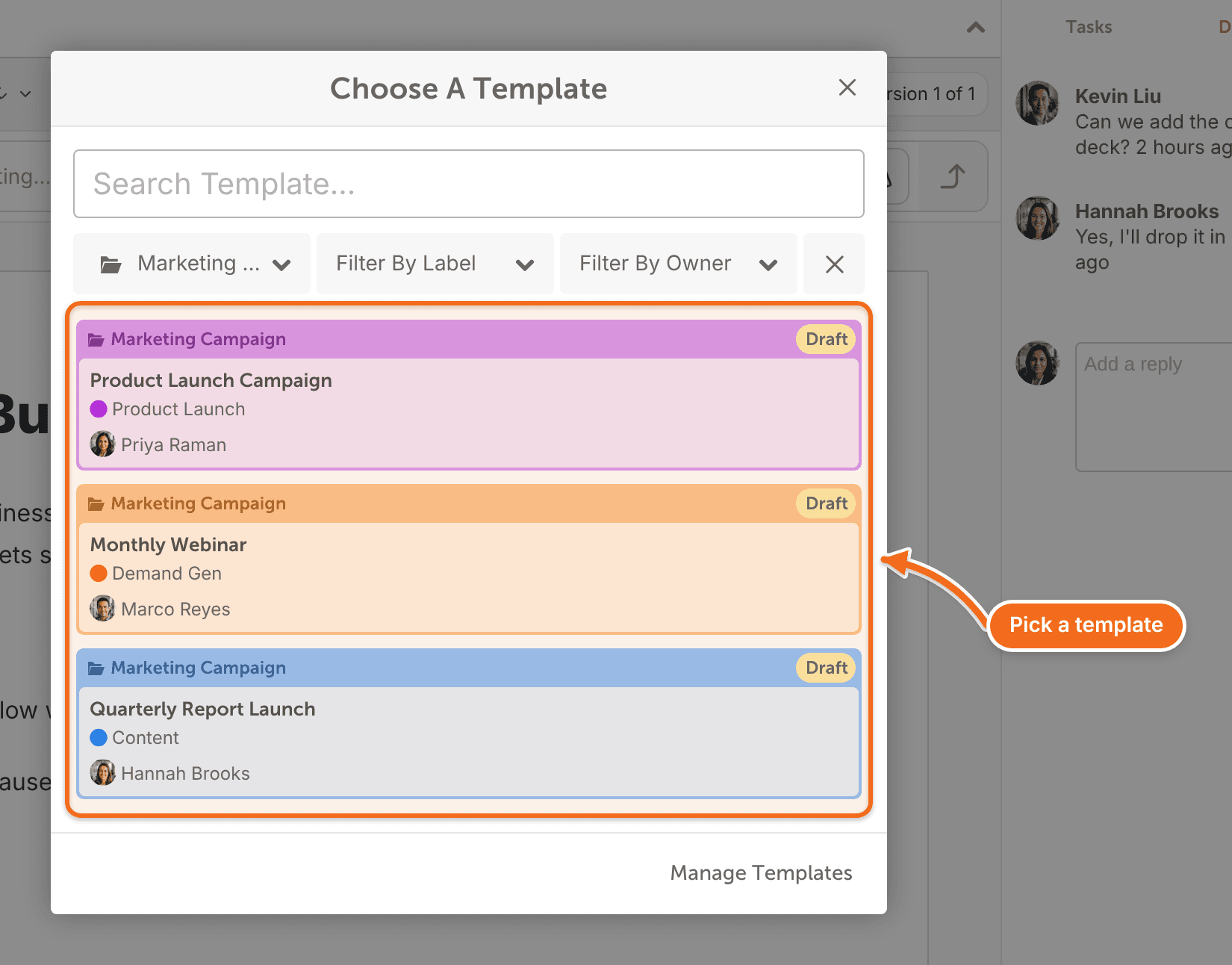
CoSchedule creates a new campaign from the template. Edit and schedule it as usual. Your changes don't affect the template.
Set a recurring schedule
- From your calendar, open Settings.
- Select Templates.
- Click Marketing Campaigns.
- Click the template.
- Click Repeat. The Recurring Schedule window opens.
- Choose how often the campaign repeats.
- Choose the day it's scheduled on.
- Choose when the schedule begins.
- Choose how long it keeps repeating.
- Choose how many weeks ahead campaigns appear on your calendar.
- Click Save.
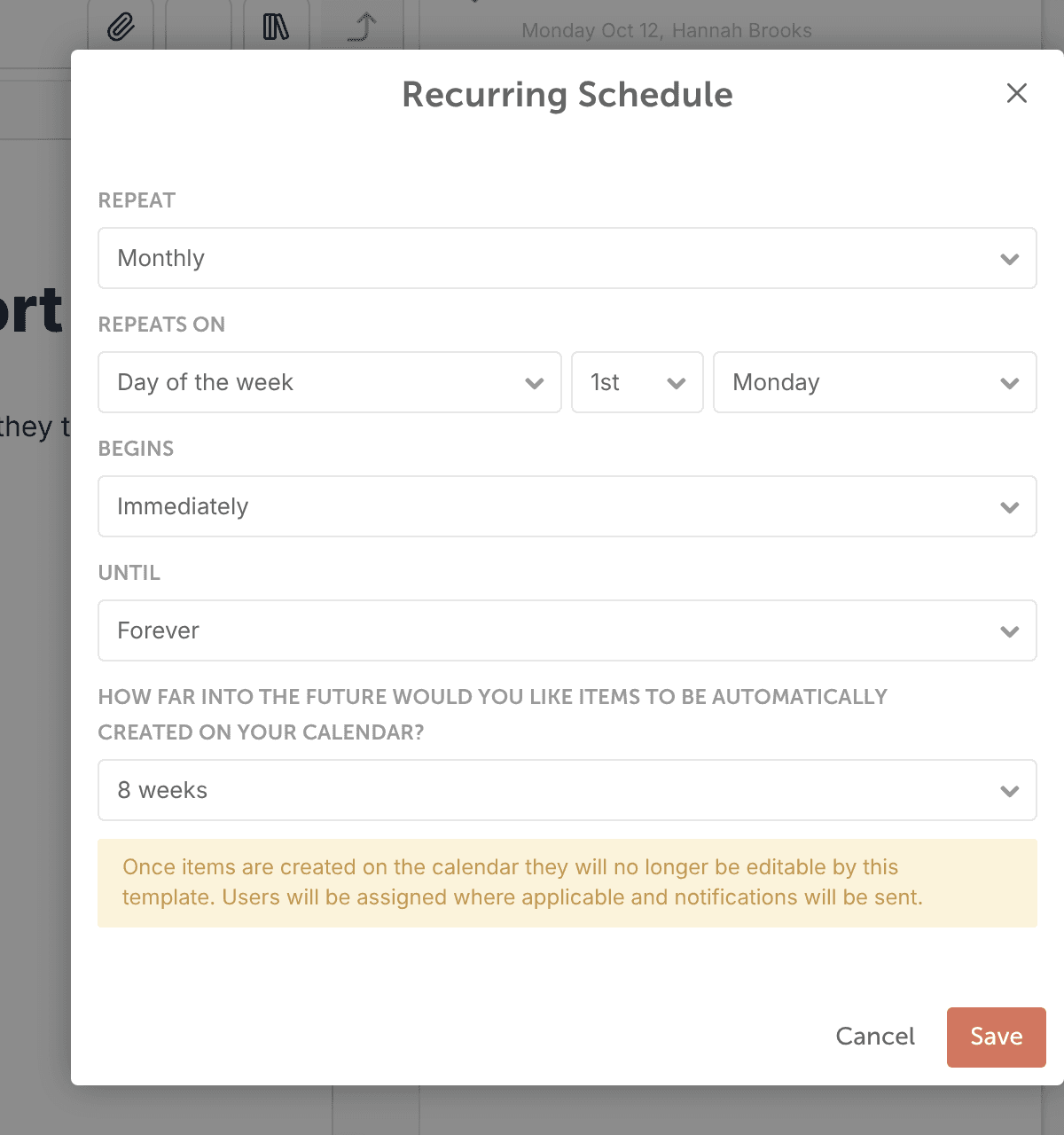
CoSchedule adds the upcoming campaigns in the series to your calendar, based on how far ahead you chose to show them. Editing one recurring campaign doesn't change the others.
To stop the template from repeating, click Remove Recurring Schedule in the Recurring Schedule window.
Delete future recurring campaigns
- From your calendar, open Settings.
- Select Templates.
- Click Marketing Campaigns.
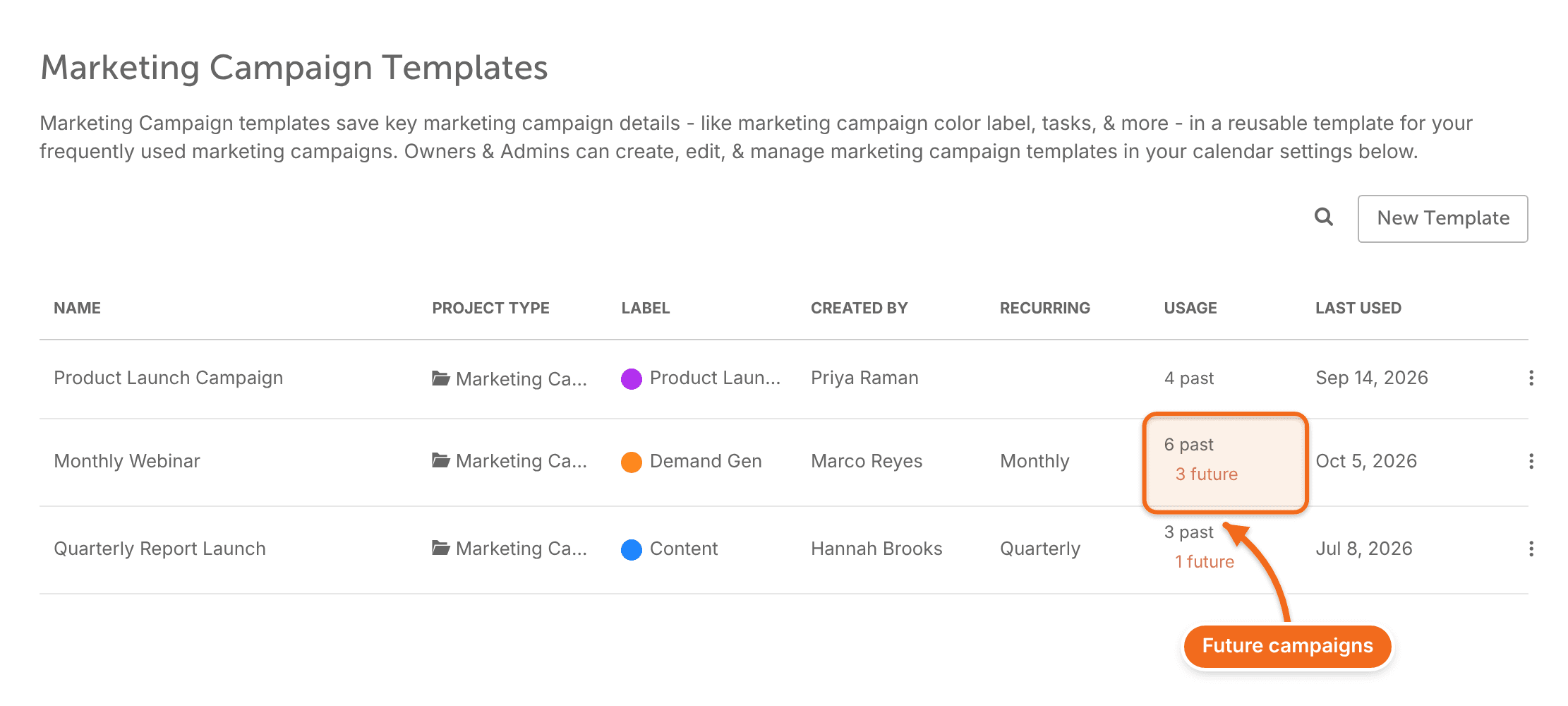
- In the Usage column, click the number of future campaigns for the template. Edit Scheduled Marketing Campaigns opens.
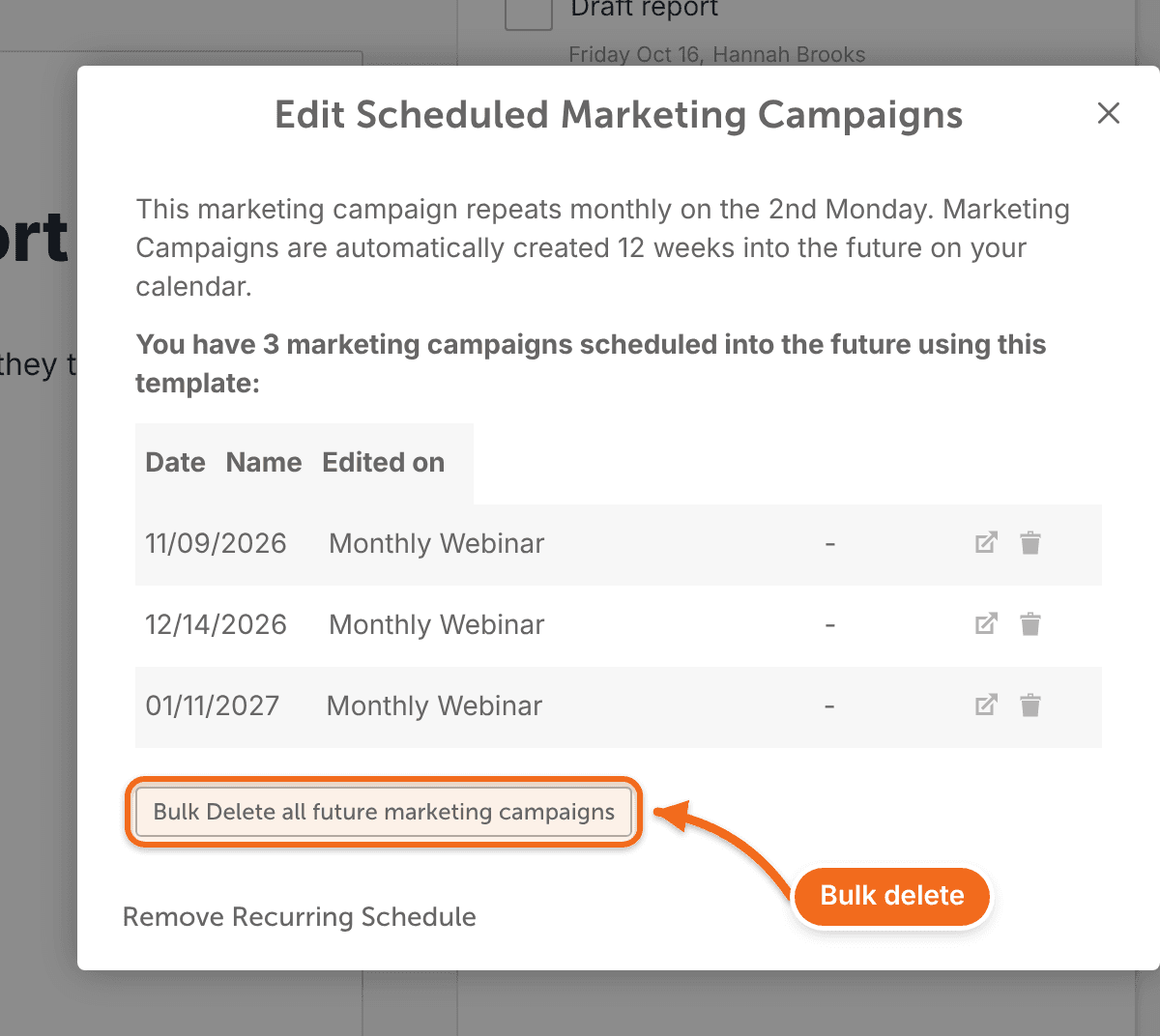
- Delete any future campaign on its own, or click Bulk delete all future marketing campaigns.
To stop the template from repeating, click Remove Recurring Schedule on the same screen.
Recurring campaigns you've edited aren't deleted. They're marked [Recovered] on your calendar.
Edit a template
- From your calendar, open Settings.
- Select Templates.
- Click Marketing Campaigns.
- Select the template you want to edit.
- Make your changes.
Delete a template
- From your calendar, open Settings.
- Select Templates.
- Click Marketing Campaigns.
- Open the three-dot menu on the template's row.
- Choose Delete.
Common questions
Why isn't my template in the Choose A Template panel?
Marketing campaign templates are hidden when you open the panel from Ideas or from inside a campaign. Open it from your main calendar instead.
A template also doesn't appear when:
- It belongs to another calendar.
- Its color label is restricted for your role.
- A filter or search is hiding it. Check Filter By Type, the label and team member filters, and the Search Template... box.
If it's still missing, search for the template by its exact name in the Search Template... box, then do a hard refresh of the page.