Custom fields add your own details to projects and request forms, such as dropdowns, dates, text, links and numbers. You can also filter your calendar, Ideas and Project Reports by custom fields. Available on Suite.
Only the Owner, Managers and Admins can open Settings > Custom Fields.
Create a custom field
- From your calendar, open Settings.
- Select Custom Fields in the left sidebar.
- Click + New Custom Field.
- Choose a field type.
- Set the field's options.
Field types
Field type | What people enter | Options |
|---|---|---|
Text Field | A short line of text | Placeholder Text, Field Description |
Multi-line Text | Several lines of text | Placeholder Text, Field Description |
Date/Time | A date, and a time if you allow it | Allow Time Selection, Field Description |
Dropdown | One item from a dropdown list | Add option, Field Description |
Multi-select Dropdown | Several items from a dropdown list | Add option, Field Description |
Checkboxes | Items checked from a list | Add option, Field Description |
Multiple Choice | Several items from a list | Add option, Field Description |
URL | A link that people can click inside the project | Field Description |
Number | A number only. Decimals use a period, not a comma. | Field Description |
What the options do:
- Placeholder Text: select the checkbox to prefill the field with placeholder text.
- Field Description: select the checkbox to add a short description of the field.
- Allow Time Selection: select the checkbox so people can pick a time as well as a date.
- Add option: click it to add an item to the list. Drag the items to reorder them.
Add a custom field to a project type
Fields you add to a project type are included in every new project of that type, in a Custom Fields section at the top of the project.
- From your calendar, open Settings.
- Select Project Types.
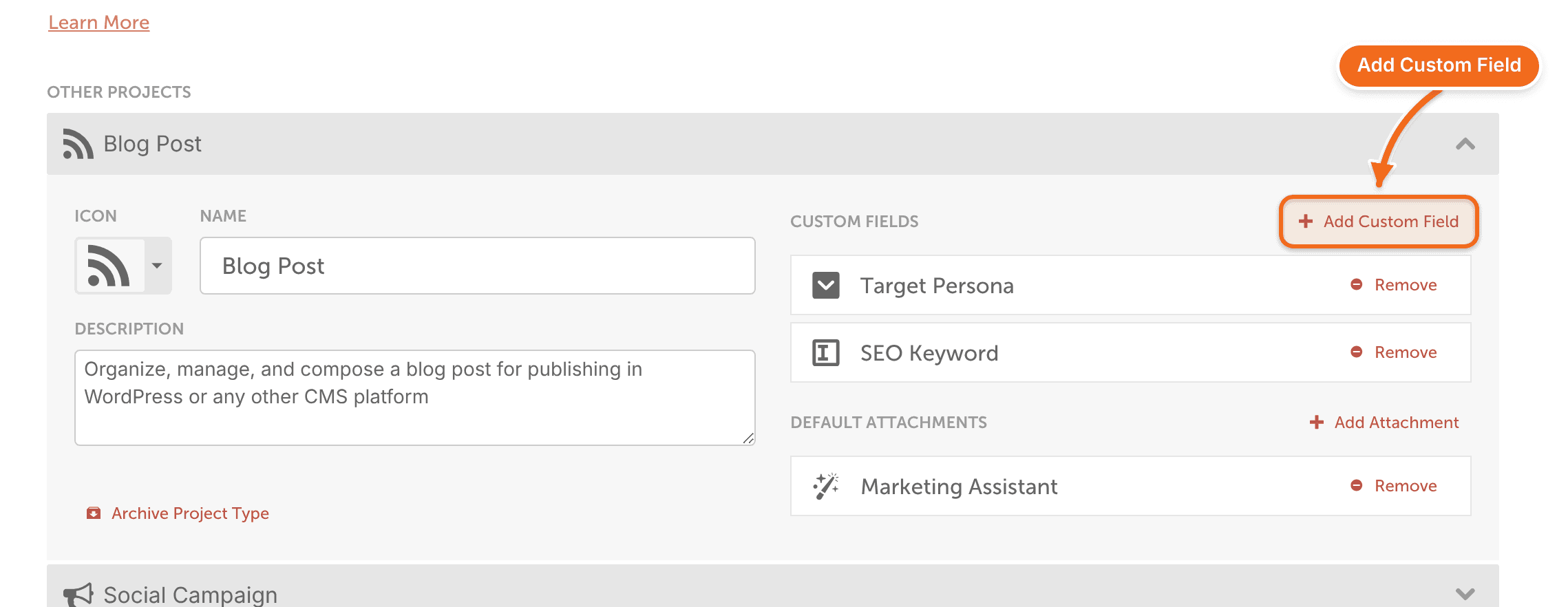
- Click the project type.
- Click Add Custom Field.
Fields added to a project type apply only to new projects. Existing projects aren't updated. If you archive a field, it stays on the projects that already have it.
Add a custom field to a request form
- From your calendar, open Settings.
- Select Request Forms.
- Open the form's three-dot menu and select Edit.
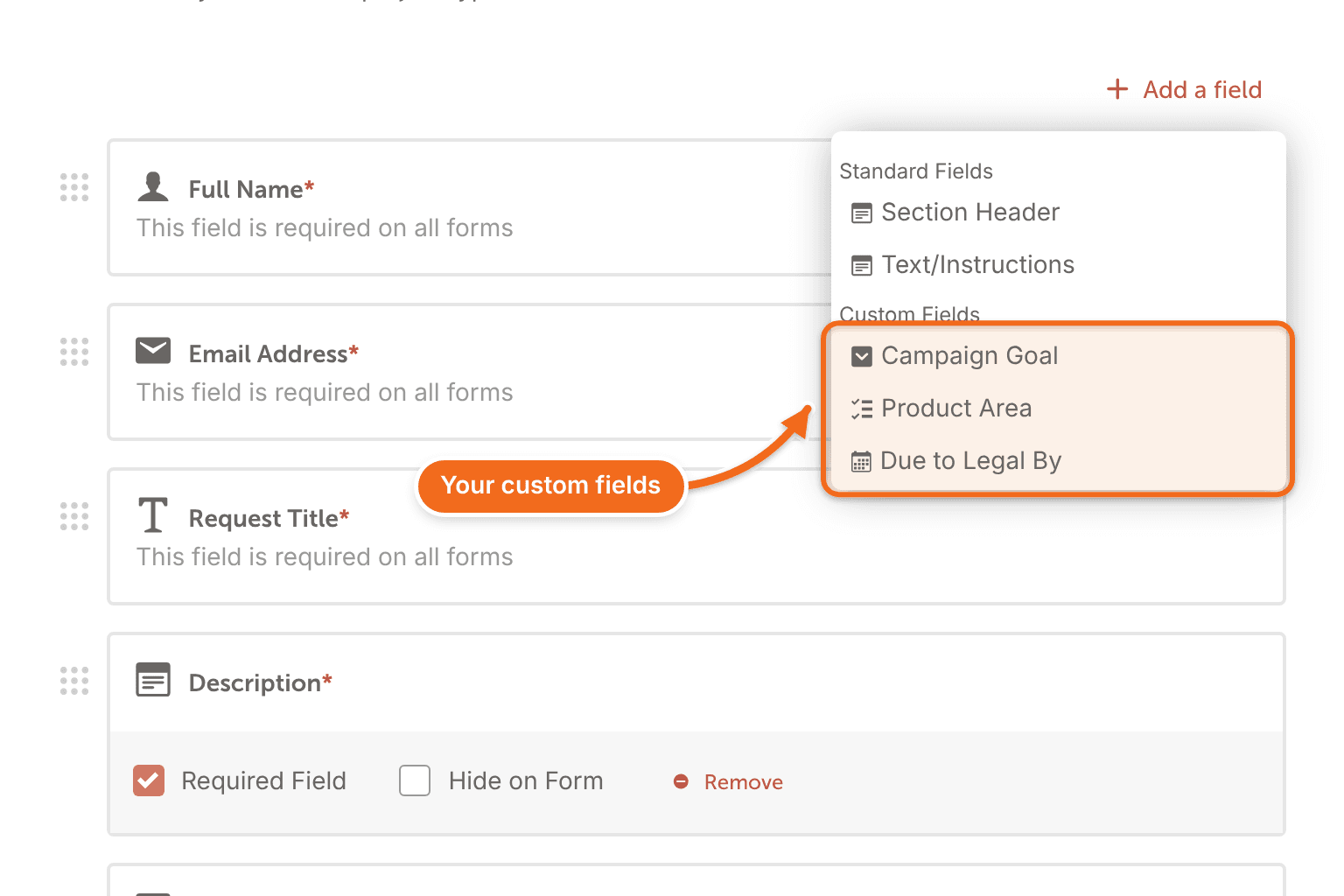
- Click Add a field.
- Choose the custom field from the list.
- Drag the fields into the order you want.
- Select Done.