
Contributors are the people who follow a project. CoSchedule notifies them when they're added, when someone comments and when other changes happen in the project. Available on Starter, Professional and Suite.
When you become a contributor
You're added to a project as a contributor automatically when you:
- Create the project.
- Comment on the project.
- Create a task for someone on the project.
- Are assigned a task on the project by someone else.
- Are set as the author of a WordPress post, and your CoSchedule account is linked to your WordPress author. See Map WordPress authors, categories and custom post types.
You can also be added by hand, as described below.
Add or remove a contributor
Anyone who can open the project can add or remove contributors.
- Click the project on the calendar.
- On the right side of the project, open the Contributors tab.
- Click Add Contributor.
- Choose the team member from the list, or search for them.
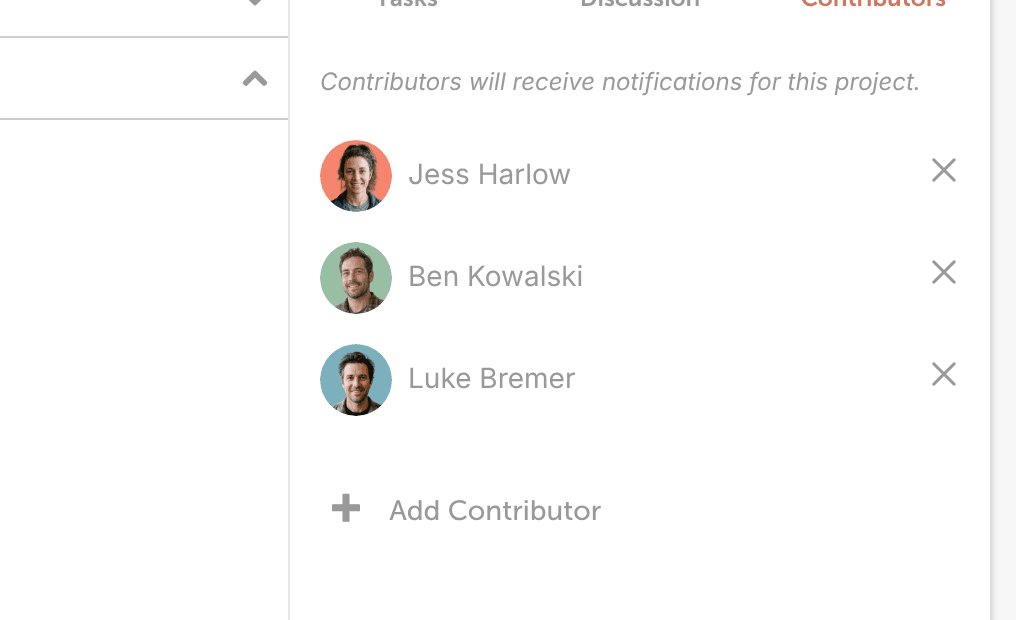
To remove a contributor, click the X next to their name.
A contributor who doesn't have access to the project's color label can still open the project, and still gets notified when someone comments or makes other changes.
Choose which notifications you get
Each person chooses which notifications they receive. See Manage notifications and unsubscribe from emails.