
Subtasks split the work of a task into smaller parts. Each subtask works like its own task inside the parent task. Available on every paid plan.
Subtasks show only inside their parent task. They don't appear on the calendar, on dashboards or in the Team Performance Report.
Add a subtask
The Subtasks section shows only on a task that's already saved. Save a new task before you add subtasks.
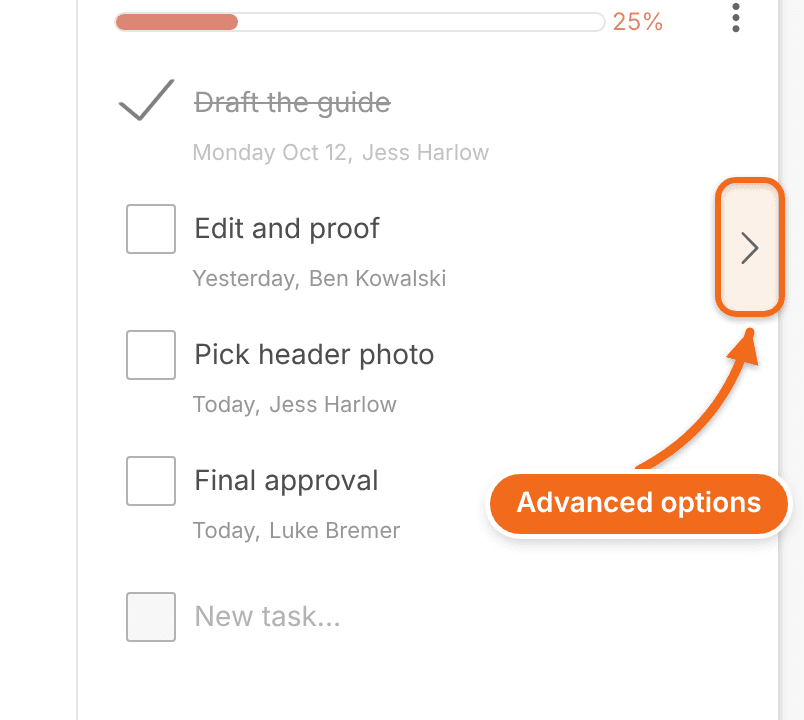
- Hover over the task and click the arrow to open its Advanced Options.
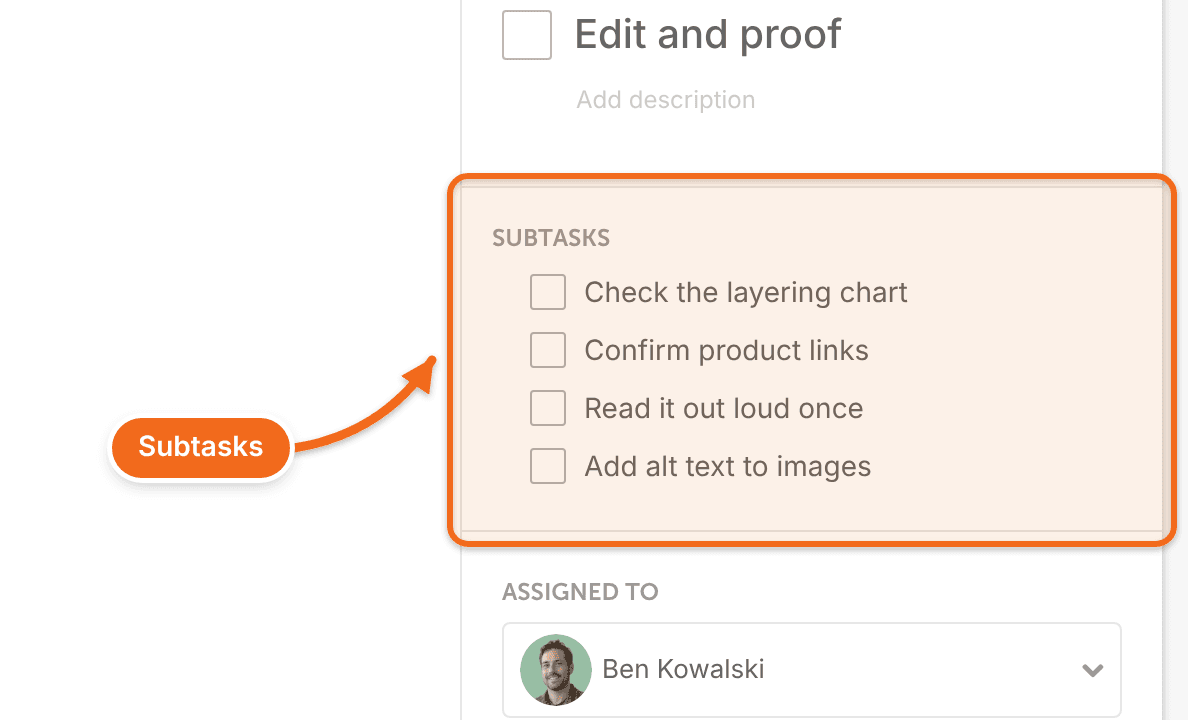
- Go to the Subtasks section.
- Type the subtask, then press Enter.
Reorder or delete subtasks
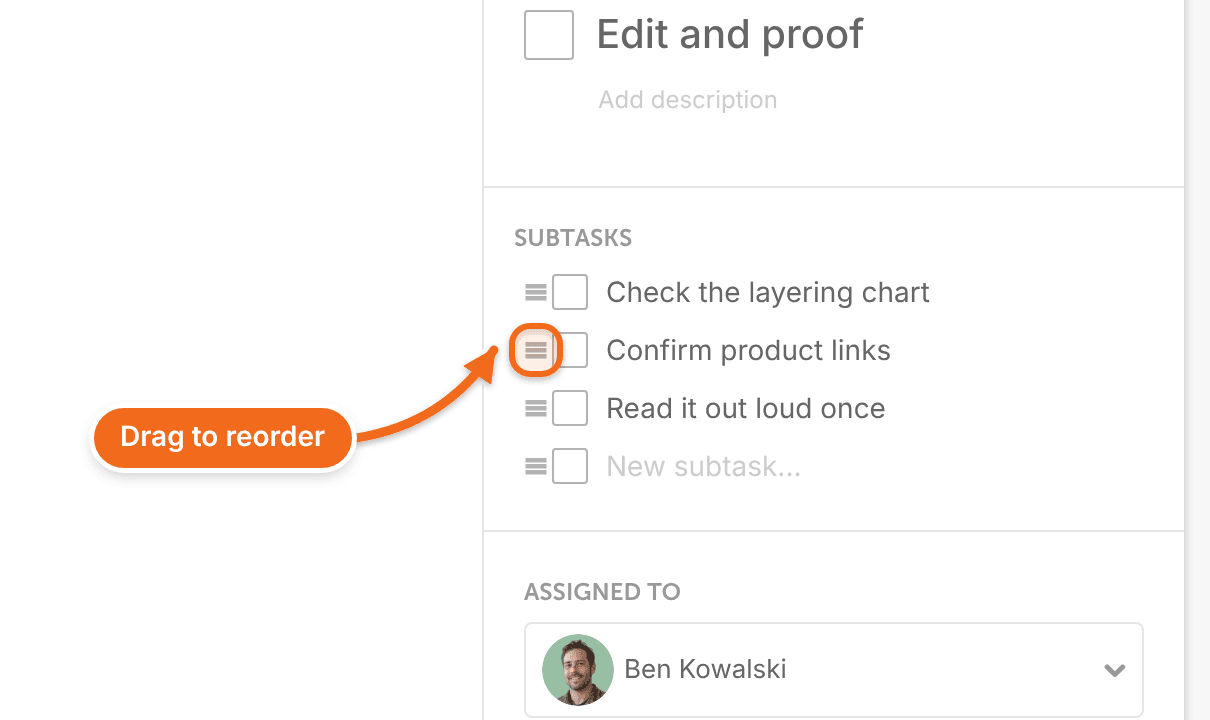
- To reorder subtasks, drag a subtask by its handle icon.
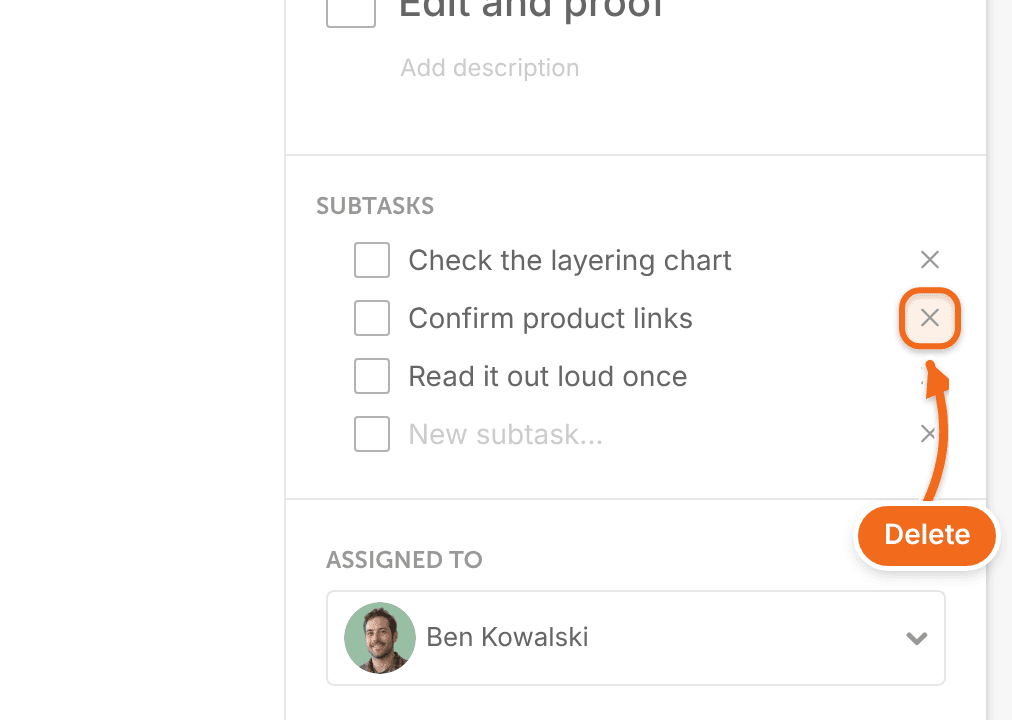
- To delete a subtask, click X.
Completing every subtask doesn't complete the parent task, and completing the parent task doesn't complete its subtasks. Mark each one finished on its own.