
See how a feed post will look in your Instagram grid before it publishes. Available on Starter, Professional and Suite.
Preview your grid
- Open your calendar and click +Create, choose Social, then select Social Message.
- Choose your Instagram account from the drop-down menu.
- Add your caption and media, and choose your feed as the destination.
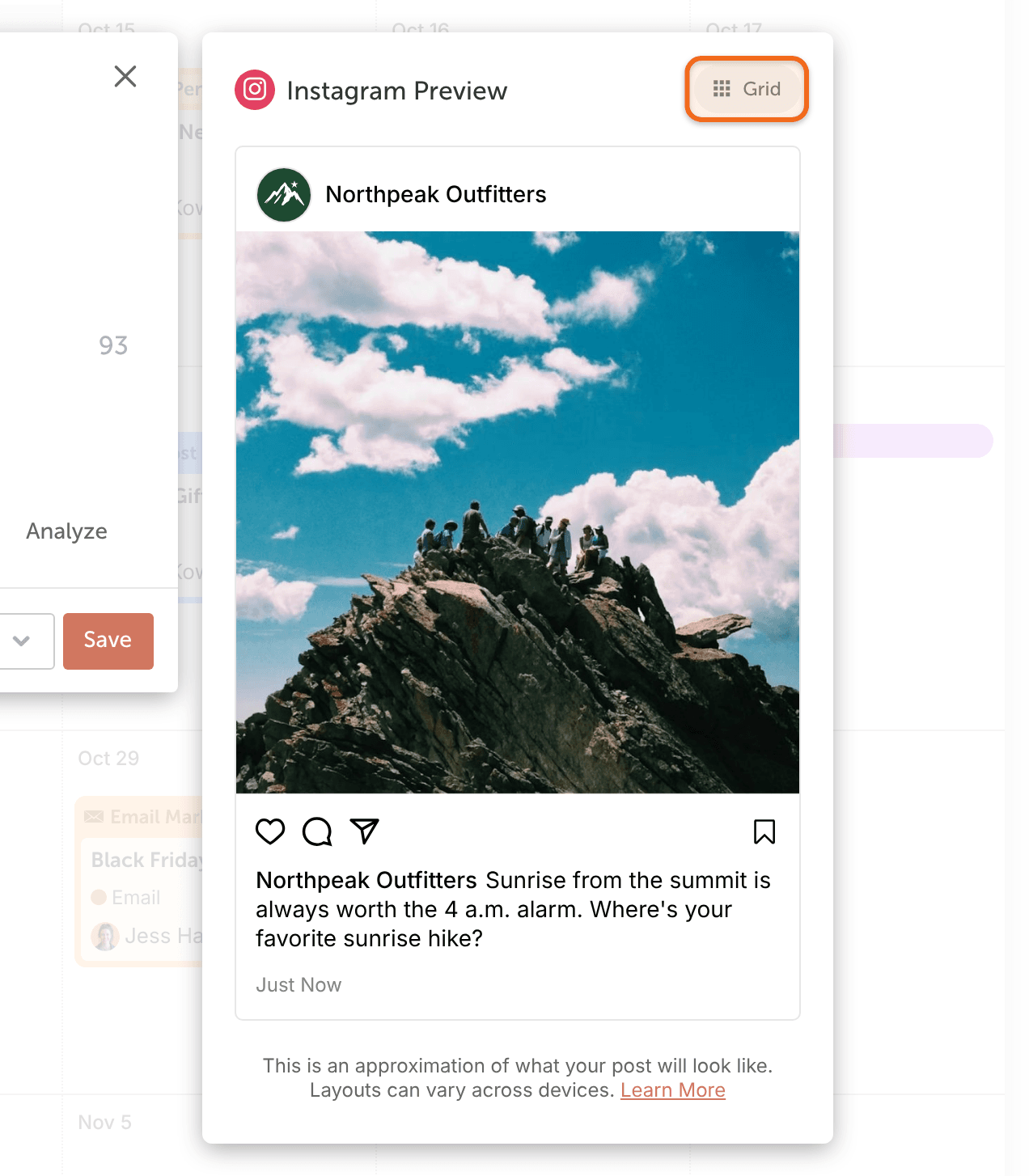
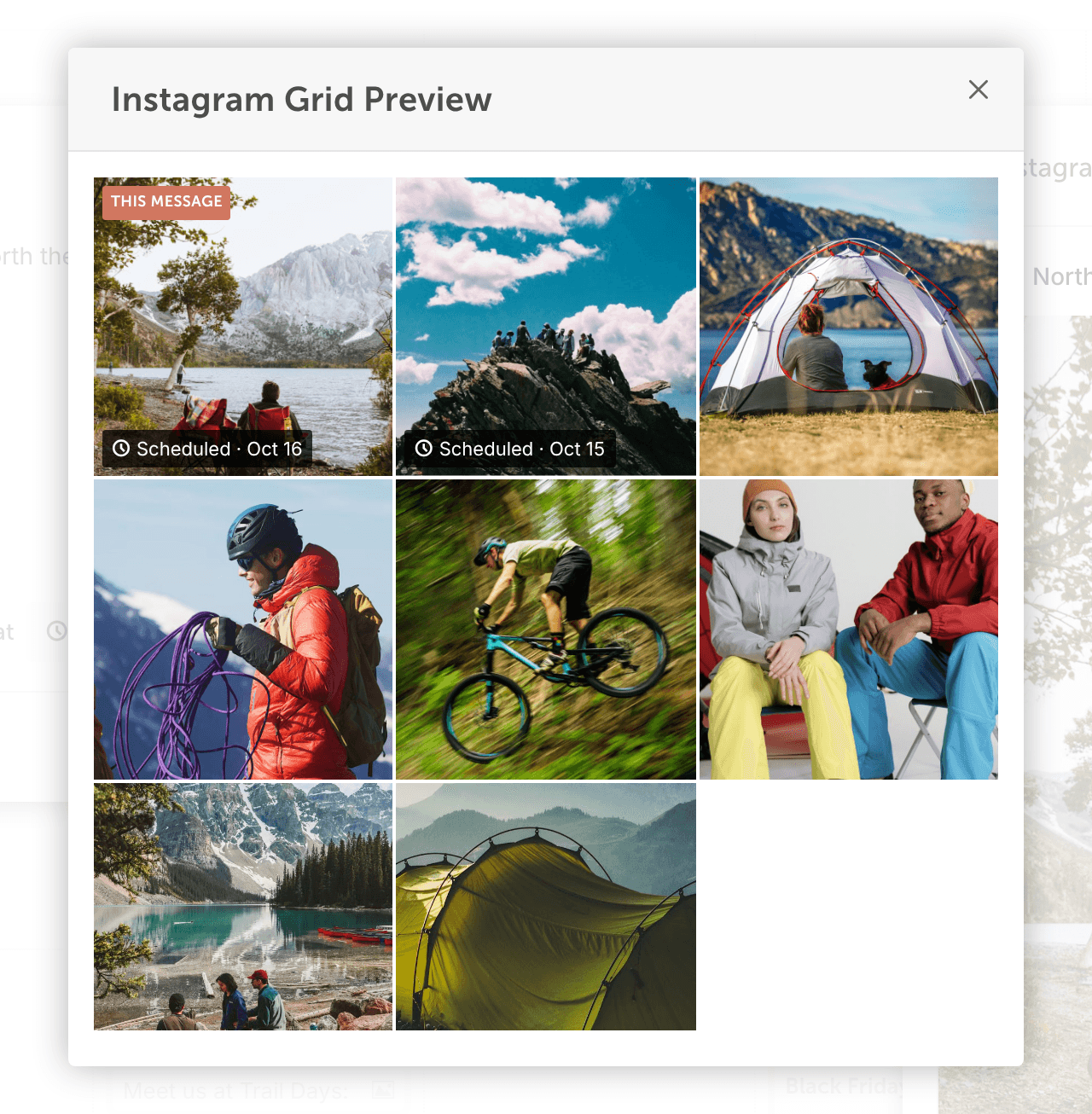
- In the message preview, click Grid. The grid opens in a separate Instagram Grid Preview window.
The grid shows the post you're scheduling, marked This Message, alongside posts already published on the account and posts scheduled in CoSchedule. It opens in its own window, not inside the message preview.
Grid preview is available when you schedule a feed post.