
Schedule a video or image post to TikTok from your calendar. Available on Starter, Professional and Suite. First, connect your TikTok account.
Schedule a TikTok post
- From your calendar, click + Create in the upper-right corner.
- Choose Social.
- Select Social Message.
- Choose your TikTok account from the drop-down menu.
- Enter your text. You can add hashtags and emojis. The character count shows in the lower-right corner.
- Add a video or images (see below).
- Choose the publishing settings (see below).
- Select the date and time, or use Best Time Scheduling.
- If needed, change the status.
- Click Save.
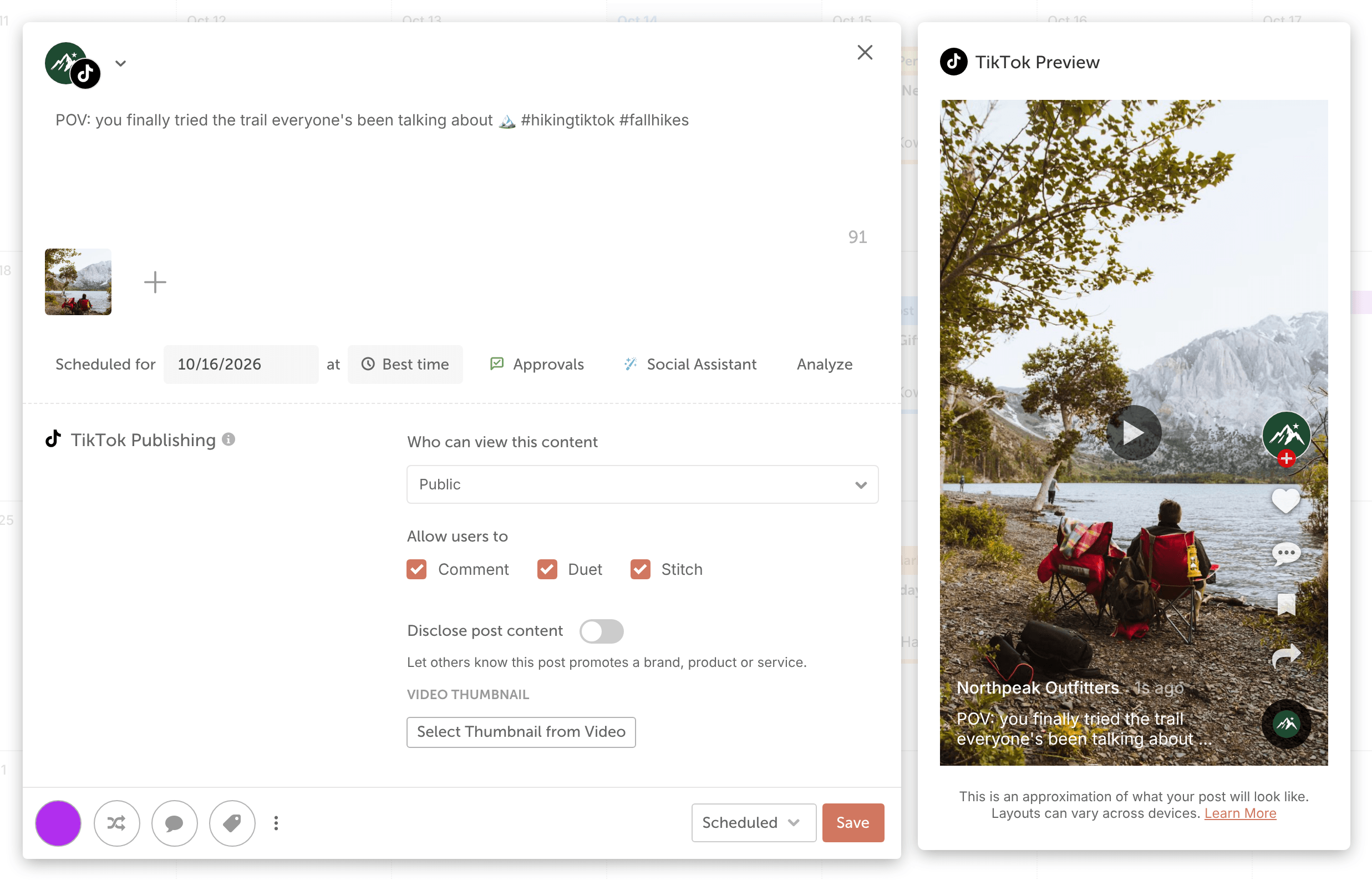
Add a video or images
A TikTok post can have one video or up to 35 images.
- Click the image icon (Add media to message).
- Upload a file from your computer, or select media you uploaded before.
- Click Save.
For file types and sizes, see Image, video and GIF sizes for social messages.
Choose publishing settings
The settings are a little different for video posts and image posts.
Video posts
- Choose who can view the post: public, friends or private. You must choose one before you can save.
- Choose the interactions to allow: comments, duets and stitches.
- If the post promotes a brand, product or service, turn on the toggle to disclose it.
- Choose a thumbnail from your video.
TikTok doesn't accept an uploaded image as a video thumbnail. Choose a frame from your video instead.
Image posts
- Enter a title. Titles can be up to 90 characters.
- If you want TikTok to add music, select the auto add music checkbox.
- Choose who can view the post: public, friends or private. You must choose one before you can save.
- Choose whether to allow comments.
- If the post promotes a brand, product or service, turn on the toggle to disclose it.
With auto add music selected, TikTok adds one of its most popular songs to your image post. CoSchedule can't choose the song.
Add more to your message
- Click Social Assistant (wand icon) to draft the text with AI Social Assistant.
- Click Analyze to grade your message before you schedule it.
- Click the white circle in the lower-left corner to add a color label.
- Click the ReQueue icon to add the post to ReQueue.
- Add the post's link to your TikTok Link in Bio page.
What you can't do with TikTok posts
- Publish with mobile push notifications. TikTok posts publish directly; push notification publishing is only for Instagram.
- Schedule a first comment.
- Post to TikTok from the CoSchedule mobile app.
- Reply to TikTok comments in Social Inbox. Social Inbox doesn't include TikTok.
After your post publishes
A published message can't be edited. It opens as a read-only preview, and Save is replaced by View Post, or by Profile Page for a private TikTok post.
To see how the post performed, see View analytics on a social message or campaign.