
With push notification publishing, the CoSchedule mobile app notifies you at the scheduled time and you finish the post in the Instagram app. Use it when you want to add something direct publishing can't, like music. Available on Starter, Professional and Suite; push notification publishing works only for Instagram.
You need the CoSchedule mobile app and the Instagram app on the same phone.
Turn on notifications in the mobile app
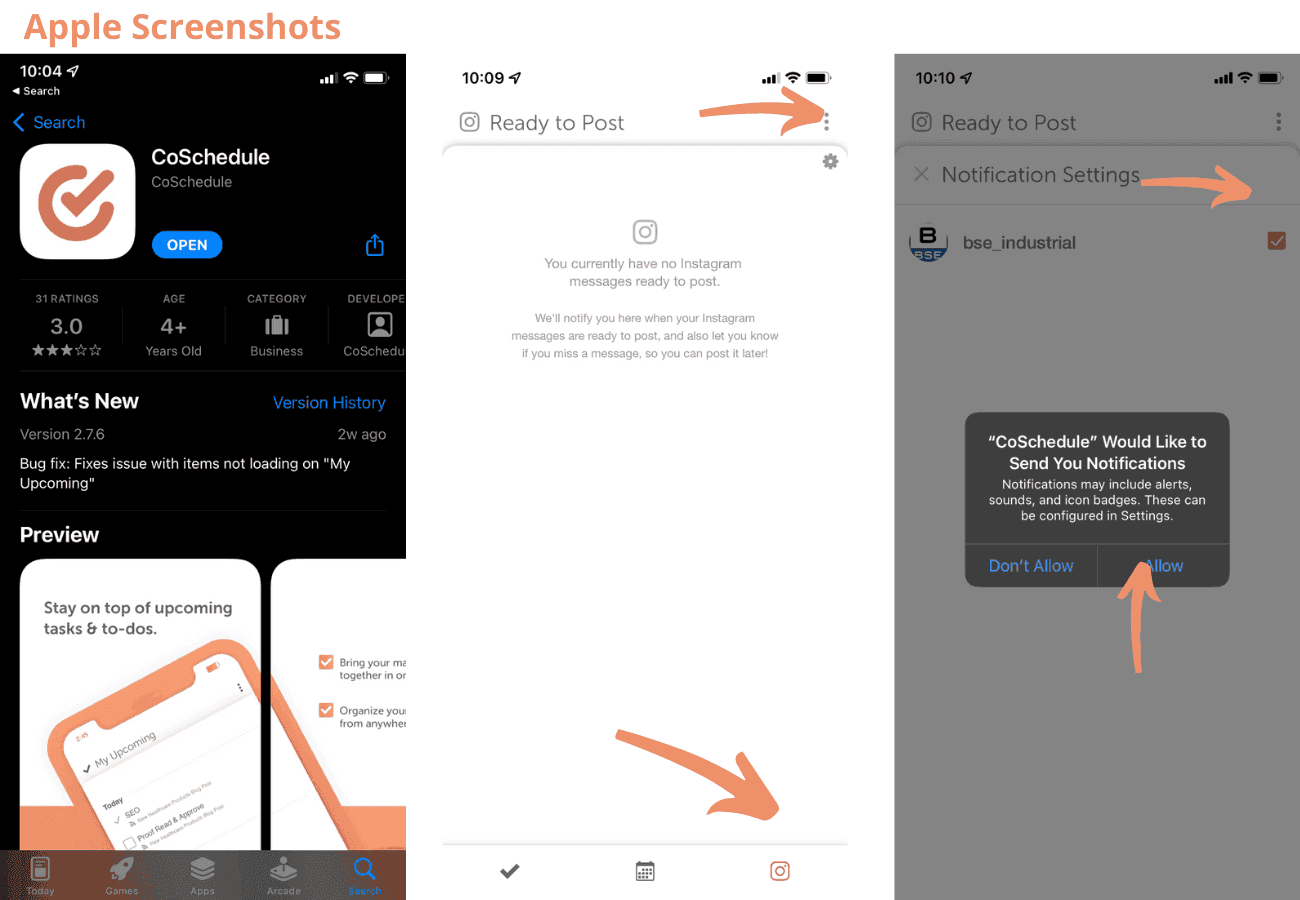
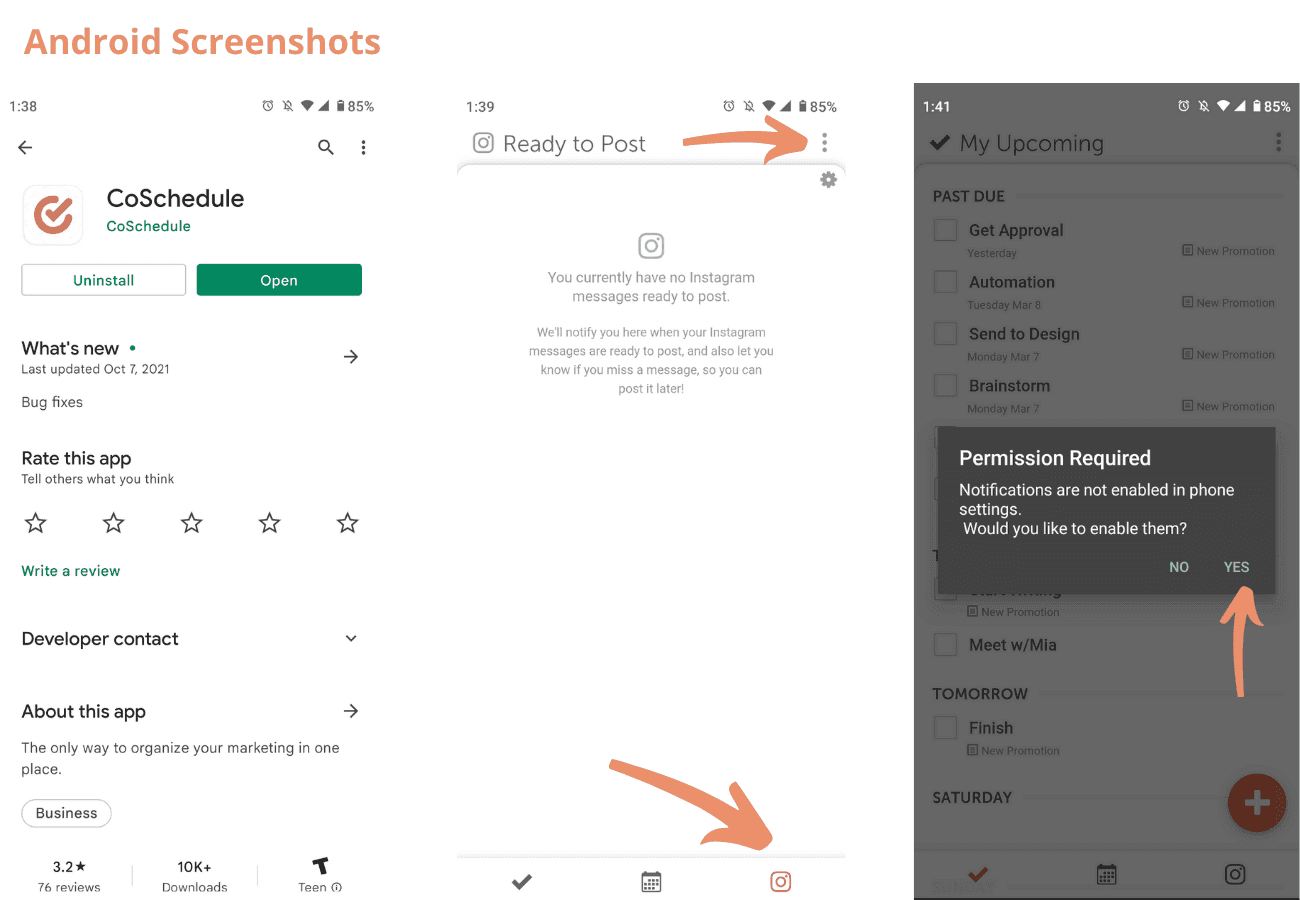
- Download the CoSchedule mobile app from the Apple App Store or Google Play Store.
- Log in with the email address and password for your CoSchedule account.
- Tap the Instagram icon on the right of the bar at the bottom of the screen. The Ready to Post screen opens.
- Tap the gear at the top of the Ready to Post screen to open Notification Settings.
- Check the box next to your Instagram profile.
- When your phone asks to allow notifications, tap Allow (on Android, tap Yes).
Schedule a message for push notification publishing
- In your calendar, click +Create, choose Social, then select Social Message.
- Choose your Instagram account and add your caption and media.
- Select Publish via Mobile Notification.
- Select the date and time.
- Click Save.
First comments aren't available with push notification publishing.
Publish when the notification arrives
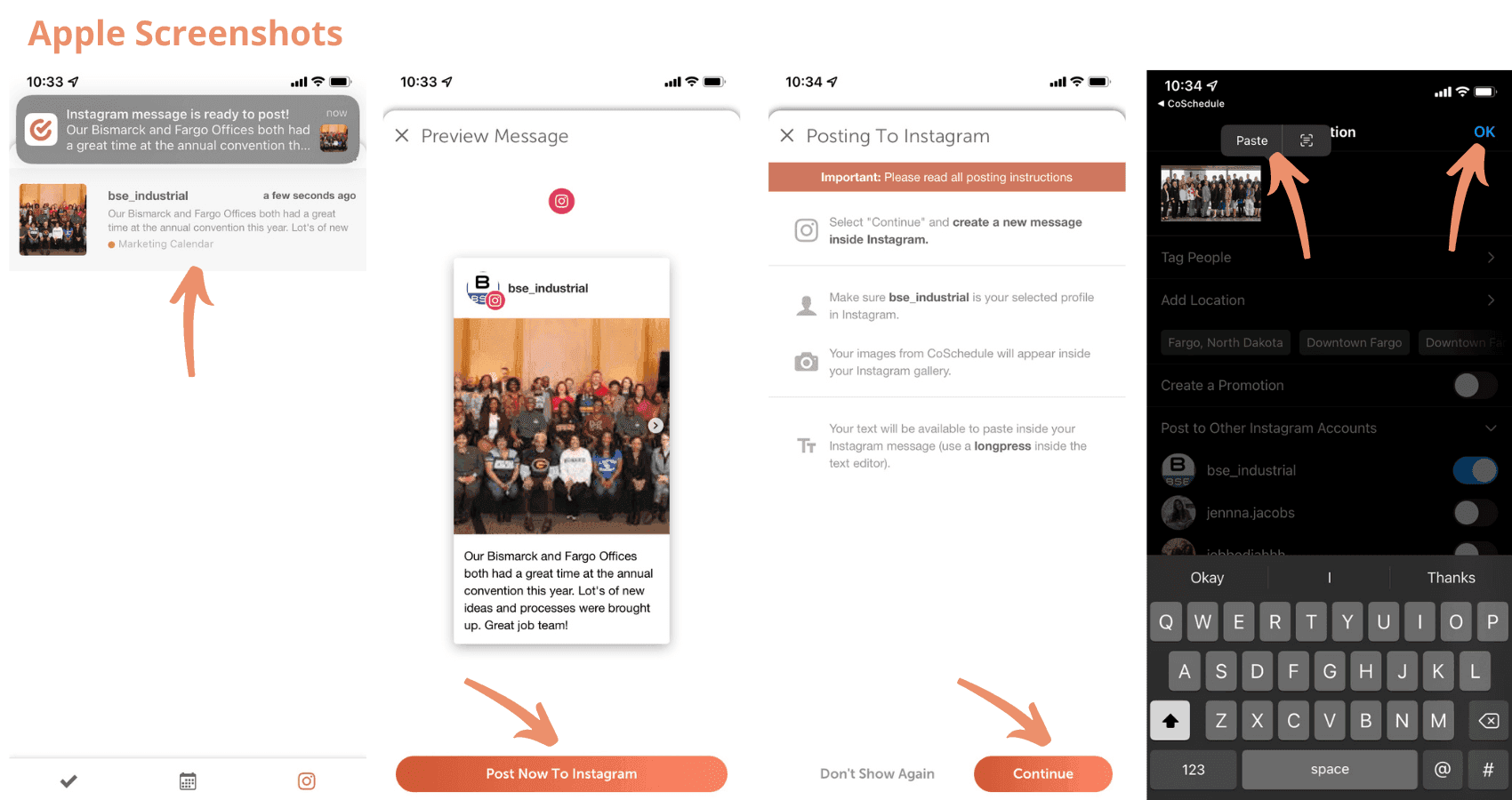
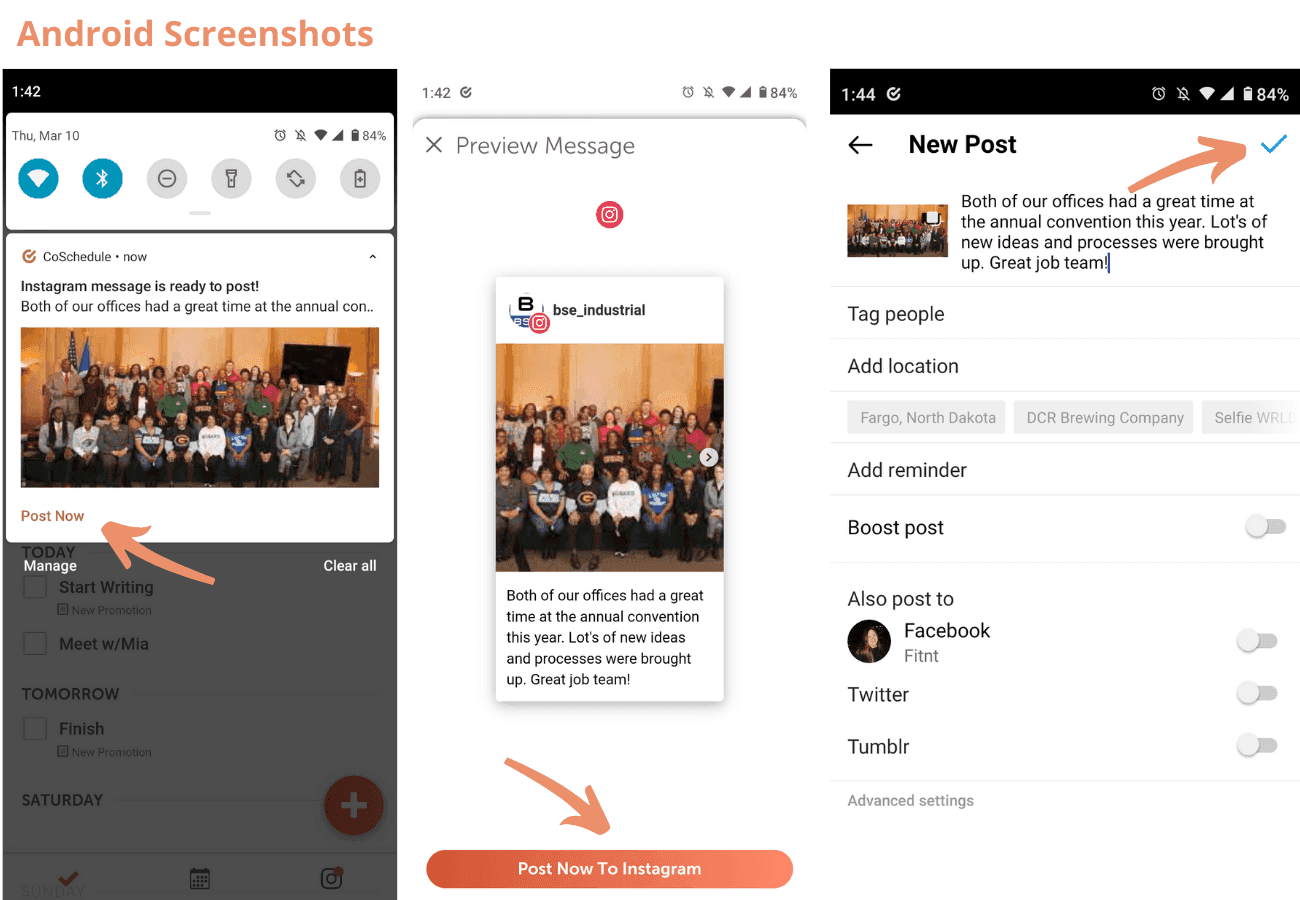
- Tap the push notification on your phone.
- On the Preview Message screen, tap Post Now to Instagram.
- Read the Posting To Instagram instructions, then tap Continue. The Instagram app opens.
- If you manage more than one Instagram account, switch to the right one.
- In the Instagram app, create a new post with the media you scheduled. It shows first in your library. Instagram explains how in Share a Post.
- Paste the text you scheduled into the caption.
- Share the post.
CoSchedule sends the full image to Instagram, so resize it in Instagram if you need to. If you manage several Instagram accounts, check that you're posting to the right one.
If you missed the notification
You can still publish a post if you missed its notification, or scheduled it before you turned notifications on.
- Open the CoSchedule mobile app.
- Tap the Instagram icon on the right of the bar at the bottom of the screen to open Ready to Post.
- Tap the unpublished Instagram post.
- Follow steps 2 to 7 in the section above.