
Schedule standard updates, events and offers to your Google Business Profile from your calendar. Available on Starter, Professional and Suite. First, connect your Google Business Profile.
Schedule an update
- From your calendar, click + Create in the upper-right corner.
- Choose Social.
- Select Social Message.
- Choose your Google Business Profile from the drop-down menu.
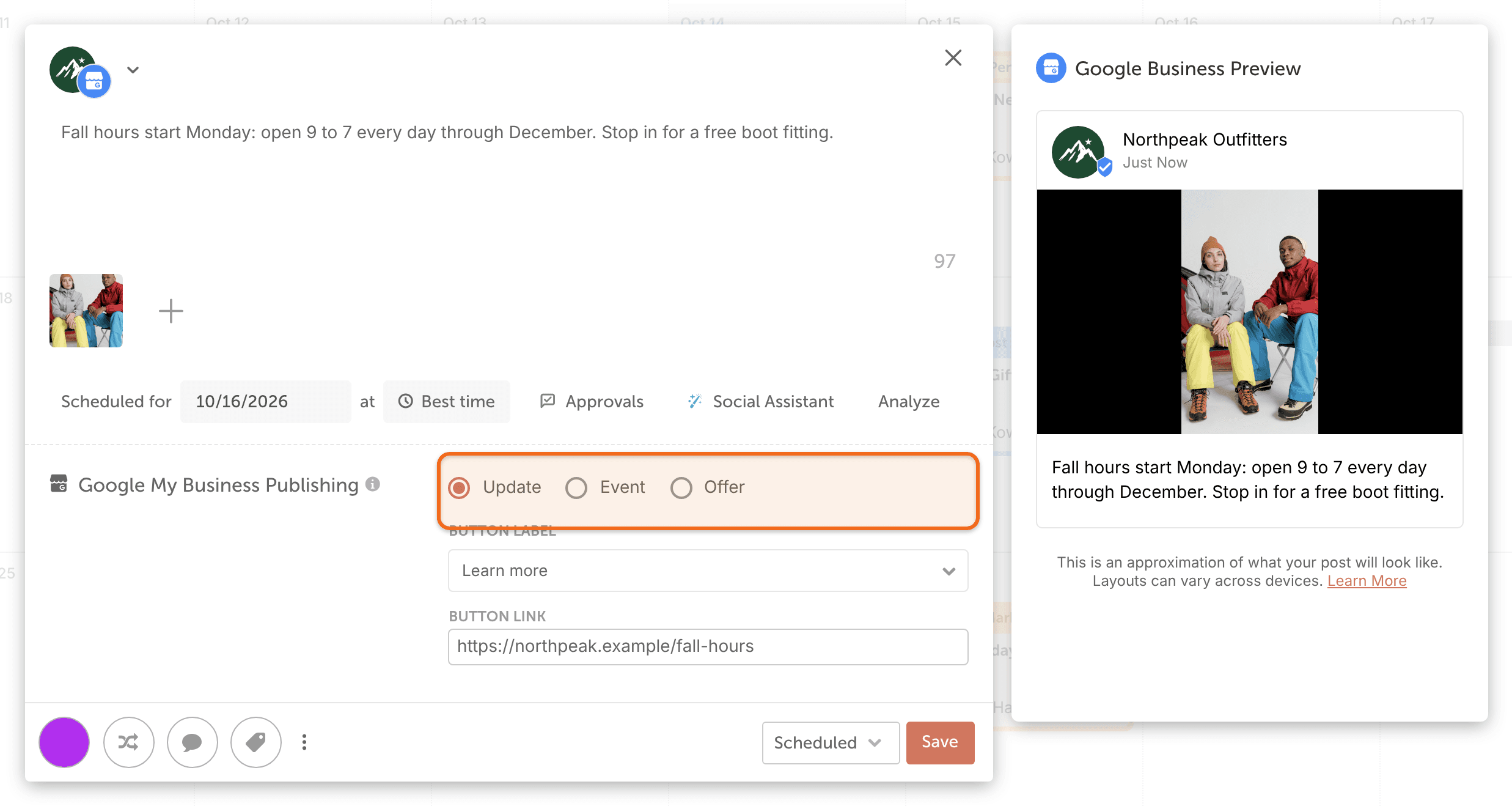
- In the Google My Business Publishing panel, choose Update.
- Enter your update text. Text can be up to 1,500 characters.
- To add an image, click the image icon with the tooltip "Add media to message". You can add one image.
- To add a call-to-action button, enter the button's text in Button Label.
- If you added a button, enter the URL it should open in Button Link.
- Select the date and time you want the update to publish.
- Click Save.
Schedule an event
- Follow steps 1 to 4 under Schedule an update.
- Choose Event.
- Enter your event description.
- To add an image, click the image icon with the tooltip "Add media to message". You can add one image.
- Enter the event's name in Event Title. Event titles can be up to 58 characters.
- Select a start date and an end date. The start date can be in the past, but the end date must be in the future.
- If the event starts and ends on the same day, enter the start and end times. Otherwise, times are optional.
- To add a call-to-action button, enter the button's text in Button Label.
- If you added a button, enter the URL it should open in Button Link.
- Select the date and time you want the event to publish.
- Click Save.
Event times follow the time zone of your Business Profile location, not your calendar's time zone.
Schedule an offer
- Follow steps 1 to 4 under Schedule an update.
- Choose Offer.
- Enter your offer description.
- To add an image, click the image icon with the tooltip "Add media to message". You can add one image.
- Enter the offer's name in Offer Title.
- Select a start date and an end date.
- To add a coupon code, offer link or terms, turn on Advanced Options.
- In Coupon Code, enter the code people use to get the offer.
- In Offer Link, enter the URL you want people to go to.
- In Terms & Conditions, enter your terms.
- Select the date and time you want the offer to publish.
- Click Save.
You can't set times on an offer. An offer that runs for one day is valid from midnight to midnight in your Business Profile location's time zone.
Image requirements
Each update, event or offer can have one image. It must be a JPG or PNG file between 10 KB and 10 MB, at least 250 x 250 pixels and no more than 10,000 x 10,000 pixels. For all the limits, see Image, video and GIF sizes for social messages.
What you can't do with Google Business Profile posts
- Add a video or a GIF. Google Business Profile posts support images only.
- Mention other accounts. See Mention a user or Page in a social message.
- Schedule a first comment.
- Create Google Business Profile messages in the CoSchedule mobile app. Use CoSchedule in a web browser.
After your update publishes
A published message can't be edited. It opens as a read-only preview, and Save is replaced by View Post. Nothing you change in CoSchedule afterward changes the post on your Business Profile.
On Professional and Suite, new reviews and questions on your Business Profile come into Social Inbox. See Networks Social Inbox supports on each plan.
If your Google Business Profile posts stop publishing, see Why a social message did not publish.