
Connect an X (Twitter) account to your calendar so you can schedule and publish posts to it from CoSchedule. Available on Starter, Professional and Suite, not on the free plan.
Connect the X account itself. CoSchedule can't connect or post through an X delegate account, because X's API doesn't allow it.
Before you start
Connecting X needs an X profile on your plan. X profiles are separate from the social profiles your plan includes and don't count toward that limit.
If your plan has no X profile available, selecting Twitter in the connect window opens a window titled "Twitter Profiles Are Billed Separately" instead of connecting. If you already have X profiles, it's titled "You've Reached Your Twitter Profile Limit", and when you reconnect an X account it's titled "Twitter Profiles Are Now Billed Separately". Click Go to my Billing Page to add an X profile. Only the Owner and Managers can open billing. On Suite, the window has no button and asks you to talk to your Customer Success Manager.
Connect an X account
- In CoSchedule, open Settings, then click the Social Profiles tab.
- Click Connect Social Profile.
- Select Twitter (X is still listed under its old name), then click Let's Connect.
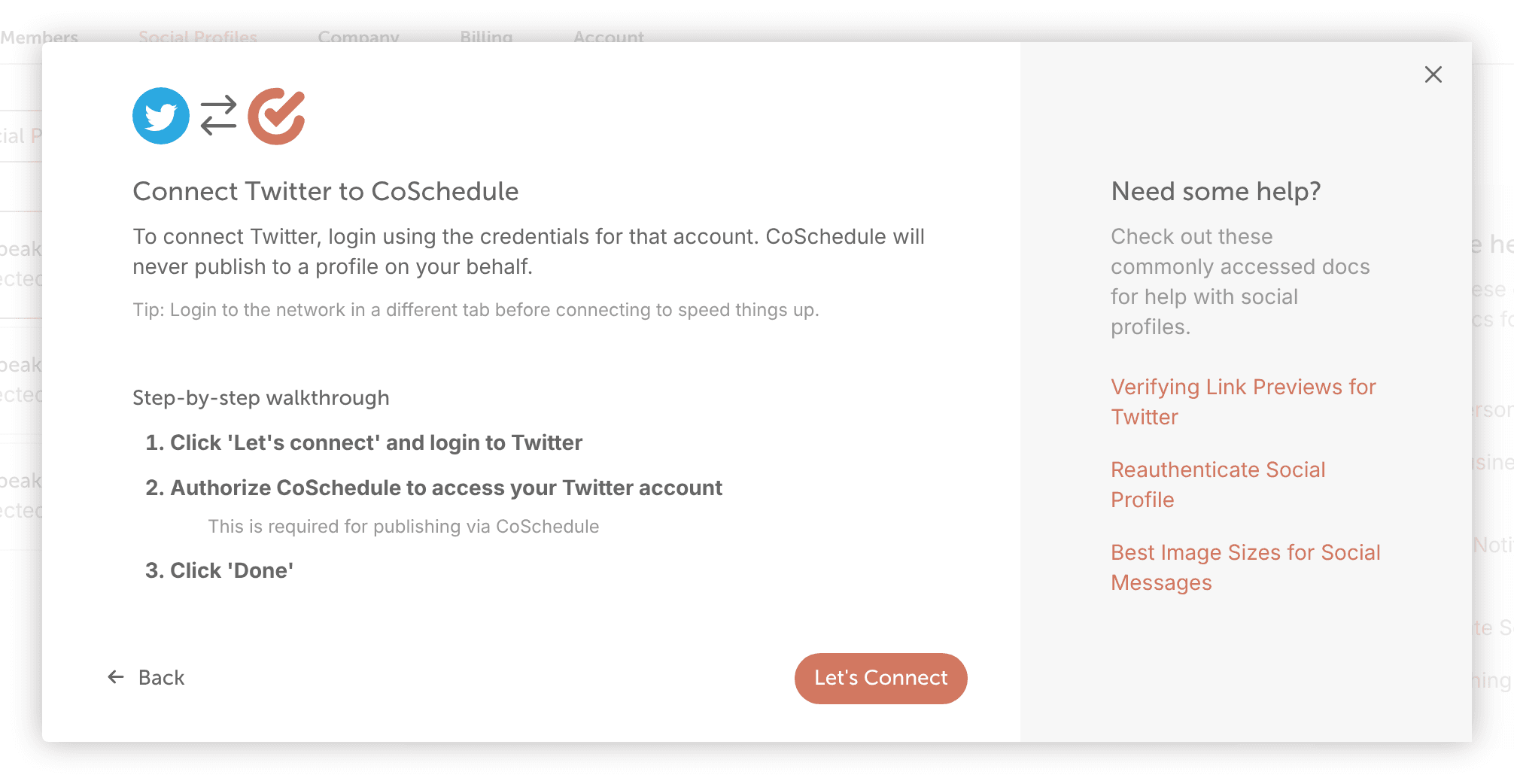
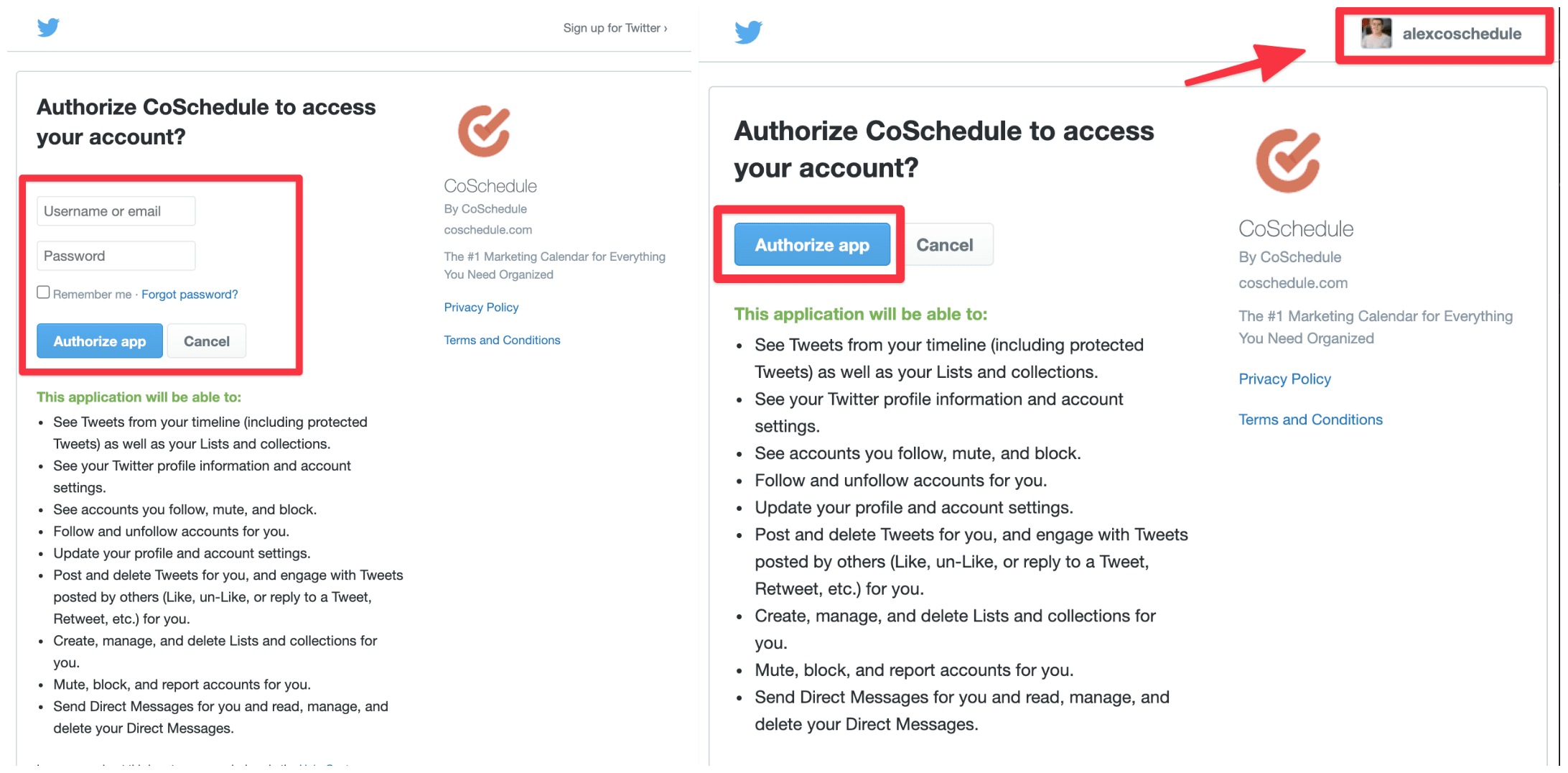
- In the pop-up window, sign in to X with the account you want to connect, then authorize the CoSchedule app.
- Check that the account now appears on the Social Profiles tab.
Post longer messages with X Premium
If your X account has X Premium, you can post up to 25,000 characters once you verify the profile in CoSchedule. After you subscribe to X Premium on X:
- Open Settings, then click the Social Profiles tab.
- From the left-side menu, click your X profile.
- Click Update Twitter Verification, the blue button in the profile's details.
CoSchedule shows one of these messages: "Twitter [Type] profile confirmed.", "Twitter verification removed." or "Twitter profile does not have a Blue subscription. Please purchase a subscription and try again." The last one means CoSchedule couldn't find an X Premium subscription on the account.
If the connection doesn't work
Check these in order:
- Make sure you're signed in to X with the account you want to connect, not another account.
- Try again in a private or incognito browser window, or in another browser.
- Remove CoSchedule from the connected apps in your X settings, then connect the account again.
If the account still won't connect, contact support.
Reconnect an X account
If posts to X stop publishing, reconnect the account, then reschedule the posts that failed. For the steps, see Reconnect a social profile.
Remove an X account
Removing a profile deletes its scheduled, sent and ReQueue messages and its social template messages in CoSchedule. Posts already published stay on X.
For the steps, see Add or remove a social profile.