
Schedule posts to your Instagram feed from CoSchedule: a single image, a carousel of up to 20 images and videos, or a video. Available on Starter, Professional and Suite for Instagram Business and Creator accounts.
Schedule an Instagram post
- Open your calendar and click +Create in the upper-right corner.
- Choose Social, then select Social Message.
- Choose your Instagram account from the drop-down menu.
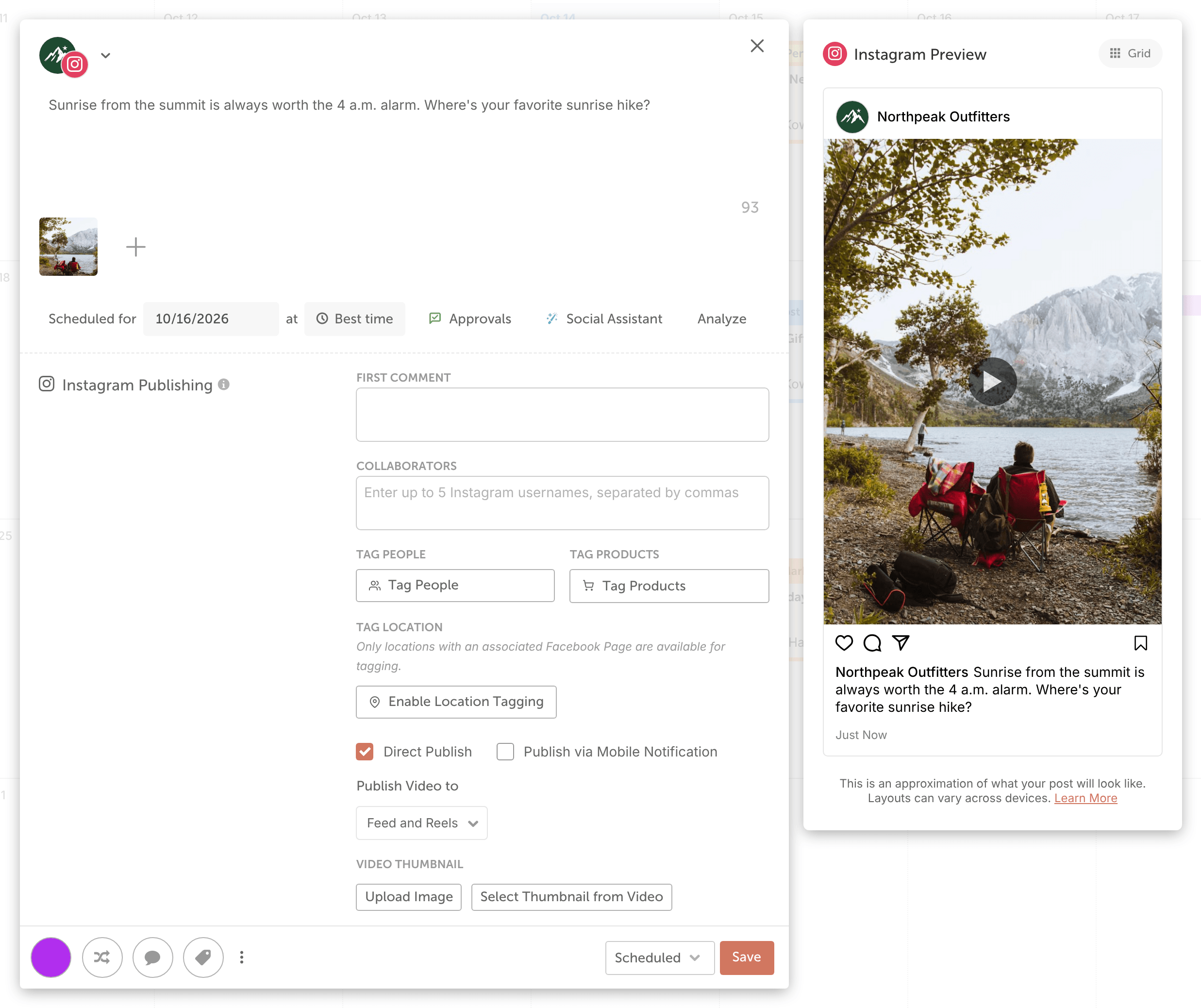
- Enter your caption. You can add links, hashtags and emojis. The character count shows in the lower-right corner.
- Click the image icon (Add media to message) and add your images or videos.
- Choose where the post publishes: your feed, or feed & reels for a video. The options depend on the media you added (see the table below).
- Choose how it publishes: select Direct Publish to have CoSchedule publish it for you, or select Publish via Mobile Notification to finish it on your phone.
- Select the date and time, or use Best Time Scheduling. Change the status if you need to.
- Click Save.
Where each type of media can publish
Media you add | Where it can publish |
|---|---|
One image | Feed or Stories |
Several images | Feed (as a carousel) |
One video | Stories, Reels, or Feed & Reels |
Several videos | Reels, or Feed & Reels |
A mix of images and videos | Feed (as a carousel) |
You can add up to 20 images, videos or a mix of both to one post.
Carousels with more than 10 videos take longer to process. CoSchedule starts uploading them an hour before the scheduled time. If you schedule one less than an hour ahead, it can publish up to an hour late.
Choose a video cover
When a video publishes to Feed & Reels, you can pick its cover image from the video.
- Under Video Thumbnail, click Select Thumbnail from Video.
- Use the scrollbar to choose the frame you want.
Before you publish
- Captions can be up to 2,200 characters and contain up to 30 hashtags.
- Images can be up to 8 MB. If an image's aspect ratio is outside what Instagram accepts, CoSchedule crops it before publishing.
- Videos must be at least 3 seconds long.
Instagram limits how many posts an account can publish through tools like CoSchedule in 24 hours (Meta currently documents 100). Posts from CoSchedule and any other tool count toward the limit. Posts over the limit fail.
What direct publishing can't do
Instagram doesn't let any scheduling tool add these when it publishes a post directly:
- Music or other audio from Instagram
- Polls
- Trial reels
To add music or other in-app features, publish with mobile push notifications instead and finish the post in the Instagram app.
Add more to your post
- Tag people: after you attach media, choose Tag People and type each username exactly as it appears on Instagram.
- Add collaborators
- Preview your grid
- Tag products
- Tag a location
- Schedule a first comment
Learn more
- Publish Instagram Reels
- Publish Instagram Stories
- Publish to Instagram with mobile push notifications
- Fix Instagram messages that failed or published wrong
- Image, video and GIF sizes for social messages
- Schedule social messages with Best Time Scheduling
- Set up Link in Bio
- Connect an Instagram Business or Creator account