
Create, schedule and publish YouTube Shorts directly from your calendar. Available on Starter, Professional and Suite.
Before you start, connect YouTube to publish Shorts.
Videos must be 180 seconds or less. Custom thumbnails aren't supported, and you can't post Shorts from the CoSchedule mobile app. To plan and upload full-length videos, use the YouTube integration: see Plan full YouTube videos with the YouTube integration.
Create a YouTube Short
- From the calendar, click + Create.
- Select Social, then choose Social Message.
- Select your YouTube Shorts profile.
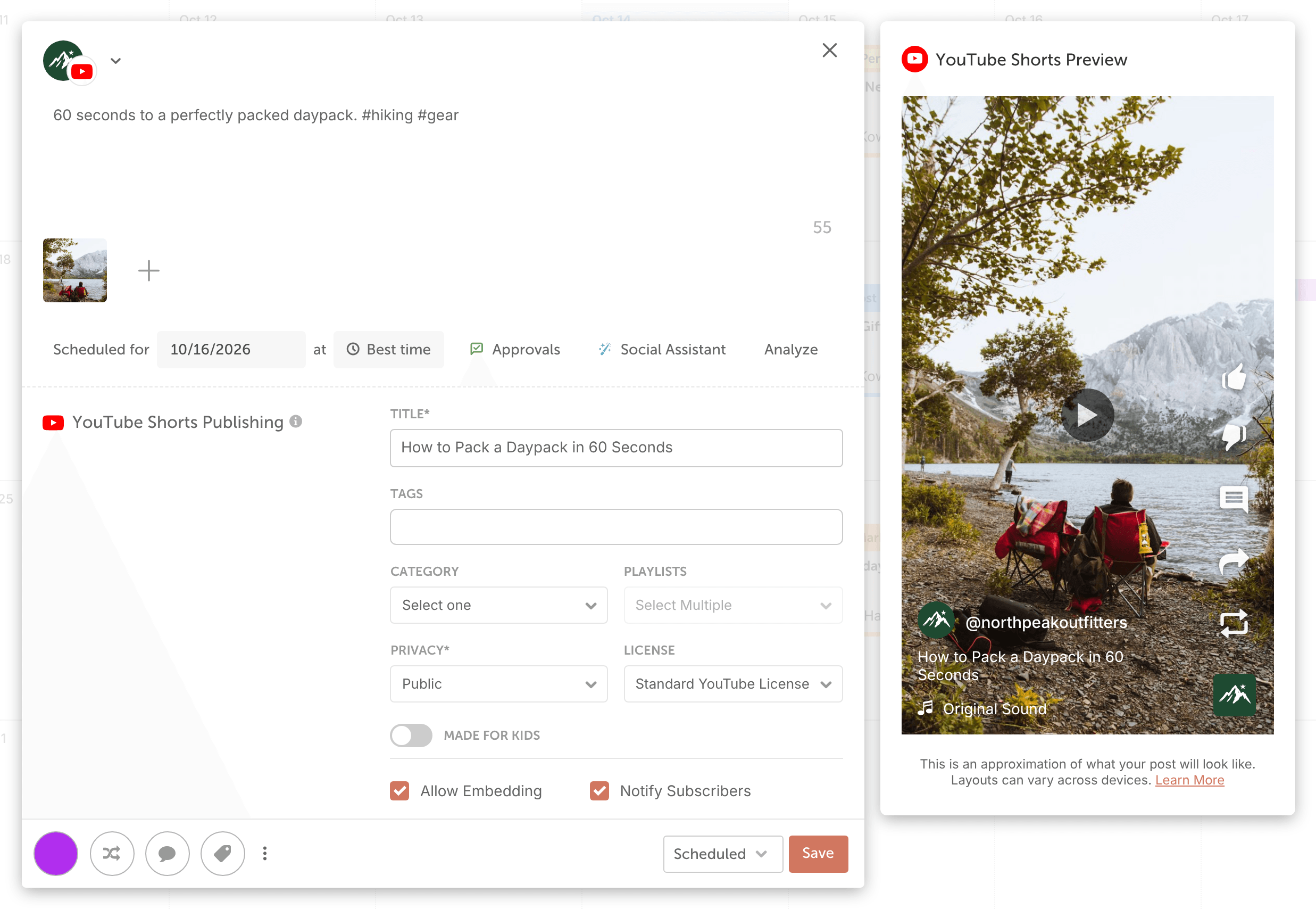
- Use the text field to add your video description.
- Add your video. See "Add a video" below.
- Fill in the YouTube publishing settings. See "YouTube publishing settings" below.
- Choose the date and time the Short publishes.
- Click Save.
Add a video
- Click the image icon (Add media to message).
- Choose to upload a file from your computer, select from media you've uploaded before, or, on Suite, choose media from Assets.
- Choose your video.
- Let the video process. You can save the message while it's processing.
YouTube publishing settings
Title and Privacy are required before you can save. The other settings are optional.
- Title: the video's title on YouTube.
- Tags: add tags if you want them.
- Category: choose from the list of available categories.
- Playlist: if your channel has playlists, choose one from the list.
- Privacy: choose public, unlisted or private.
- License: defaults to Standard YouTube License. You can change it to Creative Commons - Attribution.
- Made for Kids: off by default. Turn it on if your video is made for kids.
- Allow Embedding: when checked, other sites can embed the video.
- Notify Subscribers: when checked, people subscribed to the channel get a notification.