
Connect a Bluesky account to your calendar so you can schedule and publish to it from CoSchedule. Available on Starter, Professional and Suite.
Connect Bluesky from Settings
- In CoSchedule, open Settings.
- Click the Social Profiles tab.
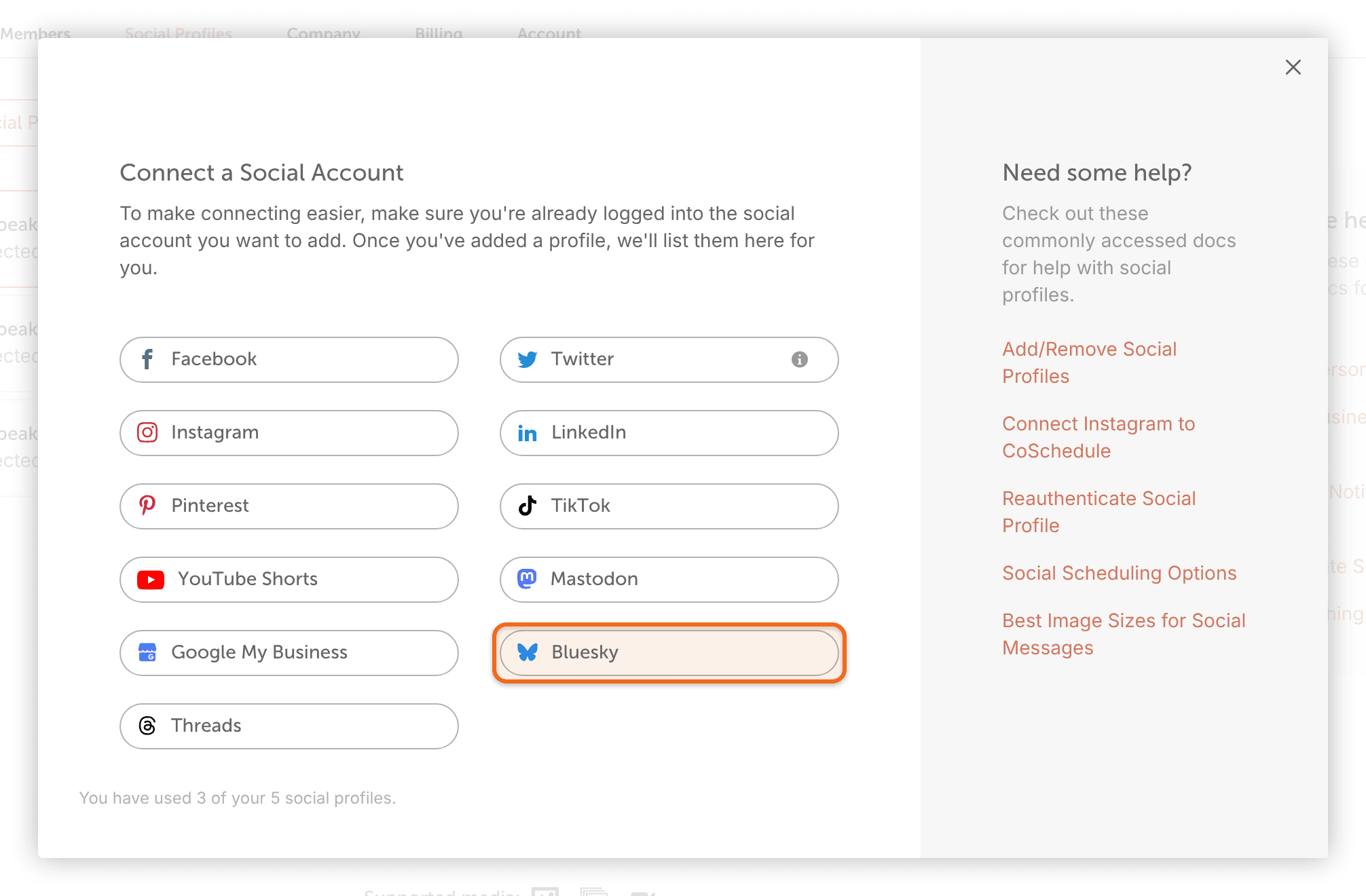
- Click Connect Social Profile.
- Select Bluesky.
- On the "Connect Bluesky to CoSchedule" screen, click Let's Connect.
- Sign in to Bluesky on its authorization page and give CoSchedule access.
If the connection doesn't work
Try the connection again in a private or incognito browser window, or in another browser.
If the account still won't connect, contact support before you remove the profile from CoSchedule. Removing a profile deletes its messages in CoSchedule.
If Bluesky posts stop publishing
A Bluesky connection can drop, and when it does, your Bluesky messages stop publishing. Reconnect the profile, then reschedule what failed. Only the Owner, Managers and Admins can reconnect social profiles.
- In CoSchedule, open Settings.
- Click the Social Profiles tab.
- From the left-side menu, click the Bluesky profile.
- Click Reconnect Account.
- Follow the prompts until your account is reconnected.
- Reschedule each Bluesky message that failed.
Messages that failed before you reconnected don't resend on their own. If a message fails again after you reconnect, remove its media, upload it again and reschedule the message.
If the profile keeps disconnecting, contact support. For more on reconnecting, see Reconnect a social profile.
Remove a Bluesky account
Removing a profile deletes its scheduled, sent and ReQueue messages and its social template messages in CoSchedule. Posts already published stay on Bluesky.
For the steps, see Add or remove a social profile.