
Schedule posts, Reels and Stories to a Facebook Page from your calendar. Available on Starter, Professional and Suite. First, connect your Facebook Page.
Schedule a Facebook post
- Open your calendar and click +Create in the upper-right corner.
- Choose Social, then select Social Message.
- Choose your Facebook Page from the drop-down menu.
- Enter your text, hashtags and emojis. The character count shows in the lower-right corner.
- Click the image icon (Add media to message).
- Upload images or a video from your computer, or select a previous upload.
- Click Save.
- Choose how the message publishes (see below).
- Select the date and time, or use Best Time Scheduling.
- Click Save.
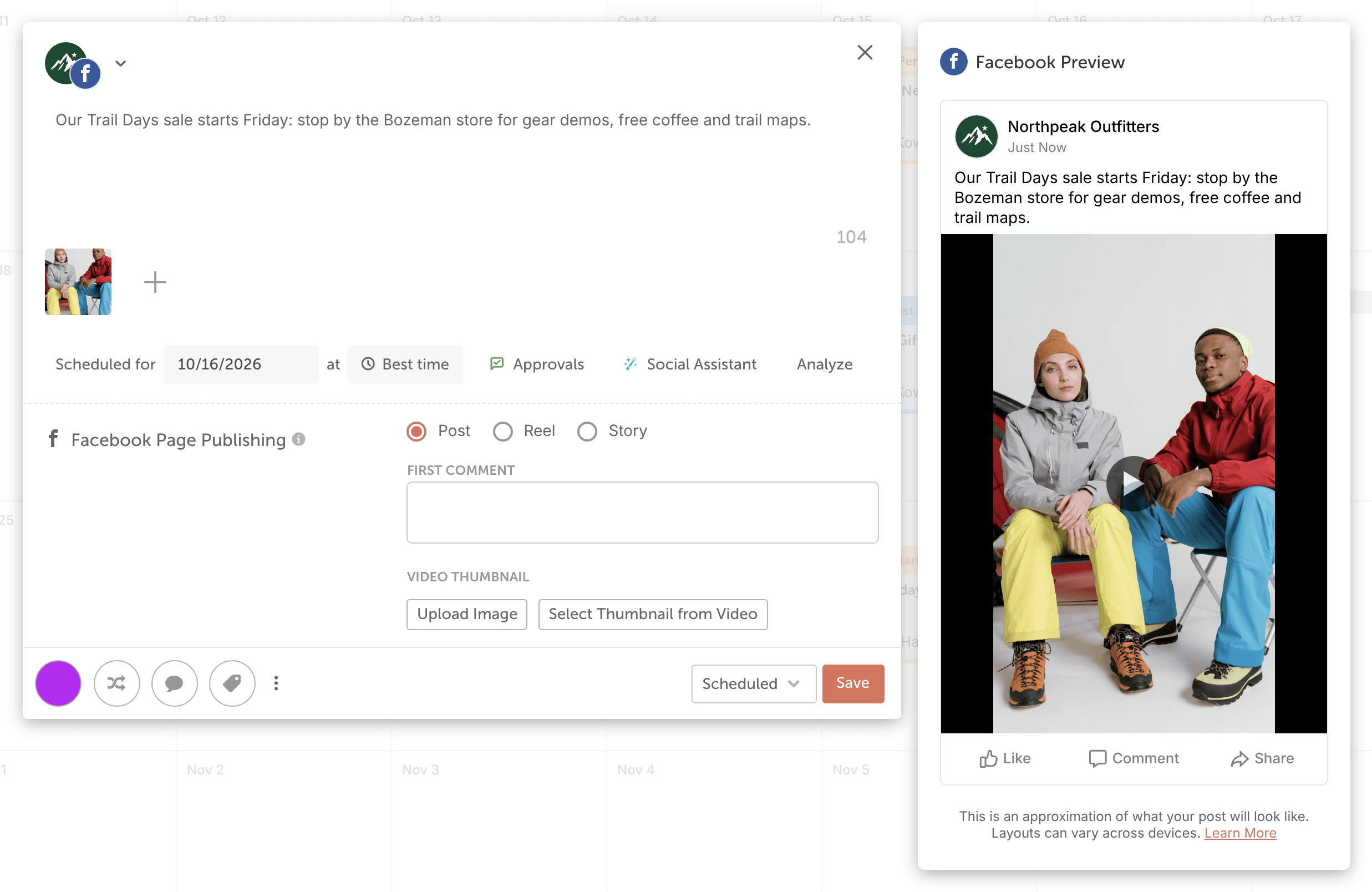
Choose how the message publishes
- Images: choose Post or Story. An image Story publishes only the first image.
- Video: choose Post, Reel or Story. For Reels, see Publish Facebook Reels.
- Reel is offered only for video messages.
For a video Post or Reel, you can set the cover image under Video Thumbnail. Click Upload Image to use an image from your computer, or click Select Thumbnail from Video and use the scrollbar to choose a frame.
What Facebook posts can include
- A post can have up to 20 images. If you select more, CoSchedule shows "You have more images selected than this social network supports. Your message will be sent with the first 20 images."
- A post can have images or a video, not both.
- Location tags work on single-image posts and Reels only. Facebook rejects a location tag on a video post or Story.
- Facebook collaborator posts aren't supported.
- For file types and sizes, see Image, video and GIF sizes for social messages.
Add more to your message
- Tag a location to show the place your post is about.
- Schedule a first comment to publish with the post.
- Mention a Page in the message text.
- On Suite, depending on your Suite agreement, target the post to an audience.
- Click Analyze to grade your message before you schedule it.
- Add the message to ReQueue to reshare it later.