
Connect a LinkedIn profile or a LinkedIn Page to your calendar so you can schedule and publish to it from CoSchedule. Available on every plan, including the free plan.
You can connect LinkedIn profiles and LinkedIn Pages. CoSchedule can't connect to or publish to LinkedIn Groups.
Before you start
To connect a profile, you log in to LinkedIn as the person whose profile it is.
To connect a Page, you must be a Super Admin of the Page on LinkedIn. Content Admins and other Page roles can't connect it. If you aren't a Super Admin, LinkedIn explains how to request admin access on a LinkedIn Page.
Connect a LinkedIn profile
- In another browser tab, log in to linkedin.com as the person whose profile you're connecting.
- In CoSchedule, open Settings, then click the Social Profiles tab.
- Click Connect Social Profile.
- Select LinkedIn, then LinkedIn Profile.
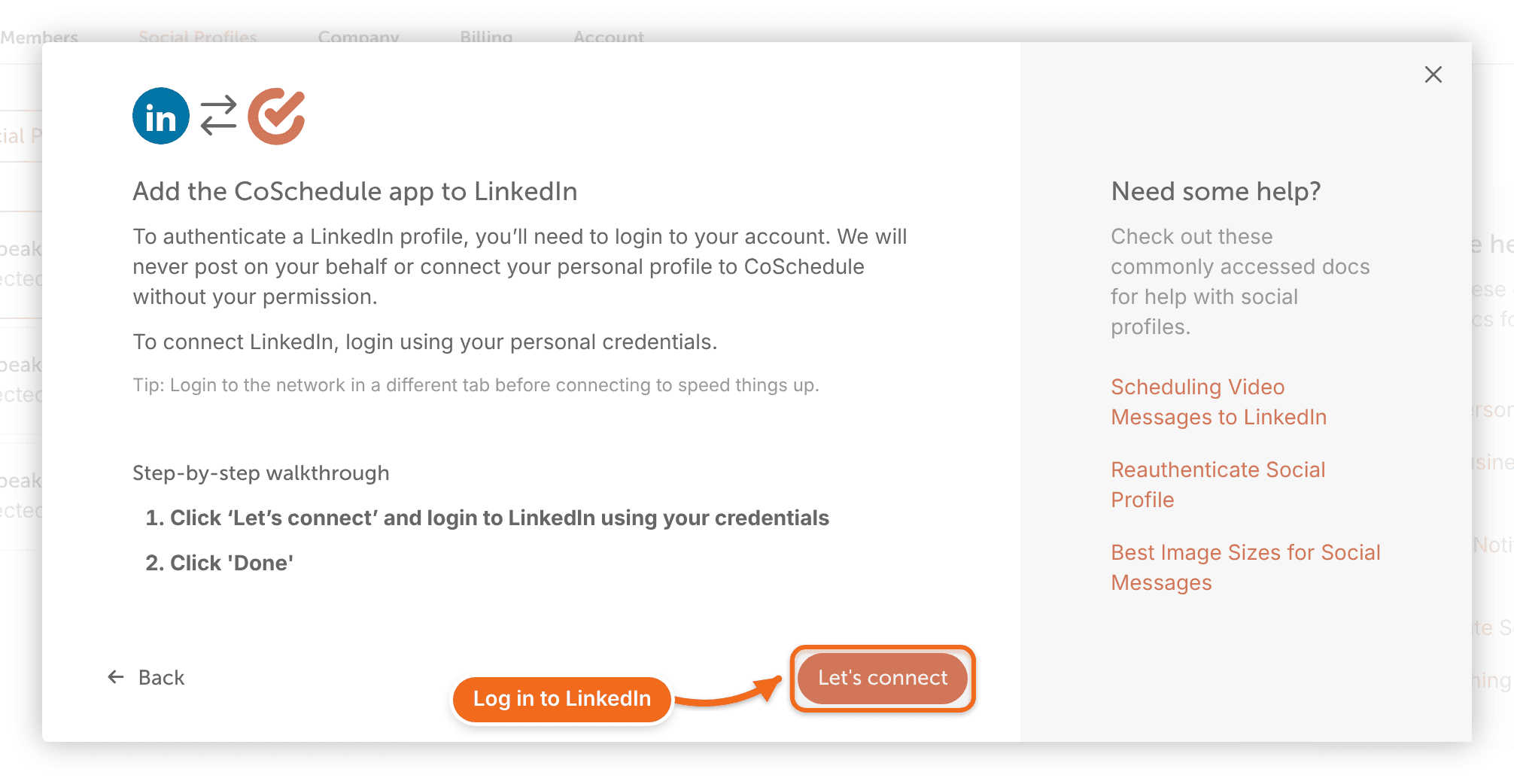
- Click Let's Connect and log in to LinkedIn if it asks you to.
- Follow the prompts to give CoSchedule access.
Connect a LinkedIn Page
- In another browser tab, log in to linkedin.com with the account that's a Super Admin of the Page.
- In CoSchedule, open Settings, then click the Social Profiles tab.
- Click Connect Social Profile.
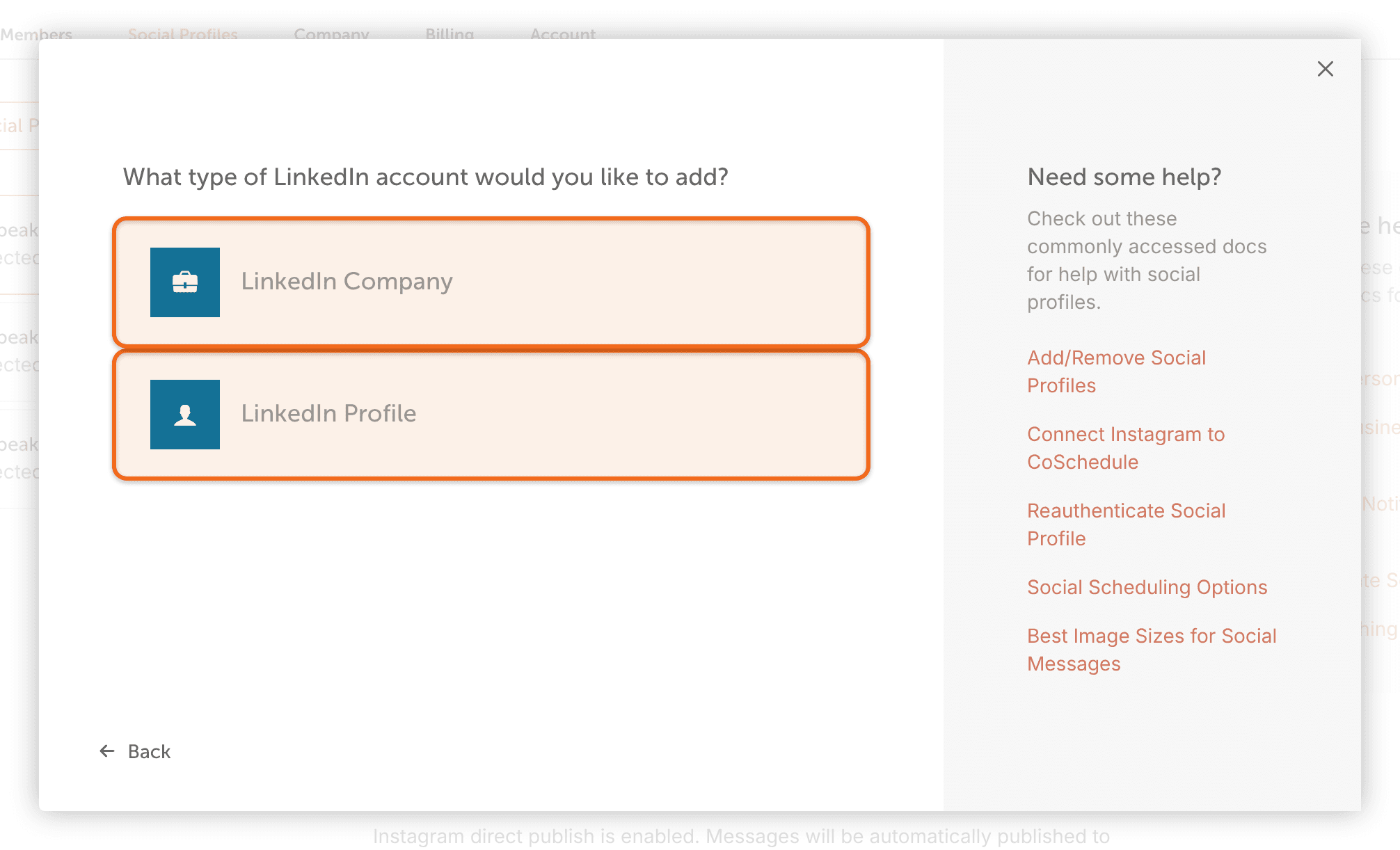
- Select LinkedIn, then LinkedIn Company, then Let's Connect.
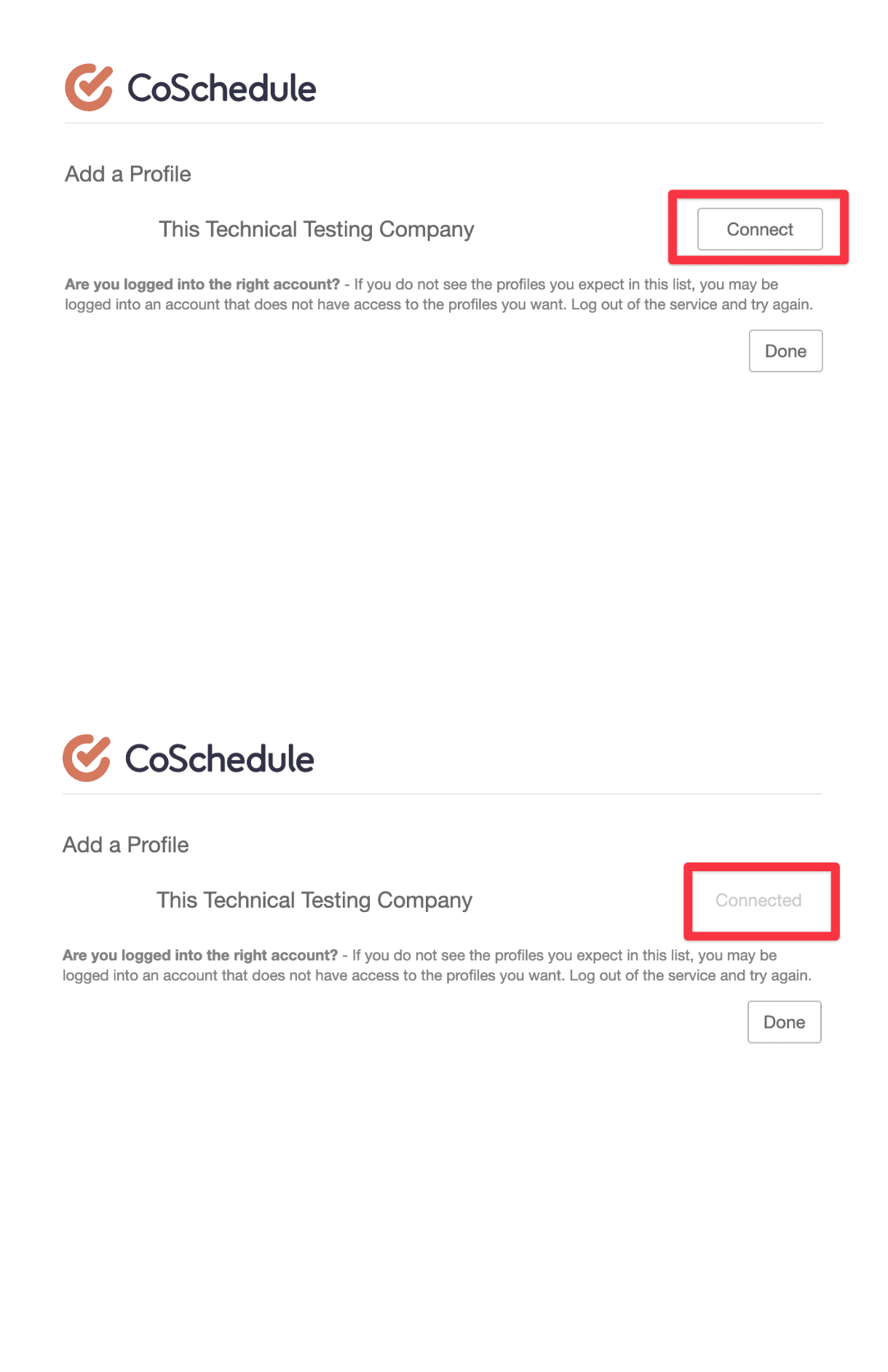
- Select the LinkedIn Pages you want to connect to your calendar.
The LinkedIn member who connects a Page is shown as the post's author in some LinkedIn views.
What a profile can't do
Some features work with LinkedIn Pages but not with profiles:
- You can't mention other people when you post from a profile. You can mention people only when you post from a Page. See Mention a user or Page in a social message.
- Social Inbox works with LinkedIn Pages, not profiles. See Networks Social Inbox supports on each plan.
- Audience targeting works with LinkedIn Pages, not profiles. See Target an audience on Facebook or LinkedIn.
- Posts you publish directly on LinkedIn from a profile aren't imported into CoSchedule.
If the connection doesn't work
Check these in order:
- For a Page, make sure you're a Super Admin of the Page on LinkedIn.
- If you're connecting or reconnecting another team member's profile, make sure you're logged in to linkedin.com as that team member in another tab.
- Try again in a private or incognito browser window, or in another browser.
- If the connection fails, CoSchedule shows "We hit a snag. If you're having trouble, please contact CoSchedule support." Try again in a private or incognito window.
If the Page or profile still won't connect, contact support and include the LinkedIn URL of the Page or profile. Some connection problems are on LinkedIn's side; you can also contact LinkedIn Support.
Reconnect a LinkedIn profile or Page
LinkedIn connections renew automatically, so you'll usually need to reconnect a LinkedIn profile or Page only about once a year. For the steps, see Reconnect a social profile.
To reconnect a Page, log in to LinkedIn in another tab as a Super Admin of the Page, then reconnect from a private or incognito window.
If someone who isn't a Super Admin reconnects a Page, the reconnect looks successful, but the Page still shows as disconnected and can't publish. Have a Super Admin of the Page reconnect it.
Remove a LinkedIn profile or Page
Removing a profile deletes its scheduled, sent and ReQueue messages and its social template messages in CoSchedule. Posts already published stay on LinkedIn.
For the steps, see Add or remove a social profile.