
Connect a YouTube channel to your calendar as a social profile so you can schedule and publish YouTube Shorts from CoSchedule. Available on Starter, Professional and Suite.
This connection publishes YouTube Shorts only: videos of 180 seconds or less. It can't publish full-length videos. To plan and upload full videos, use the YouTube integration instead. See Plan full YouTube videos with the YouTube integration.
Before you start
Log in with the Google account that owns the YouTube channel. Channel managers can't connect it. If you manage a channel for a client, have the channel owner log in to Google during the connection.
Connect YouTube Shorts
- In CoSchedule, open Settings.
- Click the Social Profiles tab.
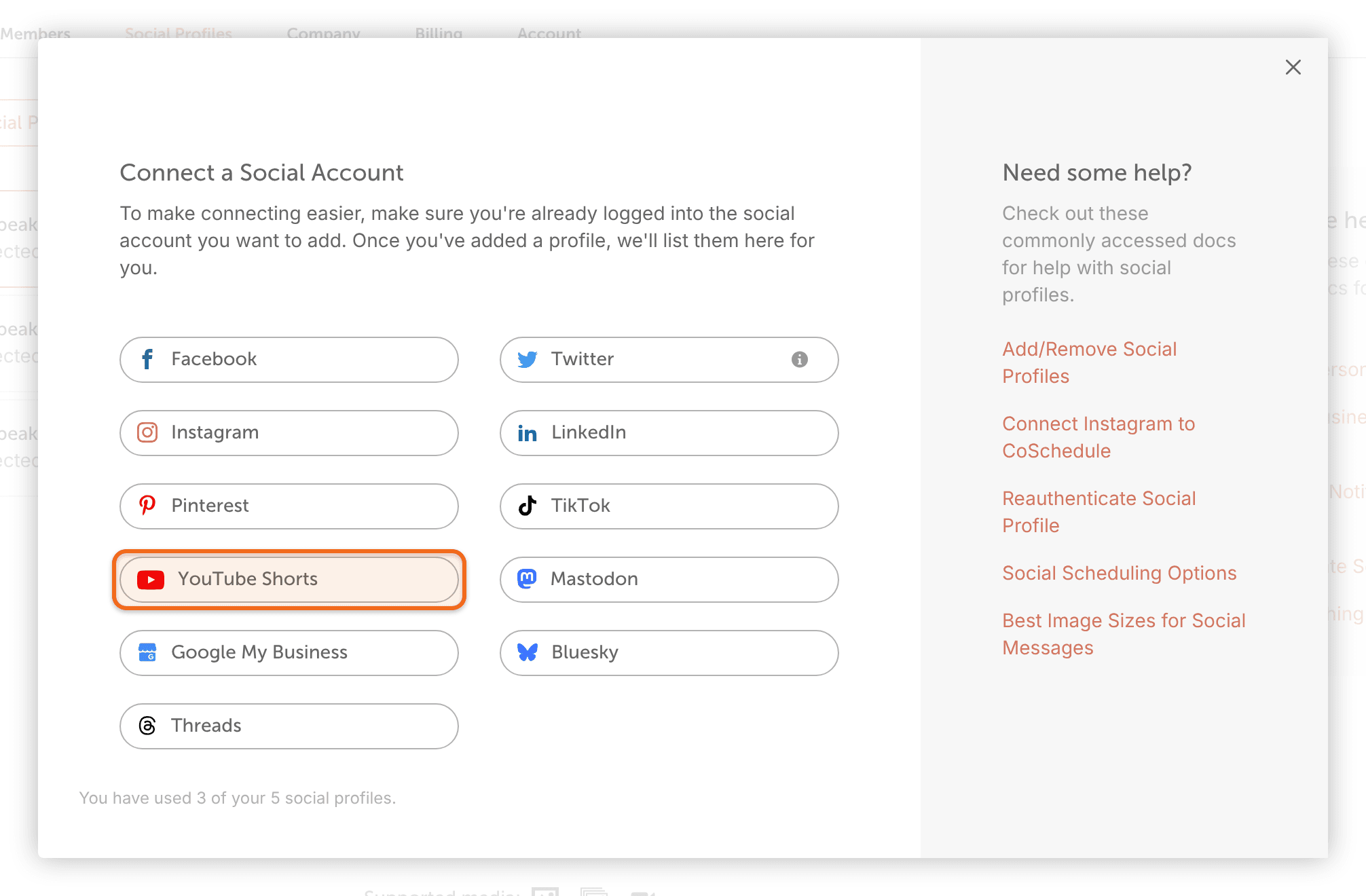
- Click Connect Social Profile.
- Select YouTube Shorts.
- Log in to Google with the account that owns the channel, and follow the prompts to give CoSchedule access.
Once the channel is connected, you can choose it when you create a social message. See Publish YouTube Shorts.
On Professional and Suite, a connected YouTube Shorts profile also brings comments on your YouTube videos into Social Inbox. See Networks Social Inbox supports on each plan.
If the connection doesn't work
If sign-in fails, CoSchedule shows "Problem Authenticating Youtube Account". Check these in order:
- Make sure you're logging in with the Google account that owns the channel, not a channel manager's account.
- Try again in a private or incognito browser window, or in another browser.
If the channel still won't connect, contact support.
Remove YouTube Shorts from your calendar
Removing a profile deletes its scheduled, sent and ReQueue messages and its social template messages in CoSchedule. Shorts already published stay on YouTube.
- In CoSchedule, open Settings.
- Click the Social Profiles tab.
- In the left-side menu, click the YouTube Shorts profile you want to remove.
- Scroll to the bottom of the page and click Delete Profile from Calendar to remove it from this calendar, or Delete Profile from Organization to remove it from all calendars.
- Type DELETE PROFILE to confirm.
For more on removing profiles, see Add or remove a social profile.