
The YouTube integration brings your YouTube videos onto your calendar as projects, so you can upload full-length videos, plan when they go public and promote them with a social campaign. Available on every plan, including the free plan.
The YouTube integration is separate from the YouTube Shorts social profile. The integration handles full-length videos as projects. The social profile publishes Shorts as social messages: see Connect YouTube to publish Shorts.
Connect a YouTube channel
You need access to Settings > Integrations. By default, that's the Owner, Managers and Admins.
- From your calendar, open Settings.
- Click Integrations.
- Under Content Publishing, click YouTube Project.
- Click Enable.
- Log in to Google with the account that owns the YouTube channel, and follow the prompts.
You can connect more than one channel. Once a channel is connected, CoSchedule starts syncing with YouTube and adds the channel's videos from the last 30 days to your calendar.
Create a YouTube project
- From your calendar, click + Create.
- Select YouTube. If more than one channel is connected, choose the channel.
- Check the Title and Privacy. The title starts as the project's name, and privacy starts as Private.
- To add a video, click the video camera icon.
- Choose your video. CoSchedule starts uploading it to YouTube right away.
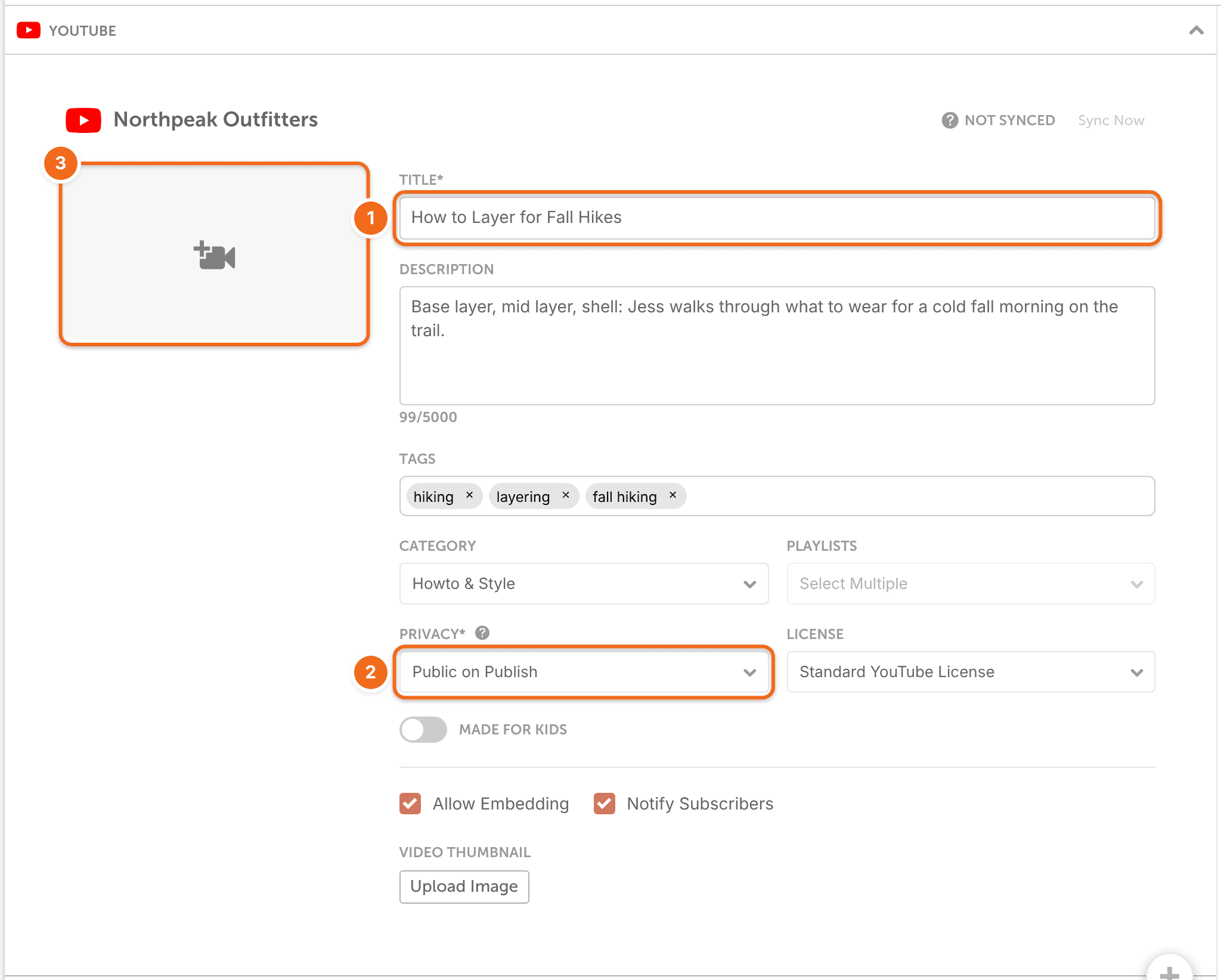
Once you choose a video, it can't be replaced. If you added the wrong video, delete it in YouTube Studio and start over.
Notify Subscribers can be set only when the video first uploads. After that, it's greyed out.
Make the video public
To have CoSchedule make the video public for you, set Privacy to Public on Publish. When the project is set to publish, CoSchedule changes the video from Private to Public in YouTube Studio.
Changing the video's privacy to Public, in CoSchedule or on YouTube, publishes it right away.
Promote the video with a social campaign
You can add a social campaign to a YouTube project. In its social messages, these helpers fill in details from the video:
- {title} adds the video's title.
- {excerpt} adds the video's description.
- {permalink} adds the link to the video.
How syncing works
- CoSchedule keeps videos from the last 30 days in sync with YouTube Studio.
- On the first sync, public videos are added as projects with the status Published, on the date YouTube has for them. Unlisted and private videos are added as projects with the status Draft.
- If a video changes to Public on YouTube, CoSchedule changes its project to Published and starts sending the project's social campaign messages.
- Deleting a YouTube project in CoSchedule doesn't delete the video on YouTube. If the video is still in YouTube Studio, it syncs back to your calendar.
- CoSchedule checks YouTube for updates at least every 15 minutes, and every 3 minutes while you're logged in and using CoSchedule. A YouTube project syncs when you open it and every minute while you're viewing it.
Disconnect a channel or turn off the integration
- From your calendar, open Settings.
- Click Integrations.
- Under Content Publishing, click YouTube Project.
- To remove one channel, click Disconnect next to it.
- To turn off the integration, click Disable YouTube at the bottom of the page.
If something isn't working
- If YouTube doesn't appear when you click + Create after you enable the integration, click Disable YouTube at the bottom of the YouTube Project page in Settings > Integrations, then click Enable again.
- If the channel won't connect, or you see "Problem Authenticating Youtube Account", make sure you log in with the Google account that owns the channel.