
Schedule posts to a LinkedIn profile or Page from your calendar, with images, a video or a document. Available on every plan, including the free plan. First, connect your LinkedIn profile or Page.
Schedule a LinkedIn post
- Open your calendar and click +Create in the upper-right corner.
- Choose Social, then select Social Message.
- Choose your LinkedIn profile or Page from the drop-down menu.
- Enter your text. You can add hashtags, mentions and emojis. The character count shows in the lower-right corner.
- Add images, a video or a document if you want (see below).
- Select the date and time, or use Best Time Scheduling.
- Click Save.
Add images or a video
- Click the image icon (Add media to message).
- Upload a file from your computer, select media you uploaded before, or, on Suite, choose media from Assets.
- Choose your images or video. For a video, upload a thumbnail or choose one from the video.
- Click Save.
- A post can have up to 20 images or 1 video. You can't mix images and video in one post.
- Several images publish as a multi-image post. To make a swipeable carousel, post a PDF as a document instead (below).
- For file types and sizes, see Image, video and GIF sizes for social messages.
Add a document
Attach a PDF, PowerPoint or Word document to a LinkedIn post. Every document needs a title, so have one ready.
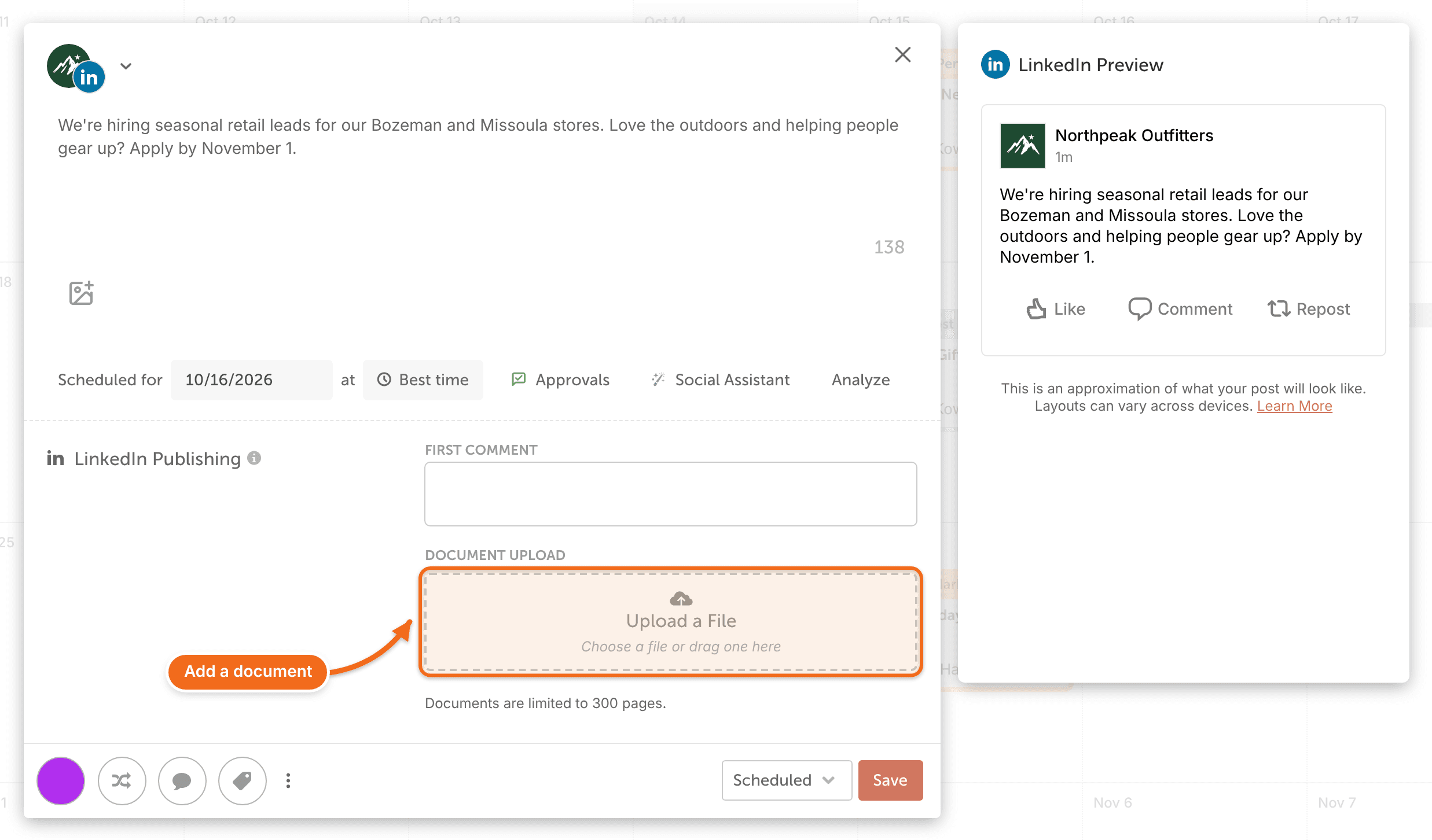
- After you choose your LinkedIn profile or Page, go to the Document Upload section.
- In the upload area, which reads "Upload a File", click Choose a file or drag one here and pick your document.
- Enter a title in Document Title. The title is required.
The section notes "Documents are limited to 300 pages." To take the document off the post, click Remove.
Document file types and limits
- File types: PDF, PPT, PPTX, DOC and DOCX.
- Up to 100 MB and 300 pages.
- Titles can be up to 58 characters.
- A document post can't include images or video. If you've attached any, they're left out when the post publishes.
- The message preview shows a static preview of a PDF and an icon for other file types. It doesn't page through the document, but the document publishes correctly.
LinkedIn's spam filtering sometimes hides a document post. The message shows as published in CoSchedule, but LinkedIn shows "This post cannot be displayed" or doesn't show the post. See Fix LinkedIn publishing problems.
What LinkedIn posts can't include
- Posts to LinkedIn Groups. CoSchedule can't publish to Groups.
- Reposts of other LinkedIn posts. LinkedIn doesn't allow tools like CoSchedule to repost.
- Mentions of people from a profile. You can mention people only when you post from a Page.
- Bitly short links. Bitly doesn't shorten links in LinkedIn messages. See Shorten links with Bitly.
Add more to your message
- Mention a user or Page in the message text.
- Schedule a first comment to publish with the post.
- On Suite, depending on your Suite agreement, target a LinkedIn Page post to an audience.