
Schedule a video to publish as a Reel on your Facebook Page. Available on Starter, Professional and Suite. First, connect your Facebook Page.
Schedule a Reel
- Open your calendar and click +Create in the upper-right corner.
- Choose Social, then select Social Message.
- Choose your Facebook Page from the drop-down menu.
- Enter your text.
- Click the image icon (Add media to message).
- Upload a video from your computer, or select a previous upload.
- Click Save.
- Choose Reel.
- Choose the cover image (see below).
- Select the date and time.
- Click Save.
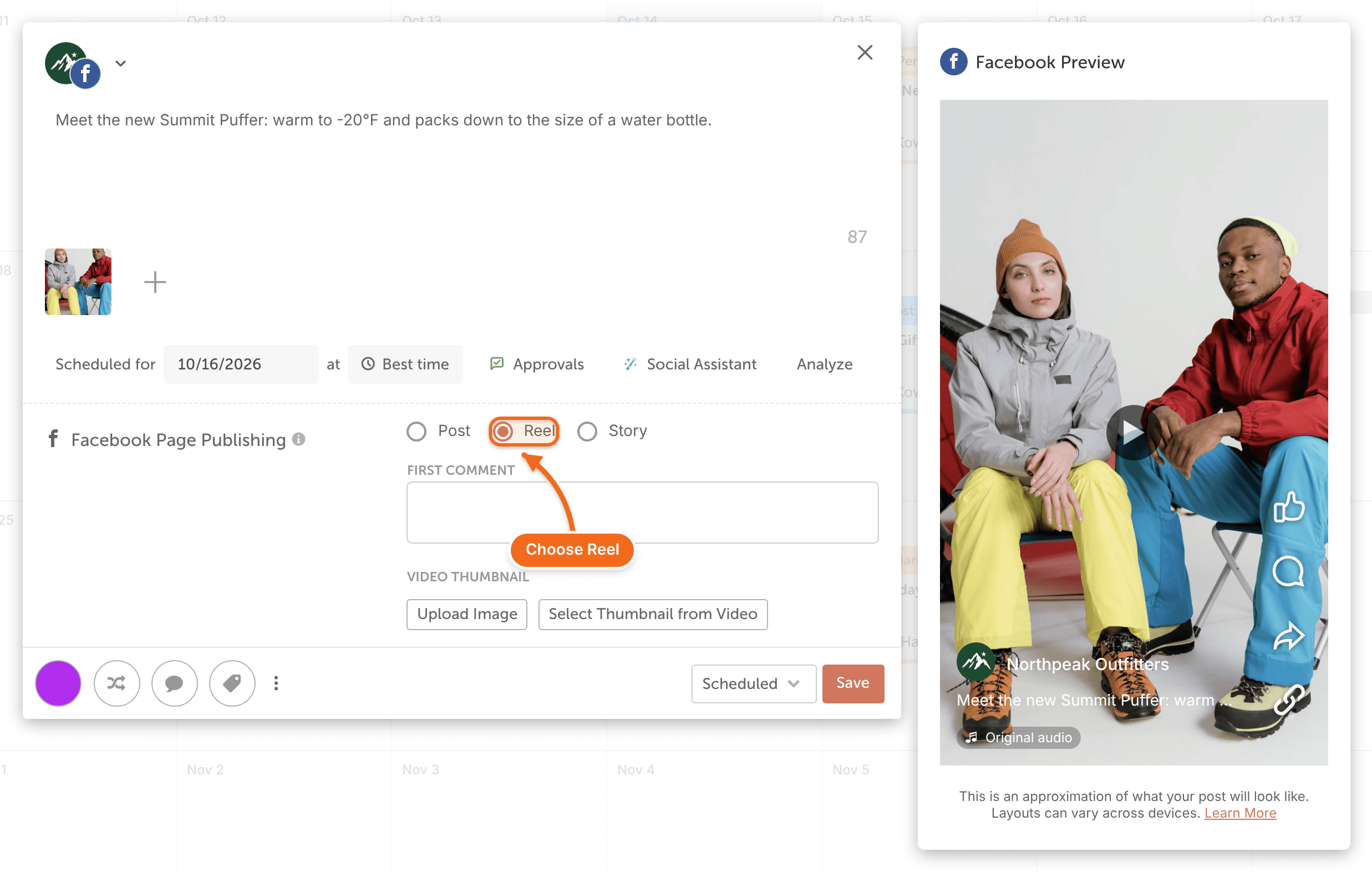
Choose the cover image
Under Video Thumbnail, pick how the Reel's cover is set:
- Click Upload Image to use an image from your computer.
- Click Select Thumbnail from Video and use the scrollbar to choose a frame.
What you can add to a Reel
- A location tag. Facebook accepts a location tag on a video only when it's shared as a Reel; it rejects one on a video post. See Tag a location on Facebook or Instagram.
- A first comment. See Schedule a first comment.
What CoSchedule can't do with Reels
- Add music or voiceover to a Reel. Facebook doesn't let any scheduling tool add these.
- Import Reels you publish directly on Facebook. Social Sync doesn't bring Facebook Reels onto your calendar.
For video formats, length and sizes, see Image, video and GIF sizes for social messages.