
Schedule a post to Threads from your calendar. Available on Starter, Professional and Suite. First, connect your Threads account.
Schedule a Threads post
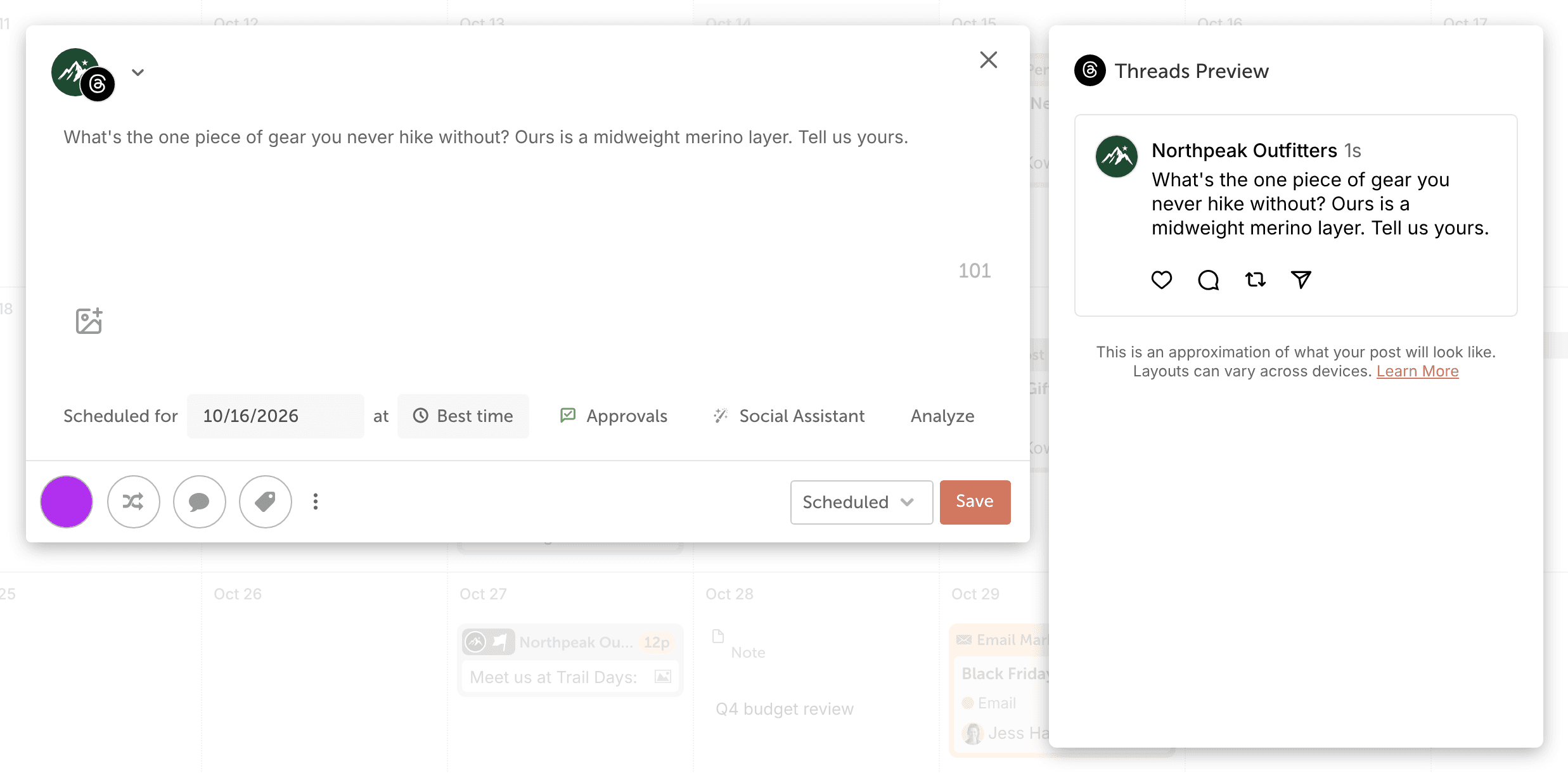
- From your calendar, click + Create in the upper-right corner.
- Choose Social.
- Select Social Message.
- Choose your Threads account from the drop-down menu.
- Enter your text. You can add hashtags and emojis. The character count shows in the lower-right corner. Threads posts can have up to 500 characters.
- Add images or videos if you want (see below).
- Select the date and time, or use Best Time Scheduling.
- If needed, change the status.
- Click Save.
Add images or videos
A Threads post can have up to 20 images and videos, and you can mix images and videos in the same post.
- Click the image icon (Add media to message).
- Upload files from your computer, or select media you uploaded before.
- Click Save.
Images must be JPEG or PNG, up to 8 MB each. Videos can be up to 1 GB. For all the limits, see Image, video and GIF sizes for social messages.
Add more to your post
- Mention another account: type @ followed by the account name exactly as it shows on Threads. No list of results appears, so check the spelling. See Mention a user or Page in a social message.
- Add alt text to your images. Threads publishes it with the post. See Add alt text to images.
What you can't do with Threads posts
- Publish a multi-post thread. CoSchedule publishes single posts only.
- Schedule a first comment.
After your post publishes
A published message can't be edited. It opens as a read-only preview, and Save is replaced by View Post. Nothing you change in CoSchedule afterward changes the post on Threads.
To see how the post performed, see View analytics on a social message or campaign. On Professional and Suite, replies to your Threads posts and mentions of your account come into Social Inbox. See Networks Social Inbox supports on each plan.