
Schedule a post to Mastodon from your calendar. Available on Starter, Professional and Suite. First, connect your Mastodon account.
Schedule a Mastodon post
- From your calendar, click + Create in the upper-right corner.
- Choose Social.
- Select Social Message.
- Choose your Mastodon account from the drop-down menu.
- Enter your text. You can add hashtags and emojis. The character count shows in the lower-right corner. Mastodon posts can have up to 500 characters.
- Add images or a video if you want (see below).
- Select the date and time, or use Best Time Scheduling.
- In the Mastodon Publishing section, choose who can see the post: Public, Unlisted or Followers Only. You have to choose one before you can save.
- Click Save.
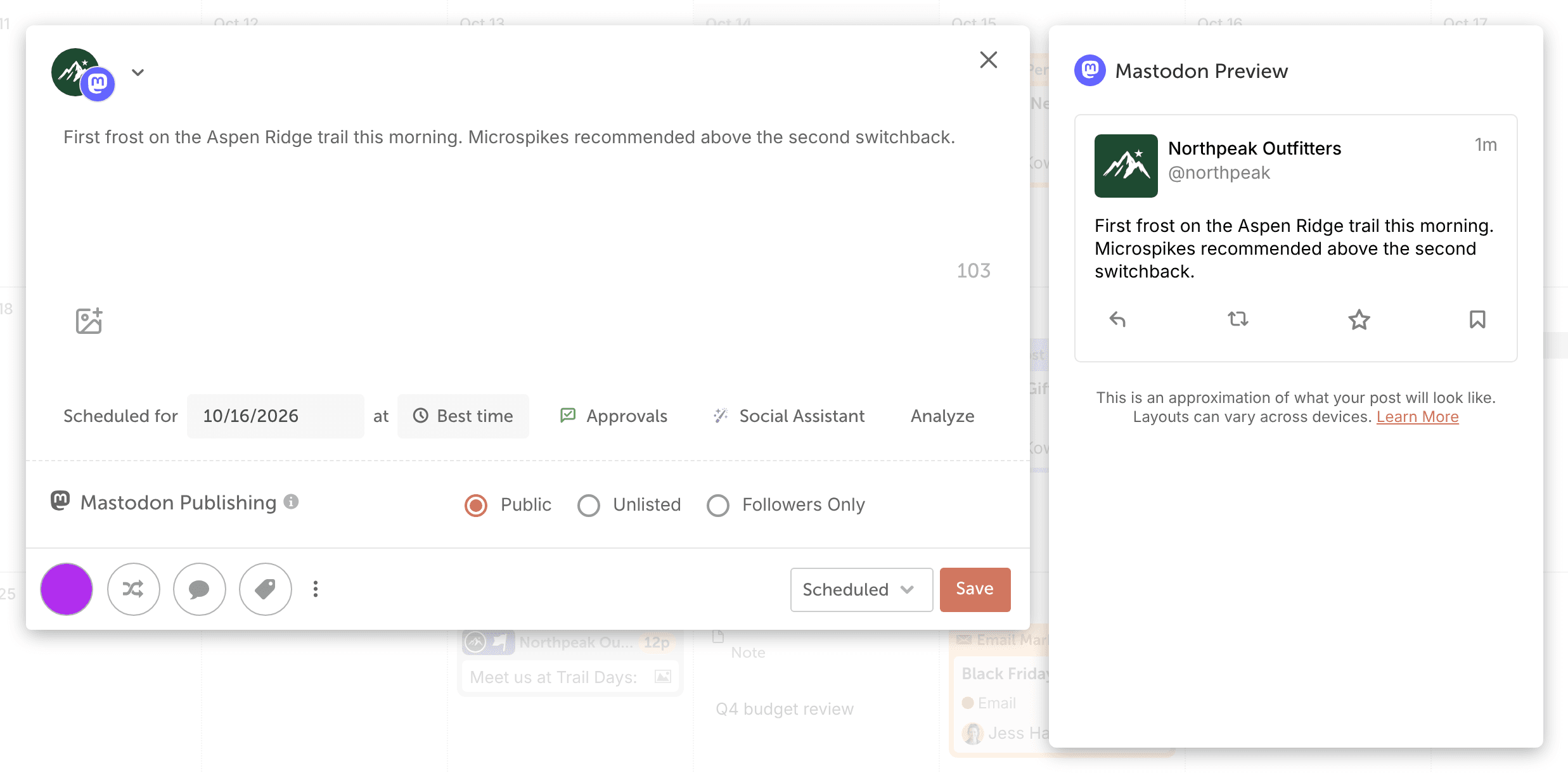
Add images or a video
A Mastodon post can have up to 4 media items.
- Click the image icon with the tooltip "Add media to message".
- Add your images or video.
Images can be PNG, JPG or GIF files up to 8 MB each. Videos can be MP4, M4V, MOV or WebM files up to 40 MB. When the post publishes, Mastodon scales images down to 1.6 megapixels and converts videos and animated GIFs to MP4. An animated GIF added as an image publishes as a video without sound. For all the limits, see Image, video and GIF sizes for social messages.
Add more to your post
- Mention another account. See Mention a user or Page in a social message.
- Add alt text to your images. Mastodon publishes it as the image description. See Add alt text to images.
What you can't do with Mastodon posts
- Schedule a first comment.
- Create Mastodon messages in the CoSchedule mobile app. Use CoSchedule in a web browser.
After your post publishes
A published message can't be edited. It opens as a read-only preview, and Save is replaced by View Post. Nothing you change in CoSchedule afterward changes the post on Mastodon.
To see how the post performed, see View analytics on a social message or campaign. On Professional and Suite, mentions, replies and direct messages come into Social Inbox. See Networks Social Inbox supports on each plan.
If your Mastodon posts stop publishing, see Why a social message did not publish.