
Connect a Pinterest account to your calendar so you can schedule pins to your boards from CoSchedule. Available on Starter, Professional and Suite.
Connect Pinterest from Settings
- In CoSchedule, open Settings.
- Click the Social Profiles tab.
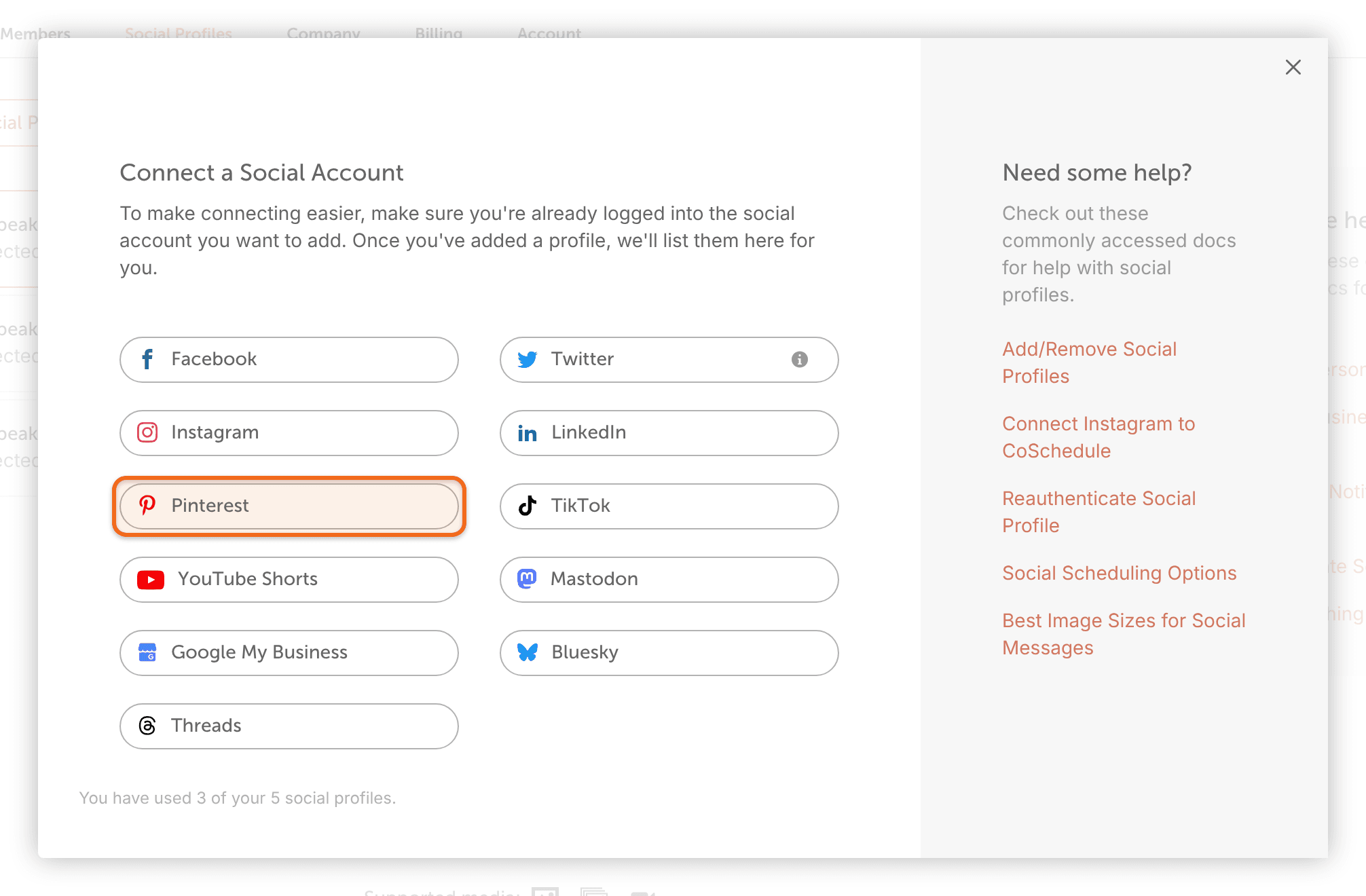
- Click Connect Social Profile.
- Select Pinterest.
- Log in to Pinterest if it asks you to, and follow the prompts to give CoSchedule access.
If the connection doesn't work
Try these if Pinterest won't connect, or if it keeps asking you to reconnect:
- In Pinterest, remove CoSchedule from the apps that have access to your Pinterest account. Pinterest explains how.
- Open a private or incognito browser window.
- In that window, log in to CoSchedule.
- Connect the Pinterest account again from Settings > Social Profiles.
- If it still fails, try again in another browser.
If the account still won't connect, contact support before you remove the profile from CoSchedule. Removing a profile deletes its messages in CoSchedule.
Reconnect a Pinterest account
For the steps, see Reconnect a social profile. After you reconnect, reschedule any Pinterest messages that failed.
Remove a Pinterest account
Removing a profile deletes its scheduled, sent and ReQueue messages and its social template messages in CoSchedule. Pins already published stay on Pinterest.
For the steps, see Add or remove a social profile.