CoSchedule’s Newest Update: Location and Product Tagging
Standing out and driving meaningful engagement is more difficult than ever. CoSchedule’s latest update focuses on helping your content get discovered in more targeted ways.
Take a look at what’s new:
1. Tag Locations In Your Facebook & Instagram Posts
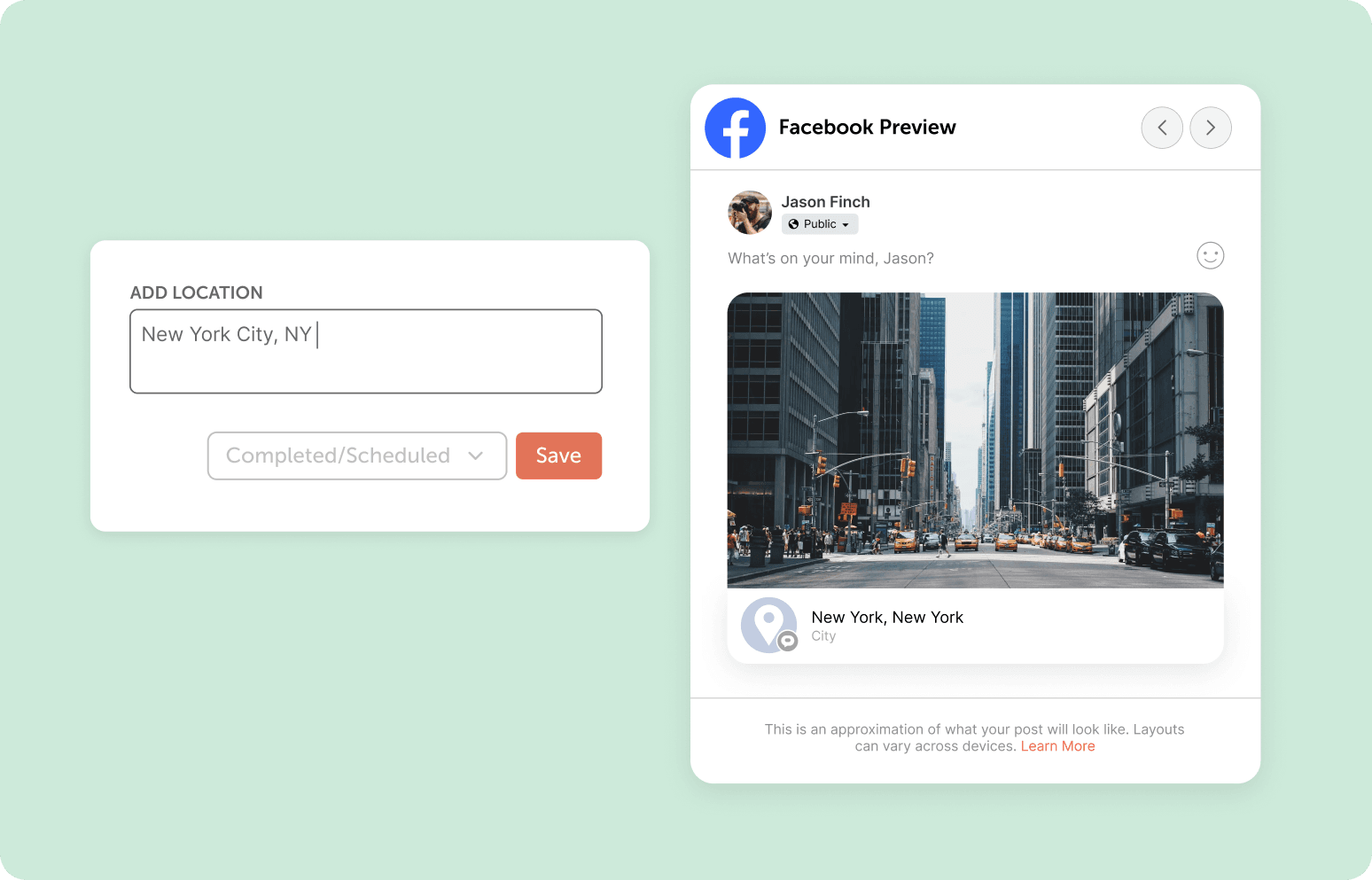
You can now add a location tag to your Instagram and Facebook posts directly within CoSchedule, so your location-based content shows up in more places!
Location tagging helps the right local audience discover your content right where they're looking. Give your posts more context and more reach.
How It Works:
In Instagram Only:
Step 1: To enable the option for Location Tagging, first go into Settings.
Step 2: At the top of the page, choose the “Social Profiles” tab.
Step 3: Then select your Instagram account.
Step 4: Once inside, make sure you have enabled “Product & Location Tagging”.
Note: Link your Instagram account to its associated Facebook Page to enable product and location tagging. The Facebook Page associated with this Instagram account must also be connected to CoSchedule in order to enable.
In Instagram & Facebook:
Step 5: Create a social message for either Instagram or Facebook.
Step 6: Upload your image or video.
Step 7: Under “Publishing Options” go to Tag Location.
Step 8: Type in the location you are wanting to tag.
Note: Only locations with an associated Facebook Page are available for tagging. You can add cities, regions, countries and specific places, as long as they have an associated Facebook page.
2. Tag Products In Your Instagram Posts
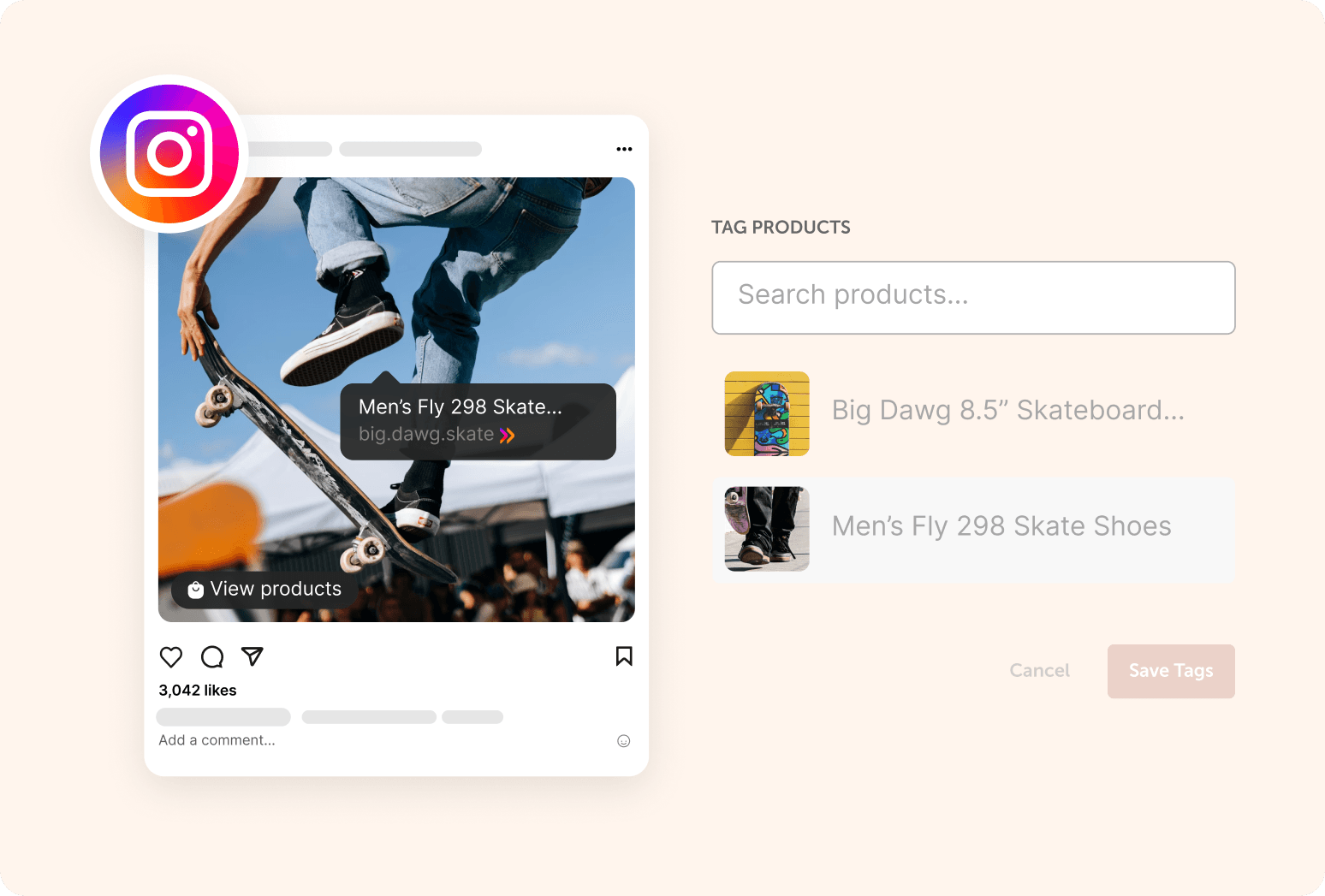
You can now tag products directly in your Instagram posts within CoSchedule, making it easier than ever for your audience to shop what you’re promoting.
Simply tag your photo, video, or carousel with your products, and users can tap to go straight to the product page.
How It Works:
Step 1: To enable the option for Product Tagging, first go into Settings.
Step 2: At the top of the page, choose the “Social Profiles” tab.
Step 3: Select your Instagram account.
Step 4: Once inside, make sure you have enabled “Product & Location Tagging”.
Note: Link your Instagram account to its associated Facebook Page to enable product and location tagging. The Facebook Page associated with this Instagram account must also be connected to CoSchedule in order to enable.
Step 5: Create a social message.
Step 6: Upload your image or video.
Step 7: Under “Publishing Options” go to Tag Products.
Step 8: Type in the product you are wanting to tag.
Try CoSchedule FREE.